Friday, April 3, 2015

HOW to Configure the Marker Beacon

The PSCockpit allows you to program your Marker Beacon in two different ways: using the data extracted from the sim or using the PSCockpit Marker Beacon.

The PSCockpit Marker Beacon has been designed to use it when there is no such information from the sim but some other data can be extracted. It can be use for general aviation providing 3 coloured lights and 3 tones.

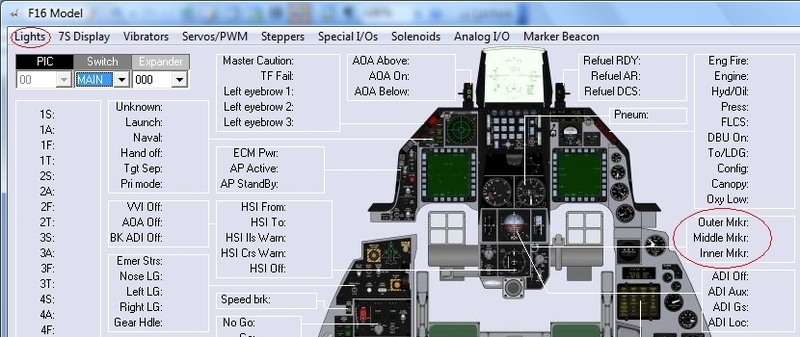
After configuring 3 led outputs in the IOLayout of the PSCockpit Software, you have to set these Ids in the F16 Model page of the PSCockpit System:


Marker Beacon in BMS

The F-16 has only one light as Marker Beacon and blinks at a different frequency according to the marker you are overflying, but only outer (OM) and inner marker (IM) are implemented in BMS.


Unfortunately the state bit of this lamp can’t be extracted from the Flight Data to be used in our cockpits.
 
 PSCockpit Marker Beacon

In case your favourite sim doesn’t have implemented the marker beacon, you can use the PSCockpit Marker Beacon.

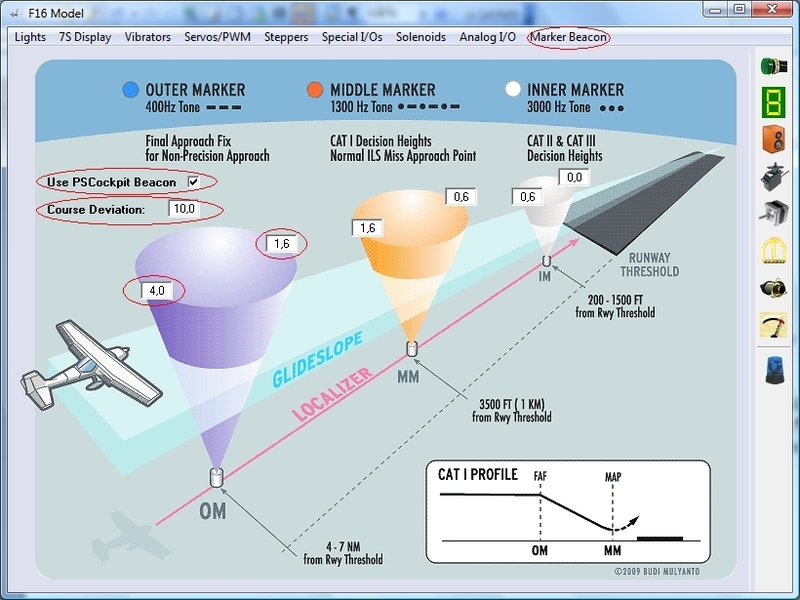
To do this, you have to enter the parameters of the marker beacon in the Marker Beacon option of the F16 Model page and select “Use PSCockpit Marker Beacon” checkbox.

You can define the range of each marker from the runaway in nautical miles and the deviation in degrees:


With the marker ranges and the course deviation, the PSCockpit Software will activate the marker beacon lights and the correspondent tone but only when the Tacan Mode is set to ILS/NAV.

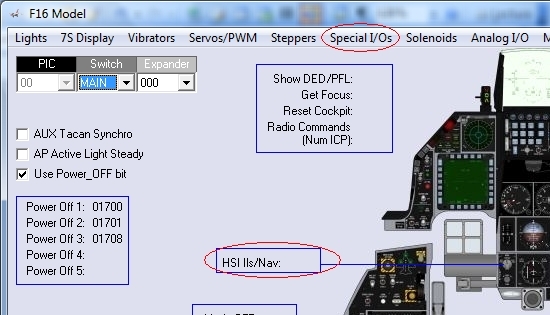
To tell the PSCockpit Software that you are in ILS/NAV Tacan Mode goto Special I/Os of the F16 Model page and select the input that will be active under the label HSI ILS/NAV:


Regards,
Shep

Thursday, April 2, 2015

How to Interface 3 Positions Switches in the PScockpit Software

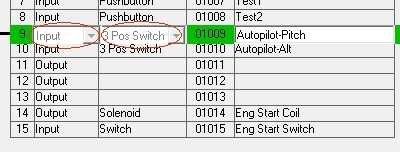
Select first the input and the 3 positions switch in the IOLayout page:


 The software will reserve 2 input for that switch.

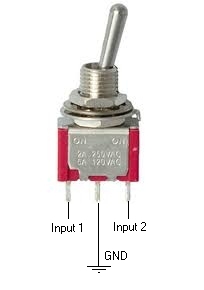
For wiring, review your switch data sheet. Usually, the center pin is the common and you have to wire it to ground. The other two pins have to be wired to the inputs:


You can test it in Test mode.

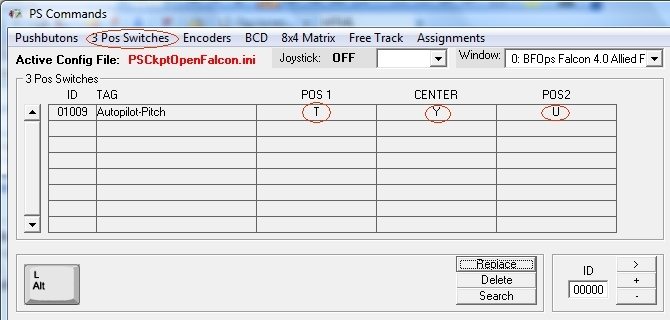
Now, go to Commands Page of the PSCockpit Software and select 3 Pos Switches. You will see the list of all 3 Pos. switches of the configuration. Select the desire one and put the key combination you want to be sent to the sim. You will see 3 options: when the position 1 is active, when the position 2 is active and when none of them are active (Center):


Saturday, February 28, 2015

UHF Board with Encoders

The encoders have arrived!!
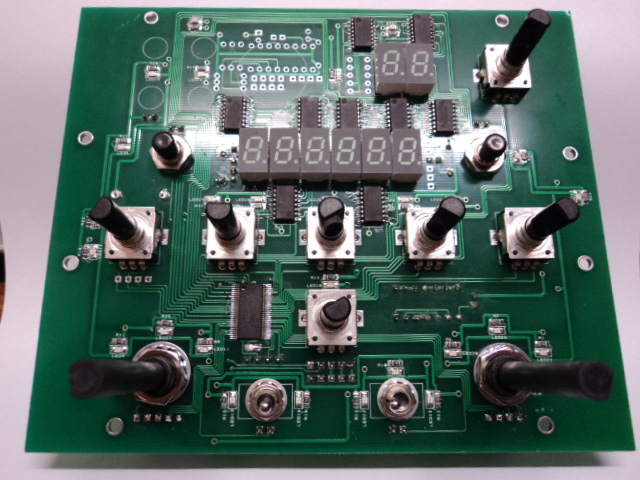
This is how the UHF complete looks like:


Regards,
Shep

Saturday, January 31, 2015

Boards of the 4th Run

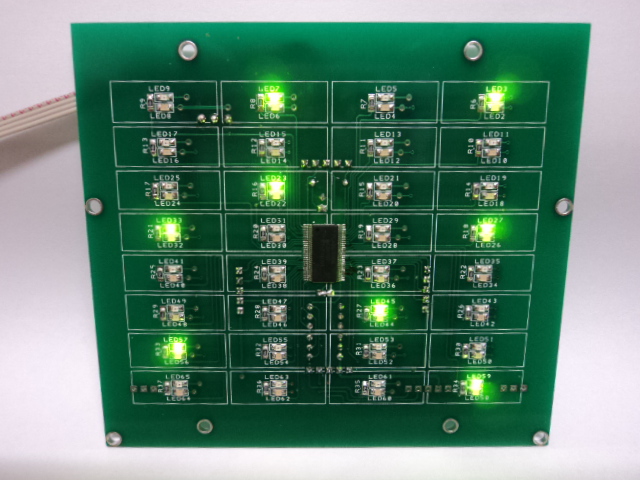
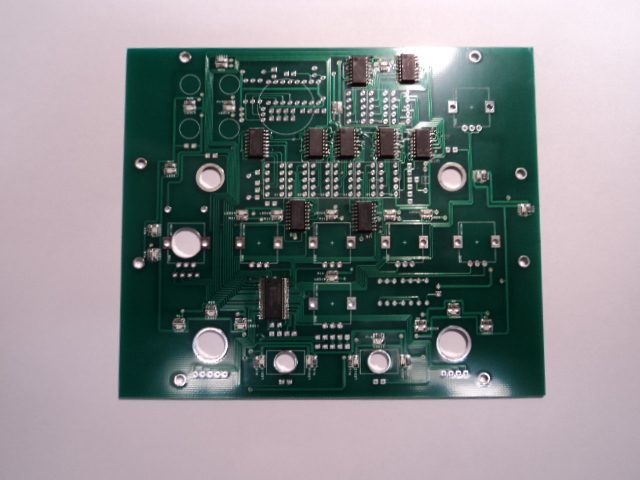
The boards of the 4th run have arrived yesterday :cheerleader:

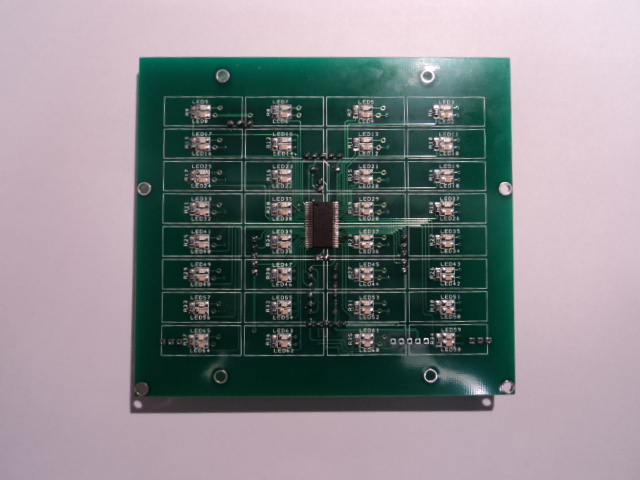
CP board:


Orange leds:


Green leds:


UHF board:


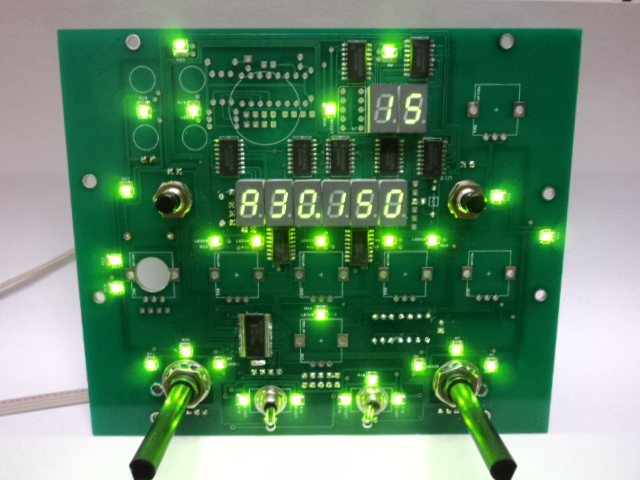
And after 3 hours of assembly… :whocares:.. this is what you will get...


Shame on me, I forgot to order the encoders… :-[

I still have to make some trials and software changes but shipments will start shortly.

Thanks for your patience!

Regards,
Shep

Sunday, January 18, 2015

Adafruit OLED video


This video shows 2 Adafruits working in the PSCockpit System:
- Speed Brake indicator
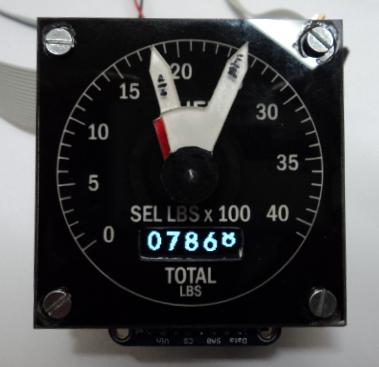
- Total fuel indicator

Also the stepper X40 in the Fuel Indicator, althoug the needles were not well attached.

The result in the Fuel Flow indicator is not as good as the Uri one (great job! and thanks for the fonts) but it will do the trick. That's the back side of a single system taking all the job!!

Regards,
Shep

Monday, January 12, 2015

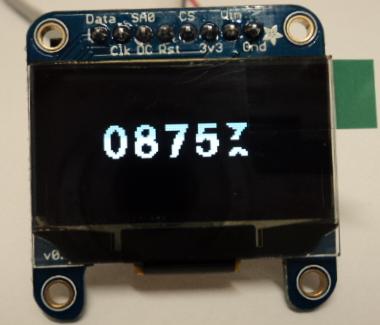
Adafruit Oled 1.3” Display With PSCockpit System

The PSCockpit System can drive up to 5 OLED displays and they can be connected directly to any of the 0 to 7 I2C channels of the system. As the Adafruit OLED has two selectable I2C addresses, only 2 displays can be connected in one of the I2C channels.

You will be able to select the following parameters in the PSCockpit Software:
- Horizontal and vertical initial positions
- Vertical distance between digits
- Total display area
- Two digits sets: 12x16 and 14x20 pixels
- Reverse display mode
- Inverse display position

To use the Oled display in different parts of our cockpits, you can select one of the following display modes:

Horizontal digits mode:
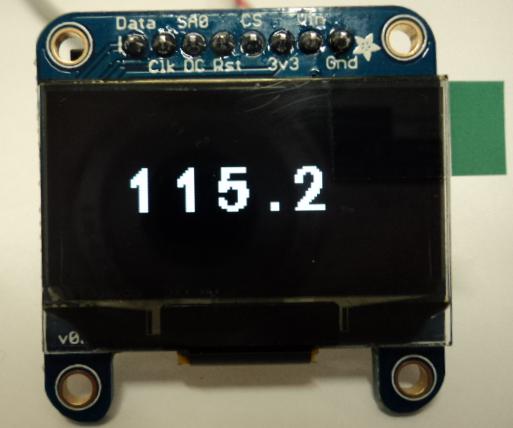
We can use this option to display digits in the display with or without vertical digit strip. The vertical strip can be of 1 or 3 digits.

* Total fuel indicator (horizontal digits + 1 digit vertical strip)


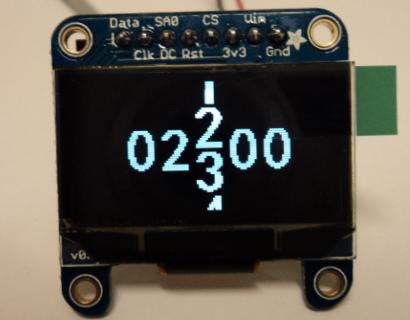
* Fuelflow indicator (horizontal digits + 3 digits vertical strip + 2 added zeros)


Digital watch mode:

To display time in 4 or 6 digits:


Tacan channel mode

To display tacan channels:


ILS Frequency mode (for A10C supporters): :whistle:

To display ILS Frequencies channels:


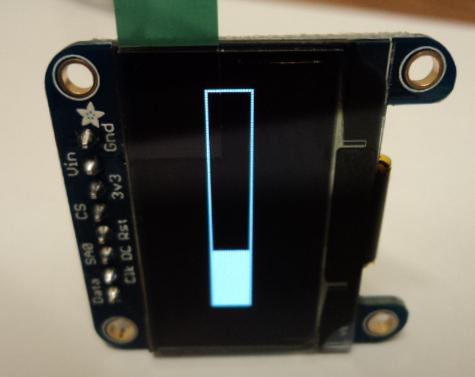
Bar level mode:

To display fill levels indicators


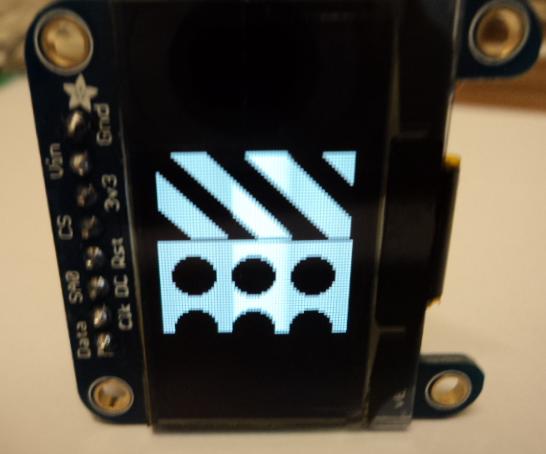
Picture mode:

This functionality can be used to load strip pictures and use them as indicators. In this mode, the reaction time will depend on the display area.

Some examples:

* Speed brake indicator:


* Vertical Speed Indicator:


* Angle of attack indicator:


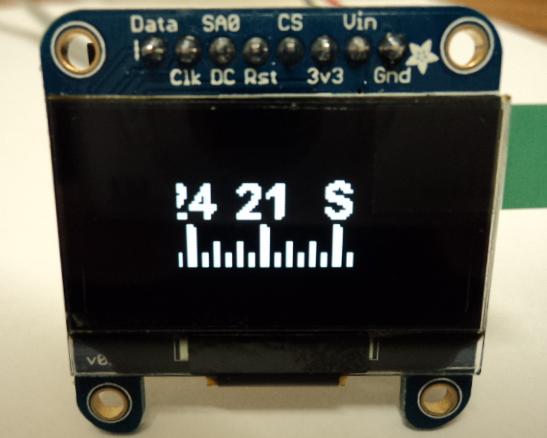
* Compass


One last installation recommendation:
Be aware that the Adafruit OLED display vertical display pitch is 7 pixels. You have to find the correct position of the display behind the instruments to display the digits correctly like in the Fuel Indicator. Otherwise, part of the numbers can be hidden and it can’t be corrected by software.

Next to come: Video of the Fuel Indicator with the X40 stepper motor and the Adafruit OLED display


Regards,
Shep

Saturday, November 22, 2014

Stepper Board for X27 stepper motor

I’ve been working on the X27 168 stepper controllers to find that there is no need to make a board for these steppers.

They can be connected directly to an I/O board with the following two limitations:
- It won’t be valid for high speed gauges (i.e Altimeter). This is because the motor has a 1:180 gear ratio and needs 6 steps for one motor turn. That gives us 1080 steps for a 360º dial.
- It will only valid for gauges with equally distributed scale.

Good thing is that we can use them for Cabin Press, EPU Fuel and Hyd Press gauges and even Clock and Fuel Gauge using the X40.879 which comes with a double coaxial independent shafts.

Regards,
Shep

UHF Pcb for the PSCockpit System


The new UHF board has been designed with (1) 40 I/O chip that can be connected to the digital I/O I2C channel of the PSCockpit system. It comes with corresponding elements (resistors, connectors …) to work with 5V and one selectable mini-switch to select the desire I2C address.

Also included are the following components:
- (2) Mini pushbuttons.
- (2) Rotary switches
- (7) Incremental encoders for digit selection, channel selection and volume.
- (9) 7 segment displays for frequency (6) and channel (3)
- (2) Mini toggle switches 3 positions
- SMD leds for lettering backlight.

You will find the following elements in the backside:
- (1) Connector for backlight illumination.
- (2) Connector for digital I/O I2C channel,
- (1) Miniswitch to select digital I2C channel address
- (1) Connector for free digital I/O of the 40 I/O board. You can use them to connect other switches.

To complete the UHF you will have to add by yourself the front UHF panel.

You can check the following dimensions of the UHF panel at
http://www.mediafire.com/view/u1924z4u3fj65el/UHFPanelFinal.PDF


Regards,
Shep

Tuesday, November 4, 2014

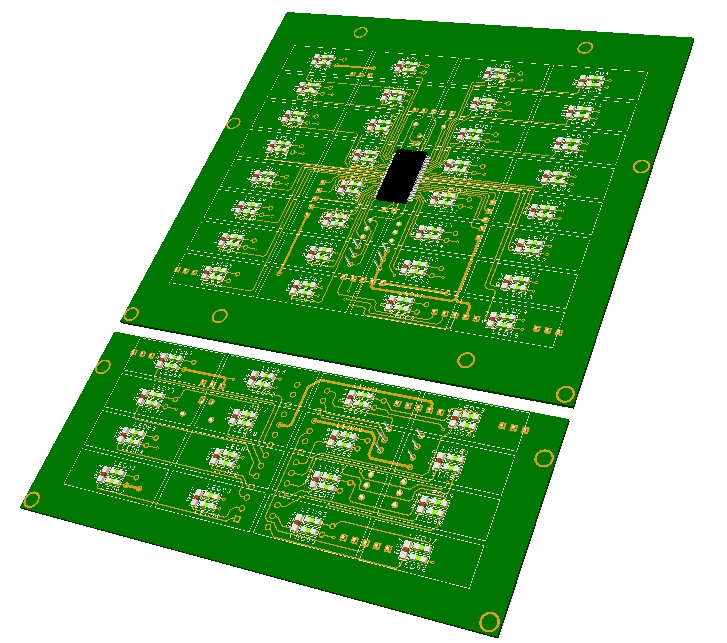
PSCockpit Caution Panel PCB and Caution Panel Extension PCB


The PSCockpit Caution Panel PCB is ready to be connected to the PSCockpit system as an extension board in any of the I2C channels. It comes with its own 40 I/O chip and the selectable I2C address switch.

The Caution Panel Extension has been designed to extend the Caution Panel to be used in the A10 cockpit. It is connected to the Caution Panel and no more cables are required. It comes with its own 16 I/O chip and the selectable I2C address switch.

Just remember that you can only connect 8 extension boards per I2C channel.

Main Features:
- SMD leds in two colours -green and yellow- selectable by a rear switch.
- 8 free I/O in the Caution Panel.
- All connections in the back side.

Dimensions:
- Caution Panel pcb: 115,5 x 104 mm
- Caution Panel Extension pcb: 115,5 x 47 mm

Regards,
Shep

Monday, May 12, 2014

HOW to Use AIRCORES in PSCockpit System

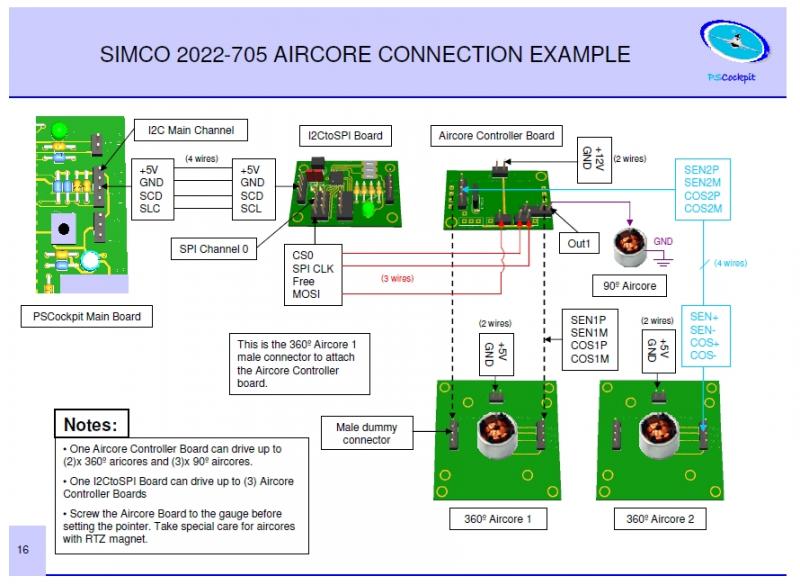
Implementing Aircores in PSCockpit System is not an easy task (at least at the beginning) as you have to deal with three different boards and some other configuration options. This guide will help you to find your way easily to reach your goal.

Basically, the system consists of 3 different boards:

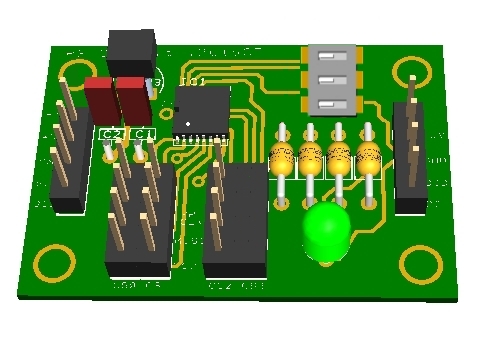
- I2CtoSPI pcb: This board is used to convert the I2C signal to SPI format. It must be connected to the I2C Main Channel of the PSCockpit Main Board to the Aircore Controller board:


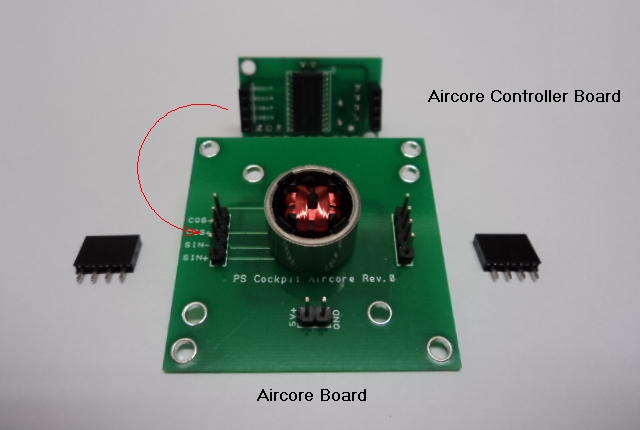
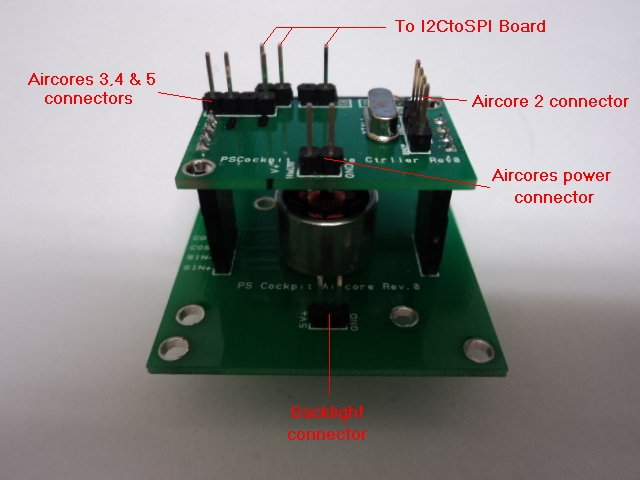
- Aircore Controller pcb: This board receives the SPI signal and drives (2) x 360º aircores plus (3) x 90º aircores. It must be connected to the I2CtoSPI board and to the Aircore pcb:


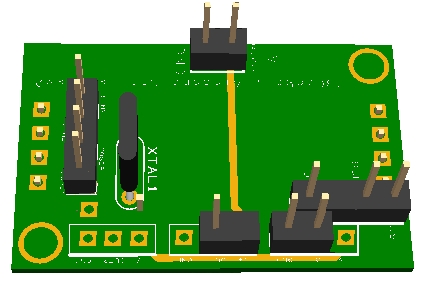
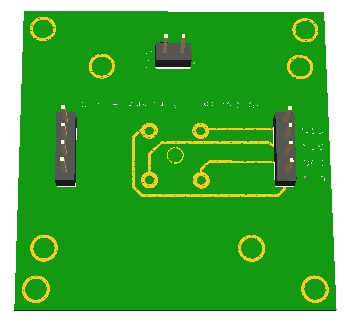
- Aircore pcb: This board supports the aircore and can be attached to your gauge. It must be connected to the Aircore Controller pcb:


The detail description of each board and the general overview of the system can be found in the PSCockpit System Quick Guide v2, which can be downloaded at http://www.mediafire.com/view/o7k6hvkt0y671iq/QuickGuideV2.pdf


Step 1: Placing your aircore in the Aircore pcb

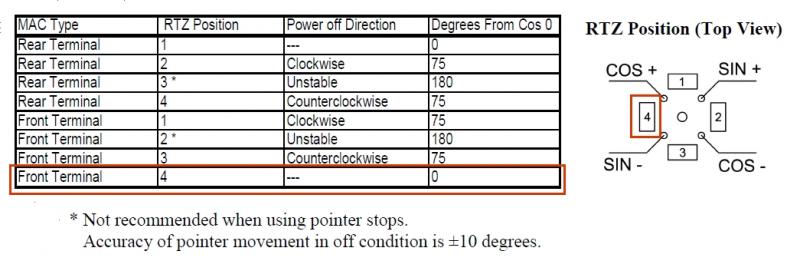
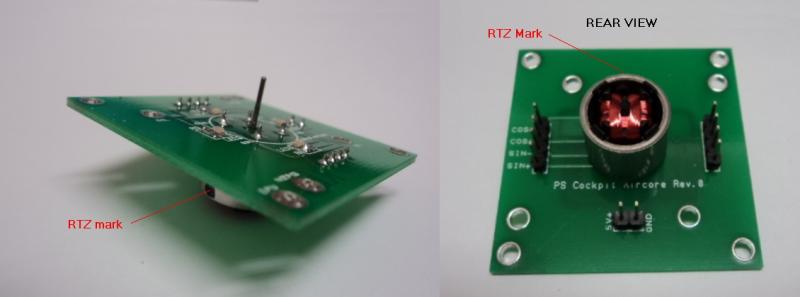
The supplied Simco 2022-705 aircores have terminals on the front and have a Return to Zero magnets (RTZ option). This option allows the aircore to return to zero position when power is deactivated. You must, then, find the correct position of the aircore motor in the aricore pcb in order to match the 0 physical position to the 0 electrical position, otherwise, once configured, the needle will point to other value of your gauge when power is off.

So, according to the Simco manual, the RTZ has to be located between cos+ and sen – terminals:


You will find a black mark on your aircore where the RTZ magnet is located:
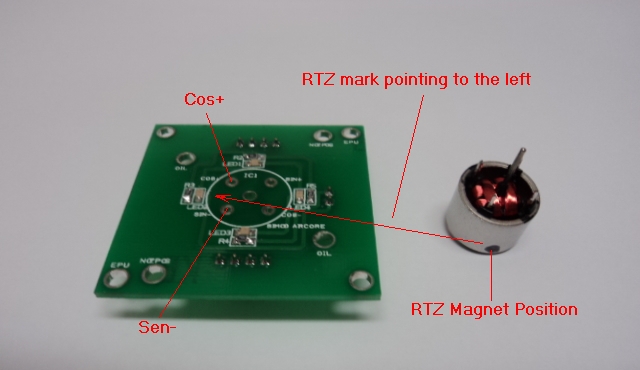


And the final assembly:


Step 2: Attaching the Aircore Controller Board to the Aircore Board:

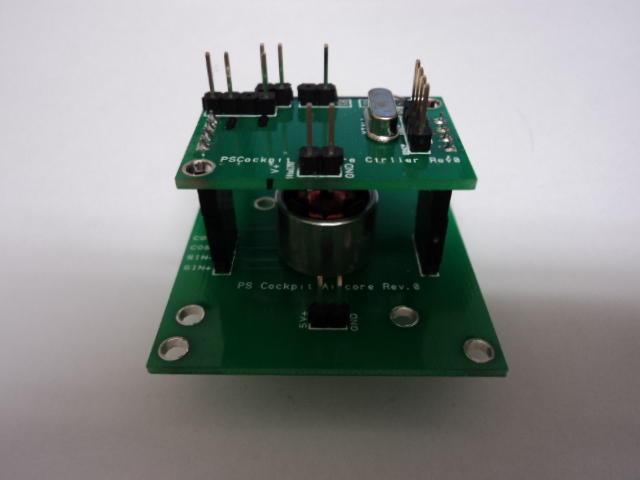
As the aircore body height is larger than the connectors, you will need two additional connectors which will act like spacers. Look for the correct position of the Aircore Controller board:


Aircore Controller Board attached to the Aircore board:


Step 3: Attaching the Aircore to your gauge

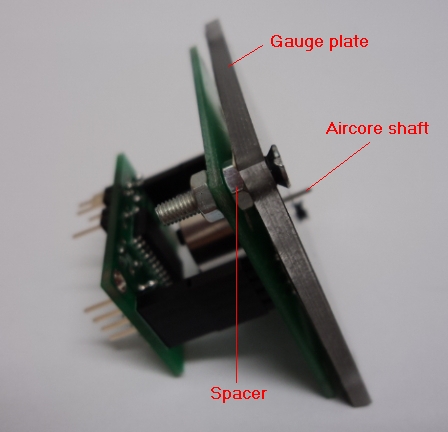
Use the holes of the Aircore board to fit it to your gauge plate. You will need some spacers to adjust the height of the aircore shaft:


You can also cut the board carefully if it exceeds your gauge plate.

Now you can insert the pointing needle in to the aircore shaft pointing to the minimum value of your gauge scale:


Step 4: Connecting the Aircore Controller Board

Refer to the PSCockpit Guide v2 for details connections. Basically:


You can supply power to the Aircores power connector from 5V to 12V. With higher voltage the aircore will move faster and it will have more par but I found that 5V is more than enough for a weightless needle.

Step 5: Testing the aircore

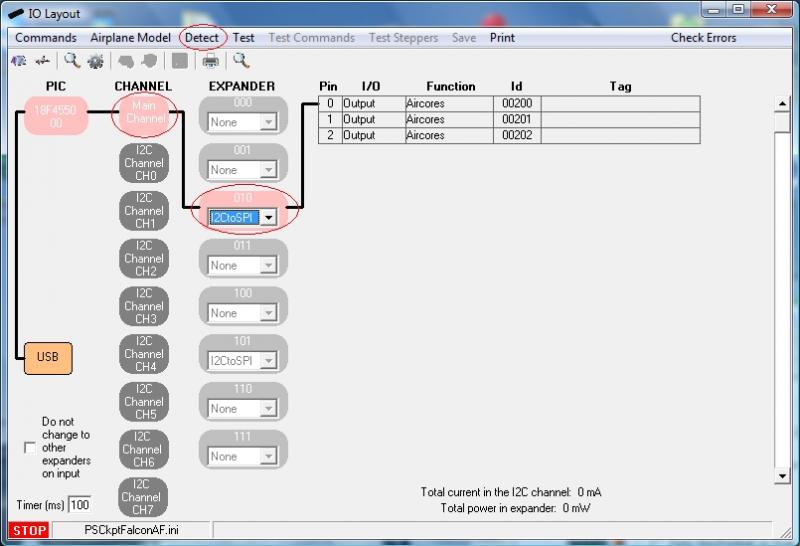
Go to IOLayout page of the PSCockpit Software and select I2CtoSPI in the Expander address according the one selected in your board:


As the I2CtoSPI board can drive 3 Aircore Controller boards, you will see these 3 channels with different Ids. First Id (00200 in the picture) is the CS0 channel of your Aircore Controller board, second Id is the CS1 channel and third Id is the CS2 channel. CS3 channel of the I2CtoSPI board is not used and must remain unconnected.

Click on “Detect” and you will see the Expander in pink if the expander has been detected.

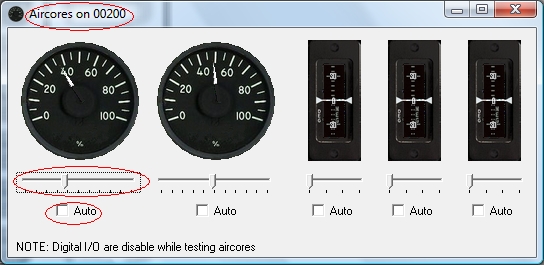
Click on “Test” and a “+” button will appear besides each of the Id channels. When you click on “+” button another screen will be opened showing the (2) x 360º and the (3) x 90º aircores connected to that channel. You can move any of the sliders and the aircore will move accordingly. You can also check the “Auto” check box to see the aircore moving continuously:


You can now power off your system and you will see the gauge needle returning to zero position.

Step 6: Configuring the Servos/PWM/Aircores

Since PSCockpit Software V 0.9.4 you can access directly to the Servos/PWM/Aircores configuration page. In this page you can configure the maximum/minimum scale of your gauge and the intermediate scales if your gauge has any.

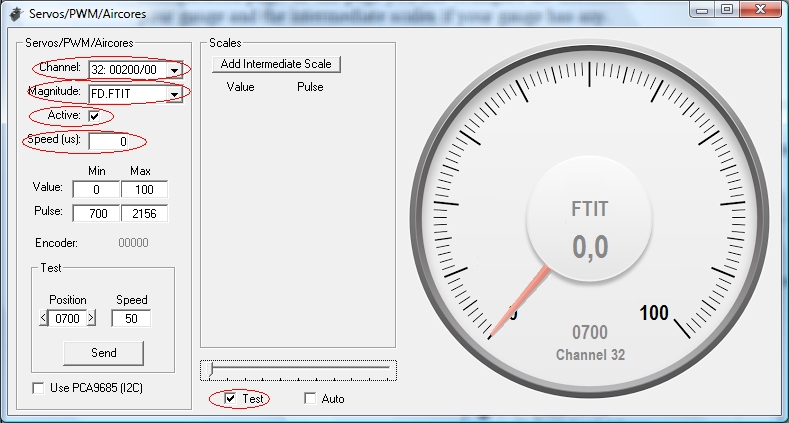
To configure a desired aircore select the following parameters:

1. Select the aircore from the “Channel” display list. For each Id (SPI channel) you will see aircores from 0 to 4.
2. Select the sim value you want to be displayed on your gauge in the “Magnitude” display list.
3. Check the “Active” checkbox to enable the gauge.
4. Select the desire “Speed” of your gauge. Using the SSC-32 board for servos, this value will determine the microseconds will take the servo to go from one position to another. For the rest of the systems, aircores and servos with the Adafruit board, it is used to limit the minimum change of the variable to be sent to the gauge.


If you check the “Test” checkbox you can use the slider to move the selected gauge.

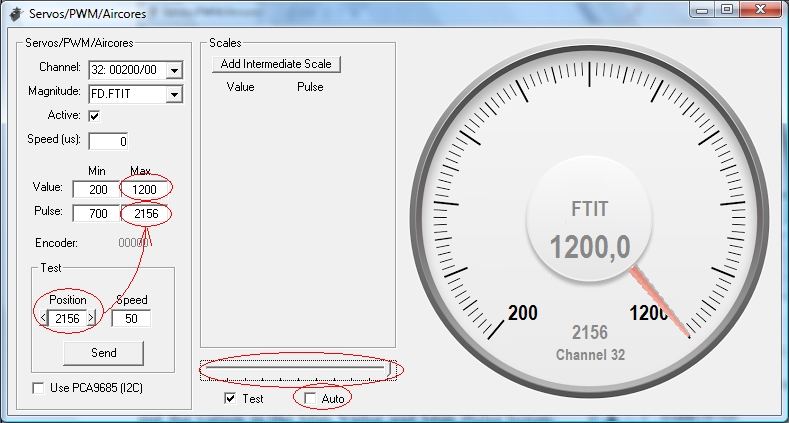
The first thing to do now is to find the lower and upper positions of your gauge and look what the pulses are the ones that match those positions. Move the slider (with the “Test” checkbox marked) to move your gauge needle until the lower value of your gauge is reached. The slider can be moved precisely with the left and right arrows of your keyboard once the slider is selected with your mouse. You will note that the “Position” value of the “Test” frame will change its value. When the gauge needle is in its lower position, this value has to be put in the Min Pulse box. Also put the minimum value of the gauge in the Min Value box:


To find the upper position of the gauge repeat this procedure by moving the slider and put the values in the Max Value and Max Pulse boxes:


You can test your gauge by checking the “Auto” checkbox. You will see the gauge needle moving from the lower to upper positions without exceeding any of them. The “Speed” value of the Test frame is the amount added to the position, so you can reduce to a minimum of 10 to see your gauge moving smoothly.

Step 7: Adding intermediate scales to your gauge

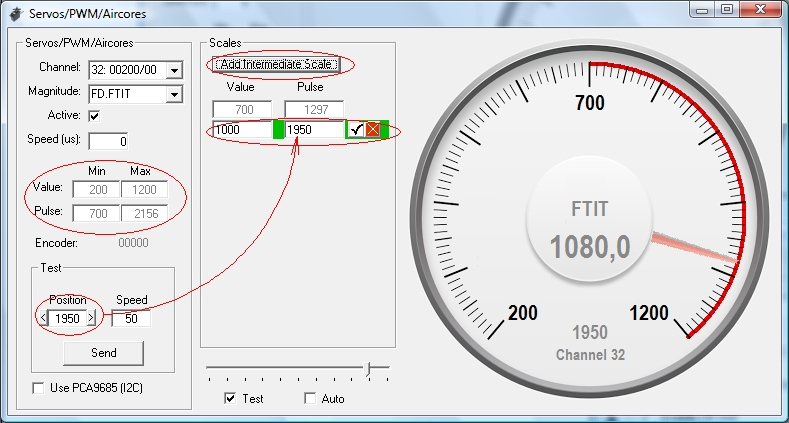
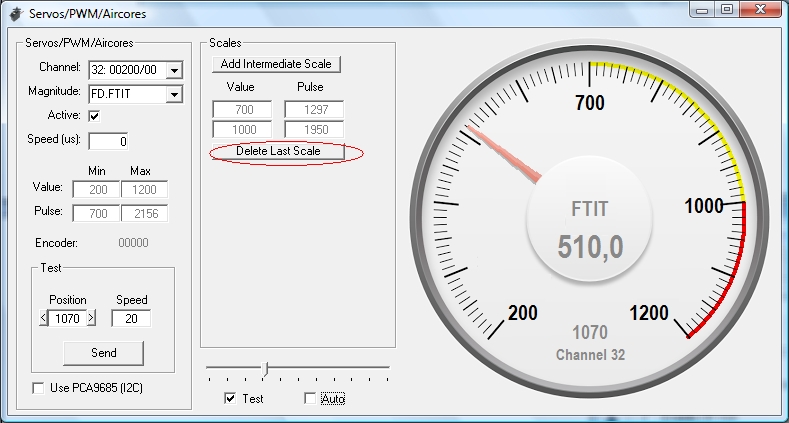
If your gauge has different scales, you can add them easily by clicking on the “Add Intermediate Scale” button. Two text boxes will appear where you have to put the value and the pulse that correspond to that intermediate scale. Repeat the above procedure by moving the slider until the gauge needle is pointing to the intermediate scale value.


When any intermediate scale is added the minimum and maximum gauge values and pulses are disabled and can not be changed. To change these values you will have to remove the intermediate scales.


If you test your gauge now by selecting the “Auto” checkbox, you will see the gauge needle moving around the scales with different speeds.

Your aircore is now configured and you can use it with your favourite sim in Run mode of the PSCockpit Software.

One last consideration:

If you see your gauges moving a little jerky you can adjust them by setting the speed to 0 and resetting the timers on the “USB timers” page of the PSCockpit Software: try 10 ms for the “Sim data” timer and 0 for the “Between cycles” timer. Be aware that this will influence some other elements like encoders and/or 8x4 matrixes, so you will have to find the correct compromised values.

Regards,
Shep

Saturday, May 10, 2014

New version of the PSCockpit System firmware

To resolve a bug with the potentiometers full range connected to the Main Board, I have issued a new firmware version 1.5.2
You can download at:
http://www.mediafire.com/download/mbbalaimytpamsm/PSFirmUpdtv152.rar

Regards,
Shep

Sunday, March 23, 2014

Friday, February 21, 2014

PSCockpit Software (v 0.9.6) and Firmware (v 1.5.1) update

Hi everybody,

I have updated the PSCockpit software to v.0.9.6 to solve the problem with the Adafruit board.
Sorry, one of my fingers deleted by mistake one line of the code in the last version. :-[
Don't worry, I have cut that finger out of my hand.... :bat:
Thanks to Dragun for his help on resolving the issue :beer:

You can download the PSCockpit Sofware v.0.9.6 (WIP) at:
http://www.mediafire.com/download/ff2fbfzvclumcph/PSCockpitV096.rar

Just unrar and move the PSCockpit.exe file to your PSCockpit folder.

Also you can find the last version of the firmware (v 1.5.1) at:
http://www.mediafire.com/download/dc553f6xymedrde/PSFirmUpdtv151.rar

PSCockpit System Firmware v.1.5.1 Changelog:
- Added I2CtoSPI board controller
- Added Aircores board controller
- Added OLED display configuration
- Corrected a reverse video OLED display bug

Regards,
Shep