TWP:
TWA:
Saturday, December 30, 2017
Tuesday, November 21, 2017
ELEC board
The ELEC board has been designed to fit the ELEC panel of the F16.

The board comes with the following elements:
- (1) 16 I/O chip to be connected to the digital I/O I2C channel of the PSCockpit system and its elements (resistors, connectors, …) to work with 5V.
- (1) 3-positions switch with locking lever.
- (1) pushbutton.
- (9) SMD leds for indicators.
- (8 ) SMD leds for lettering backlight.
- (4) free I/O’s.
You will find the following elements in the backside:
- (1) Connector for backlight illumination.
- (1) Connectors for digital I/O I2C channel.
- (1) Mini-switch to select digital I2C channel address
- (1) Connector for 4 free digital I/O’s of the 16 I/O chip.
The board can be easily cut to use it with your own indicators using the existing inner connector for this purpose. If the indicators use another voltage than 5VDC you can attach the IO Enhancement pcb to light them.
To complete the ELEC panel, you must add by yourself the front panel, indicator caps and some separator to avoid the light going to other indicators.
Please check the dimensions of the ELEC front panel at:
http://www.mediafire.com/file/hqc9p4df4c27hf8/ELEC-A3.pdf
Regards,
Shep

The board comes with the following elements:
- (1) 16 I/O chip to be connected to the digital I/O I2C channel of the PSCockpit system and its elements (resistors, connectors, …) to work with 5V.
- (1) 3-positions switch with locking lever.
- (1) pushbutton.
- (9) SMD leds for indicators.
- (8 ) SMD leds for lettering backlight.
- (4) free I/O’s.
You will find the following elements in the backside:
- (1) Connector for backlight illumination.
- (1) Connectors for digital I/O I2C channel.
- (1) Mini-switch to select digital I2C channel address
- (1) Connector for 4 free digital I/O’s of the 16 I/O chip.
The board can be easily cut to use it with your own indicators using the existing inner connector for this purpose. If the indicators use another voltage than 5VDC you can attach the IO Enhancement pcb to light them.
To complete the ELEC panel, you must add by yourself the front panel, indicator caps and some separator to avoid the light going to other indicators.
Please check the dimensions of the ELEC front panel at:
http://www.mediafire.com/file/hqc9p4df4c27hf8/ELEC-A3.pdf
Regards,
Shep
Sunday, November 19, 2017
AUDIO1 and AUDIO2 board
The AUDIO board has been designed to fit the AUDIO1 and AUDIO2 panels of the F16 in only one board. The spacing between AUDIO1 part and AUDIO2 part is 2 mm. If you have other spacing than 2 mm between your AUDIO1 and AUDIO2 panels, the board can be cut in two and the signals between them must be wired using the existing connectors for this purpose.

The board comes with the following elements:
- (1) 16 I/O chip to be connected to the digital I/O I2C channel of the PSCockpit system and its elements (resistors, connectors, …) to work with 5V
- (1) analogue chip to be connected to the Main Channel of the PSCockpit system and its elements (resistors, connectors, …) to work with 5V
- (4) potentiometers with ON/OFF switch
- (4) potentiometers
- (1) encoder
- (2) rotary switches
- (1) 3 position 12mm switch
- (27) SMD leds for lettering backlight.
The board has no free I/O’s.
You will find the following elements in the backside:
- (1) Connector for backlight illumination.
- (1) Connectors for digital I/O I2C channel.
- (1) Connectors for analogue Main Channel.
- (2) Mini-switch to select digital and analogue I2C channel addresses
To complete the AUDIO panel, you must add by yourself the front panel and knobs.
Be aware that this AUDIO panel does not fit perfectly the HISPAPANEL Audio1 and Audio2 panels. Some of the holes must be reworked although there is room in the board to do it without damaging any track.
Please check the dimensions of the AUDIO1 and AUDIO2 front panels at:
http://www.mediafire.com/file/sbzj6q4bb8j14x9/AUDIO1and2Panel-A3.pdf
Regards,
Shep

The board comes with the following elements:
- (1) 16 I/O chip to be connected to the digital I/O I2C channel of the PSCockpit system and its elements (resistors, connectors, …) to work with 5V
- (1) analogue chip to be connected to the Main Channel of the PSCockpit system and its elements (resistors, connectors, …) to work with 5V
- (4) potentiometers with ON/OFF switch
- (4) potentiometers
- (1) encoder
- (2) rotary switches
- (1) 3 position 12mm switch
- (27) SMD leds for lettering backlight.
The board has no free I/O’s.
You will find the following elements in the backside:
- (1) Connector for backlight illumination.
- (1) Connectors for digital I/O I2C channel.
- (1) Connectors for analogue Main Channel.
- (2) Mini-switch to select digital and analogue I2C channel addresses
To complete the AUDIO panel, you must add by yourself the front panel and knobs.
Be aware that this AUDIO panel does not fit perfectly the HISPAPANEL Audio1 and Audio2 panels. Some of the holes must be reworked although there is room in the board to do it without damaging any track.
Please check the dimensions of the AUDIO1 and AUDIO2 front panels at:
http://www.mediafire.com/file/sbzj6q4bb8j14x9/AUDIO1and2Panel-A3.pdf
Regards,
Shep
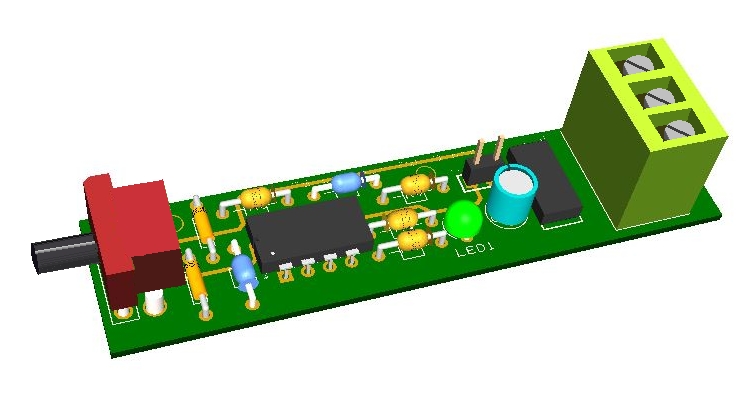
Backlighting Leds PWM board
The PWM board has been designed to dim backlights leds of the PSCockpit panels and can be used for instrument backlights as well. The board is only 74x18mm and comes with a potentiometer with a switch to turn on/off and dim backlight leds. You can easily mount the board with the potentiometer nut to your Lighting panel and connect the wires at the bottom of the board.

The nominal current for this board is 4Amps and it works in a range of voltage of 5VDC to 12VDC. The current of 4Amps allows to manage up to 200 led sets of 20mA.
Be aware that pulse width modulation can cause interference with other electronic devices. To avoid this undesired situation, use shielded cables and run the cable separately from other signal wires.
The PWM is a standalone board and it has no connection to PSCockpit software.
Regards,
Shep

The nominal current for this board is 4Amps and it works in a range of voltage of 5VDC to 12VDC. The current of 4Amps allows to manage up to 200 led sets of 20mA.
Be aware that pulse width modulation can cause interference with other electronic devices. To avoid this undesired situation, use shielded cables and run the cable separately from other signal wires.
The PWM is a standalone board and it has no connection to PSCockpit software.
Regards,
Shep
Tuesday, November 14, 2017
PSCockpit System 7th Run!!!
Time to launch a new run of the PSCockpit System!!
New boards for this run:
- PWM board for backlights
- ELEC board
- AUDIO1 and AUDIO2 board
More info about above boards to follow.
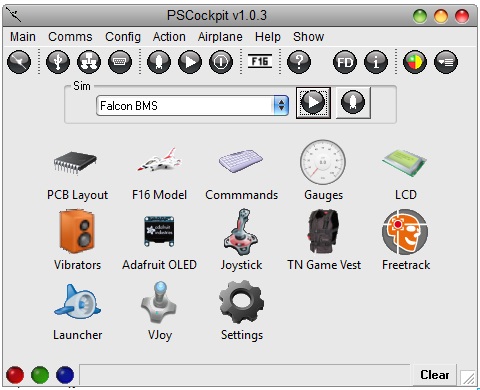
Version 1.0.3 of the PSCockpit software with vJoy implementation for analogue and DX buttons:
System Description
- One stop hardware and software for cockpit systems. Once the cockpit is connected you can configure the software individually for each sim.
- Easy configuration and setup for people without electronic knowledge.
- Avoid excessive wiring runs along the cockpit.
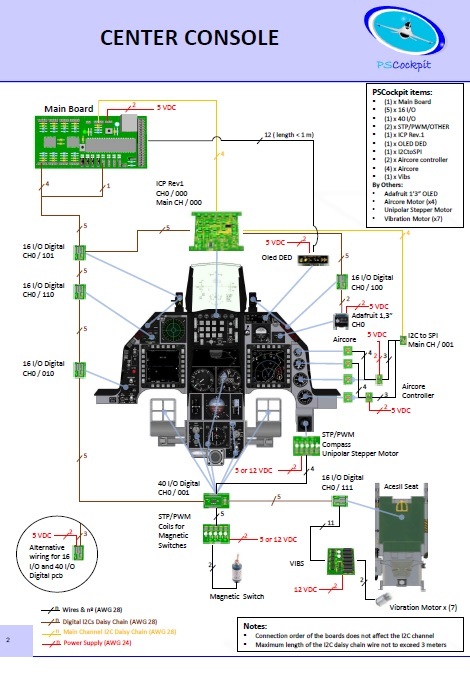
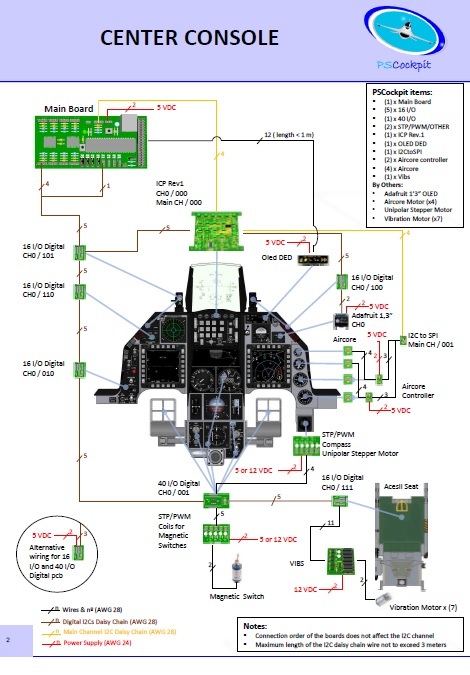
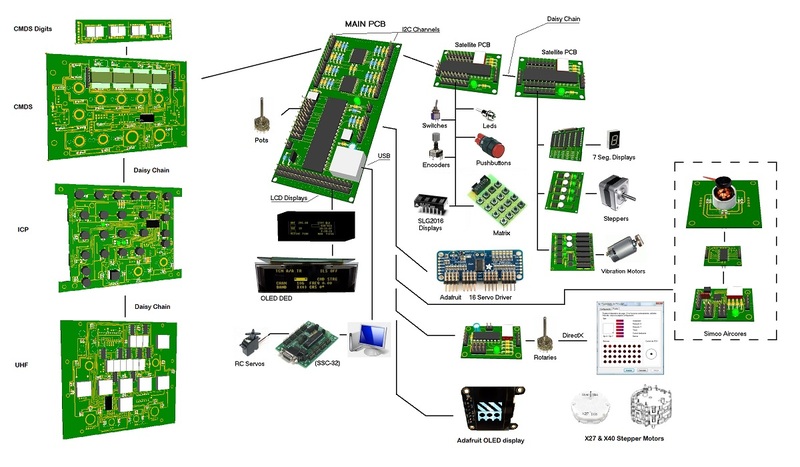
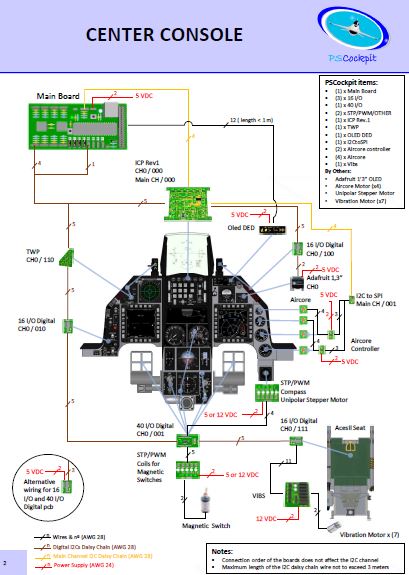
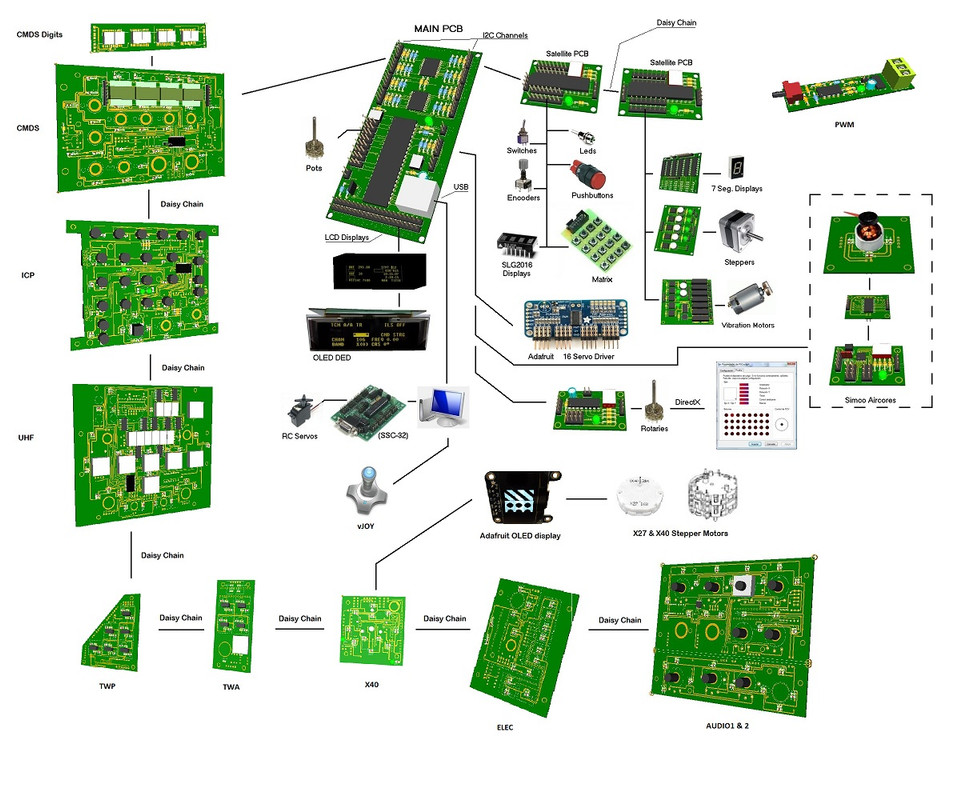
The system uses small satellite PCB’s that can be distributed along the cockpit. The communication between these satellite PCB’s and the Main PCB is done with only 2 wires (I2C protocol) plus the power cables. These wires can be connected in daisy chain. The idea is to wire each of the cockpit panels to only one satellite PCB. See F16 distribution example:
You can download at: http://psfalcon.blogspot.com.es/2016/12/ps-cockpit-system-f16-distribution-file.html
Supported devices
- Digital inputs: Pushbuttons, 2 position switches, 3 position switches, digital encoders, BCD encoding (8 to 3, 16 to 4, 32 to 5) and 8x4 matrixes
- Digital outputs and leds
- Analogue inputs and outputs
- Vibration motors
- Aircores motors
- Stepper motors: Unipolar, X27 and X40
- RC Servomotors
- Segment Displays: 7 segments and SLG2016
- LCD displays: SSD1322 Graphic display 264x64, KS0108 Graphic display 128 x 64, KS0108B Text display 20x4, SSD1306 Adafruit 128x64 (ID938 and ID931)
More information, downloads and guides at http://psfalcon.blogspot.com.es/2015/05/pscockpit-system-up-to-date-software.html
Prices
The prices of the PCB’s already mounted and tested are the following:
- Main PCB: 60 €
- Digital expander for 40 inputs/outputs: 33 €
- Digital expander 16 inputs/outputs: 10 €
- Steppers/Other voltage outputs pcb: 28 €
- 7 segment displays pcb for 6 displays: 18 €
- Analogue pcb for 4 inputs/ 1 output: 20 €
- Yellow OLED display (85mm x 40mm), 256x64 for DED or PFL: 55 €
- I2CtoSPI pcb: 25€
- Aircore Controller pcb: 24€
- Aircore pcb: 15€
- Vibration motors pcb: 38€
- I/O Enhancement pcb: 6,5€
- Caution Panel board: 40€
- UHF board: 90€
- ICP pcb Rev 1: 90€
- CMDS board (with 2 rotary switches 30º & 45º, no toggles, no displays): 80€
- CMDS options:
- Miniature toggles 6 mm diam. (1 with locking lever): 40€
- SGL2016 displays: 35€ (each)
- HDLG-1414 displays: 20€ (each)
- 7 segment displays pcb with 8 displays: 35€
- TWP board: 40€
- TWA board: 20€
- X40 stepper board: 20€
NEW BOARDS:
- PWM board: 20€
- ELEC board: 50€
- AUDIO1 & AUDIO2 board: 100€
- Shipment: 15€ / 25€ depending on the total weight order
Time Line:
- Orders will be accepted until Dec. 17th.
- Only direct bank transfers for payments. Sorry for the inconvenience.
- Delivery: Starting February 2017
Regards,
Shep
New boards for this run:
- PWM board for backlights
- ELEC board
- AUDIO1 and AUDIO2 board
More info about above boards to follow.
Version 1.0.3 of the PSCockpit software with vJoy implementation for analogue and DX buttons:

System Description
- One stop hardware and software for cockpit systems. Once the cockpit is connected you can configure the software individually for each sim.
- Easy configuration and setup for people without electronic knowledge.
- Avoid excessive wiring runs along the cockpit.
The system uses small satellite PCB’s that can be distributed along the cockpit. The communication between these satellite PCB’s and the Main PCB is done with only 2 wires (I2C protocol) plus the power cables. These wires can be connected in daisy chain. The idea is to wire each of the cockpit panels to only one satellite PCB. See F16 distribution example:
You can download at: http://psfalcon.blogspot.com.es/2016/12/ps-cockpit-system-f16-distribution-file.html
Supported devices
- Digital inputs: Pushbuttons, 2 position switches, 3 position switches, digital encoders, BCD encoding (8 to 3, 16 to 4, 32 to 5) and 8x4 matrixes
- Digital outputs and leds
- Analogue inputs and outputs
- Vibration motors
- Aircores motors
- Stepper motors: Unipolar, X27 and X40
- RC Servomotors
- Segment Displays: 7 segments and SLG2016
- LCD displays: SSD1322 Graphic display 264x64, KS0108 Graphic display 128 x 64, KS0108B Text display 20x4, SSD1306 Adafruit 128x64 (ID938 and ID931)

More information, downloads and guides at http://psfalcon.blogspot.com.es/2015/05/pscockpit-system-up-to-date-software.html
Prices
The prices of the PCB’s already mounted and tested are the following:
- Main PCB: 60 €
- Digital expander for 40 inputs/outputs: 33 €
- Digital expander 16 inputs/outputs: 10 €
- Steppers/Other voltage outputs pcb: 28 €
- 7 segment displays pcb for 6 displays: 18 €
- Analogue pcb for 4 inputs/ 1 output: 20 €
- Yellow OLED display (85mm x 40mm), 256x64 for DED or PFL: 55 €
- I2CtoSPI pcb: 25€
- Aircore Controller pcb: 24€
- Aircore pcb: 15€
- Vibration motors pcb: 38€
- I/O Enhancement pcb: 6,5€
- Caution Panel board: 40€
- UHF board: 90€
- ICP pcb Rev 1: 90€
- CMDS board (with 2 rotary switches 30º & 45º, no toggles, no displays): 80€
- CMDS options:
- Miniature toggles 6 mm diam. (1 with locking lever): 40€
- SGL2016 displays: 35€ (each)
- HDLG-1414 displays: 20€ (each)
- 7 segment displays pcb with 8 displays: 35€
- TWP board: 40€
- TWA board: 20€
- X40 stepper board: 20€
NEW BOARDS:
- PWM board: 20€
- ELEC board: 50€
- AUDIO1 & AUDIO2 board: 100€
- Shipment: 15€ / 25€ depending on the total weight order
Time Line:
- Orders will be accepted until Dec. 17th.
- Only direct bank transfers for payments. Sorry for the inconvenience.
- Delivery: Starting February 2017
Regards,
Shep
Saturday, March 18, 2017
X40 Board for Clock or Total Fuel Indicator
As Clock:
Using an encoder for winding and time adjust and a pushbutton for stopwatch mode.
Both running with PSCockpit software:
For Total Fuel Indicator, take out the encoder and pushbutton from the configuration and use them for other desired purposes by connecting the free pins.
Regards,
Shep
Using an encoder for winding and time adjust and a pushbutton for stopwatch mode.
Both running with PSCockpit software:
Of course, you can use this board for X27 Stepper motor with front contacts.
Configuration in PSCockpit Software:For Total Fuel Indicator, take out the encoder and pushbutton from the configuration and use them for other desired purposes by connecting the free pins.
Regards,
Shep
Saturday, March 11, 2017
New Versions of PSUdp and PSGauges for Android 4.0
This application extracts the flight data from Open Falcon, Falcon AF, Falcon BMS and DCS simulators acting like a server and send this data to an android mobile device running the client application PSGauges V3 trough the TCP/UDP net protocol.
PS UDP Falcon supports 10 clients connected at the same time so you can use five different android devices. Five of them are used for flight data. The other five are used to export views: one for the left MFD, one for the right MFD, one for the HUD, one for RWR and one for HMS.
You can customize your Export Views for different sims
PSGaugesV3 client application needs Android 4.0
PSUdp V.1.0
- Added windows export to the same computer running the application.
- LuaExportDCS updated to DCS 1.5.5
- BMS Falcon Shared Memory updated to BMS 4.33 U3
- Keybindings can be accessed now from the UI
- Compatibility with old versions of PSGauges
- Added JPG compress for each device
- Number of Android devices increased to five
- Added RWR and HMS export views
- Added configuration for other sims.
PSGAUGES V.3
- Added HMS and RWR clients
- Added new pictures of gauges
- Added "No title bar" option
- Added flood lights
- Altimeter corrected
You can download the installation file here: PSUdpV10
Installation notes:
- Unrar the file
- Install PS UDP in your computer with PSUdpSetUp.exe
- Install PSGaugesV3.apk in all your favorite android devices
- Read HelpV10.txt!!
- Enjoy
Regards,
Shep
PS UDP Falcon supports 10 clients connected at the same time so you can use five different android devices. Five of them are used for flight data. The other five are used to export views: one for the left MFD, one for the right MFD, one for the HUD, one for RWR and one for HMS.
You can customize your Export Views for different sims
PSGaugesV3 client application needs Android 4.0
Change log:
- Added windows export to the same computer running the application.
- LuaExportDCS updated to DCS 1.5.5
- BMS Falcon Shared Memory updated to BMS 4.33 U3
- Keybindings can be accessed now from the UI
- Compatibility with old versions of PSGauges
- Added JPG compress for each device
- Number of Android devices increased to five
- Added RWR and HMS export views
- Added configuration for other sims.
PSGAUGES V.3
- Added HMS and RWR clients
- Added new pictures of gauges
- Added "No title bar" option
- Added flood lights
- Altimeter corrected
You can download the installation file here: PSUdpV10
Installation notes:
- Unrar the file
- Install PS UDP in your computer with PSUdpSetUp.exe
- Install PSGaugesV3.apk in all your favorite android devices
- Read HelpV10.txt!!
- Enjoy
Regards,
Shep
Sunday, December 18, 2016
PS Cockpit Software V.1.0.2 Update
The new version V.1.0.2 auto installable version of the PS Cockpit Software is available for download!!
CHANGELOG V 1.0.2
================
- Text Light Extended option implmented to inlude ECM lights in the MAL & IND LTS pushbutton (Airplane Model/Special IOs)
- Implemented Clone Ouputs to replicate up to 10 ouputs of the boards to another ouput (Airplane Model /Special IOs)
- Corrected a bug while setting the Adafruit OLED parameters (Adafruit OLED)
- Changed Run mode to allow exit this mode while waiting Falcon BMS to load
- Corrected a bug with the T_L_CFG right eyebrow light (Airplane Model/Lights)
- Updated ExportDCS.lua file
- Added suport for PSGaguesV3 client (RDYF16)
- Revised Test Lights in DCS
- Added landing gear lights with MAL & IND LTS pushbutton
- Added information in the Airplane Model while running the sim, which allows the user to enter the Airplane Model and see what lights are on and what are the actual values of the 7seg displays and servos (Airplane Model)
PS Cockpit Software V.1.0.1 Changelog:
- Corrected bug that made some lights not lighting with MAL & IND LTS pushbutton
PS Cockpit Software V.1.0.0 Changelog:
- New UI skin can be customized by the user
- Added support for Adafruit Oled 128x32 (ID931) (Adafruit displays)
- New ExportDCS.lua for full A10C data extraction
- TN Game vest effects improved (TN Game Vest)
- Waltham A13A-2 Clock implemented (Airplane model)
- Oled DED display subroutine changed to show correct reverse video characters (for V1.6.1 firmware version)
- Now sttepers are set to 0 at PSCockpit exit. This avoid recalibration when changing the sim.
- Revised Server Mode to connect two computers where one is the sim computer and the second is the cockpit (TCP/IP)
- Revised Server Mode for DCS World data (TCP/IP)
- Revised Server Mode for PSGauges for Android (TCP/IP)
- Added commands received from PSGauges for Android (Commands)
- Added Start options (Settings)
- Added option for TWP and TWA when these panels have only one light per pushbutton (Airplane Model/Special I/Os)
- Corrected bug on time and minutes calculation giving an overflow error
You can download it at: Download
To update the firmware of the Main Board, visit: PS Cockpit Firmware Update v 1.6.1
Thanks all for your patient!!!
Regards,
Shep
CHANGELOG V 1.0.2
================
- Text Light Extended option implmented to inlude ECM lights in the MAL & IND LTS pushbutton (Airplane Model/Special IOs)
- Implemented Clone Ouputs to replicate up to 10 ouputs of the boards to another ouput (Airplane Model /Special IOs)
- Corrected a bug while setting the Adafruit OLED parameters (Adafruit OLED)
- Changed Run mode to allow exit this mode while waiting Falcon BMS to load
- Corrected a bug with the T_L_CFG right eyebrow light (Airplane Model/Lights)
- Updated ExportDCS.lua file
- Added suport for PSGaguesV3 client (RDYF16)
- Revised Test Lights in DCS
- Added landing gear lights with MAL & IND LTS pushbutton
- Added information in the Airplane Model while running the sim, which allows the user to enter the Airplane Model and see what lights are on and what are the actual values of the 7seg displays and servos (Airplane Model)
PS Cockpit Software V.1.0.1 Changelog:
- Corrected bug that made some lights not lighting with MAL & IND LTS pushbutton
PS Cockpit Software V.1.0.0 Changelog:
- New UI skin can be customized by the user
- Added support for Adafruit Oled 128x32 (ID931) (Adafruit displays)
- New ExportDCS.lua for full A10C data extraction
- TN Game vest effects improved (TN Game Vest)
- Waltham A13A-2 Clock implemented (Airplane model)
- Oled DED display subroutine changed to show correct reverse video characters (for V1.6.1 firmware version)
- Now sttepers are set to 0 at PSCockpit exit. This avoid recalibration when changing the sim.
- Revised Server Mode to connect two computers where one is the sim computer and the second is the cockpit (TCP/IP)
- Revised Server Mode for DCS World data (TCP/IP)
- Revised Server Mode for PSGauges for Android (TCP/IP)
- Added commands received from PSGauges for Android (Commands)
- Added Start options (Settings)
- Added option for TWP and TWA when these panels have only one light per pushbutton (Airplane Model/Special I/Os)
- Corrected bug on time and minutes calculation giving an overflow error
You can download it at: Download
To update the firmware of the Main Board, visit: PS Cockpit Firmware Update v 1.6.1
Thanks all for your patient!!!
Regards,
Shep
PS Cockpit Firmware Update V.1.6.1
The new firmware V 1.6.1 for the PS Cockpit Main Boards is available for download!!
PS Cockpit System Firmware V.1.6.1 Changelog:
- Reverse video characters showing correct for the Oled DED diplay
You can download the firmware at: Download
Tools for upgrading the firmware:
- Users of the PS Cockpit Main Boards of the 4th Run and over can update the firmware in 64bits Windows operating system (These users do not need to update the firmware by now) with PSFirmUpdtV2-4thRunMainBoards
- Users of the PS Cockpit Main Boards of previous runs can only update the firmware in 32 bits Windows operating systems PSFirmUpdtV1-PreviousMainBoards tool.
Do not try to update the firmware with the incorrect tool version!!! It will ruin the firmware. If you have any doubt about your Main Board tool please send me an email.
Regards,
ShepPS Cockpit System F16 distribution file (Revision 2)
The distribution file for the F16 has been changed to reflect the new board or the 6th Run.
F16 Distribution File Rev2
And the distribution list in excel format at:
F16 Distribution File Rev2 Excel Sheet
Regards,
Shep
You can download the F16 Cockpit Rev.2 distribution file in pdf format at:
F16 Distribution File Rev2
And the distribution list in excel format at:
F16 Distribution File Rev2 Excel Sheet
Regards,
Shep
Tuesday, December 6, 2016
X40 board for Clock, Total Fuel, EPU Fuel and Cabin Press Gauges
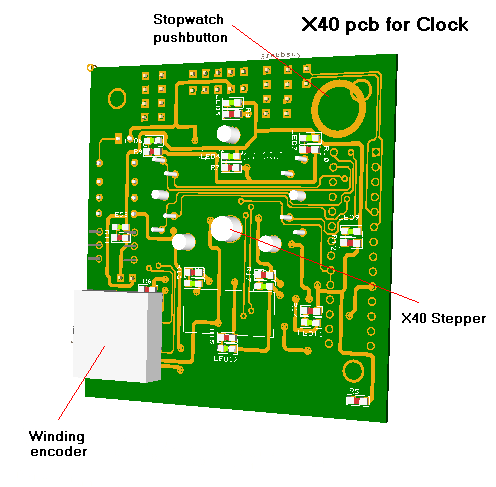
The X40 board can be assembled with different elements depending on the function of the board to serve as Waltham A-13A clock, Total Fuel indicator and other gauges as EPU Fuel and Cabin Press. The elements needed in each case are the following:
As Waltham A-13A Clock:
- (1) X40 front connection stepper motor with two concentric needles for hours and minutes needles
- (1) Pushbutton for stopwatch
- (1) Encoder for winding
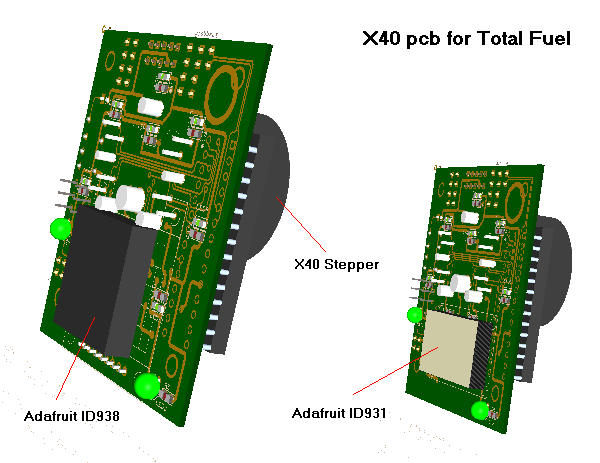
As Total Fuel gauge:
- (1) X40 front connection stepper motor with two concentric needles for A/L and F/R needles
- (1) Adafruit Oled display ID938 or (1) Adafruit Oled display ID931 for total fuel indication
As EPU Fuel or Cabin Press gauges
- (1) X27 front connection stepper motor for one needle
It comes with (1) 16 I/O chip to be connected to the digital I/O I2C channel of the PSCockpit system and its elements (resistors, connectors, …) to work with 5V, 8 SMD leds for panel backlight and, depending on the function, the pushbutton for stopclock and the digital encoder for winding.
Adafruit displays, X40 and X27 stepper motors are NOT included in the supply. Depending on the total orders I will be glad to make a buy group for these elements.
It will have different amount of free I/Os to connect some other elements depending on the function:
- (5) free I/Os used as clock
- ( 8 ) free I/Os used as Total Fuel gauge
- (12) free I/Os used as EPU fuel or Cabin Press gauges
All elements are accessible with pins, so the pcb can be used also for other systems than the PSCockpit system.
You will find the following elements in the backside:
- (1) Connector for backlight illumination.
- (1) Connector for free digital I/Os of the 16 I/O chip.
- (1) Mini-switch to select digital I2C channel address
The following connectors are not accessible with the PSCockpit system but they can be used for other systems:
- (2) Connectors for the two stepper motors
- (1) Connector for stopwatch pushbutton
The pcb dimensions are 63mm height x 60mm width and the mounting holes have a distance between them of 44mm.
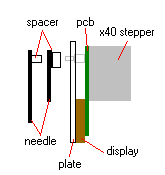
Be aware that when using the Adafruit displays or the encoder for winding the thickness of the display or encoder will cause to move the panel plate 5mm so the needles may need some sort of spacer to reach the stepper motor. Not a big issue though.
Note for the clock
As the X40 stepper has only two needles, to match the real Waltham A-13A clock, the PSCockpit software will operate the clock as follows:
Stopwatch pushbutton:
- First press will set the stopwatch mode by setting the minutes’ needle to 12 o’clock. The hours’ needle will remain indicating the time.
- Second press will start the movement of the minutes’ needle in stopwatch mode
- Third press will stop the movement of the needles.
- Fourth press will set the mode to clock again.
Winding encoder:
- Clockwise: winding, 8 full turns of the encoder will “wind” the clock for 8 days. After 8 days without winding, the clock won’t move. After two days without winding the clock will run slower

- Counter-clockwise: time set. The needles will be moved to set the time.
Regards,
Shep
As Waltham A-13A Clock:
- (1) X40 front connection stepper motor with two concentric needles for hours and minutes needles
- (1) Pushbutton for stopwatch
- (1) Encoder for winding
As Total Fuel gauge:
- (1) X40 front connection stepper motor with two concentric needles for A/L and F/R needles
- (1) Adafruit Oled display ID938 or (1) Adafruit Oled display ID931 for total fuel indication
As EPU Fuel or Cabin Press gauges
- (1) X27 front connection stepper motor for one needle
It comes with (1) 16 I/O chip to be connected to the digital I/O I2C channel of the PSCockpit system and its elements (resistors, connectors, …) to work with 5V, 8 SMD leds for panel backlight and, depending on the function, the pushbutton for stopclock and the digital encoder for winding.
Adafruit displays, X40 and X27 stepper motors are NOT included in the supply. Depending on the total orders I will be glad to make a buy group for these elements.
It will have different amount of free I/Os to connect some other elements depending on the function:
- (5) free I/Os used as clock
- ( 8 ) free I/Os used as Total Fuel gauge
- (12) free I/Os used as EPU fuel or Cabin Press gauges
All elements are accessible with pins, so the pcb can be used also for other systems than the PSCockpit system.
You will find the following elements in the backside:
- (1) Connector for backlight illumination.
- (1) Connector for free digital I/Os of the 16 I/O chip.
- (1) Mini-switch to select digital I2C channel address
The following connectors are not accessible with the PSCockpit system but they can be used for other systems:
- (2) Connectors for the two stepper motors
- (1) Connector for stopwatch pushbutton
The pcb dimensions are 63mm height x 60mm width and the mounting holes have a distance between them of 44mm.
Be aware that when using the Adafruit displays or the encoder for winding the thickness of the display or encoder will cause to move the panel plate 5mm so the needles may need some sort of spacer to reach the stepper motor. Not a big issue though.
As the X40 stepper has only two needles, to match the real Waltham A-13A clock, the PSCockpit software will operate the clock as follows:
Stopwatch pushbutton:
- First press will set the stopwatch mode by setting the minutes’ needle to 12 o’clock. The hours’ needle will remain indicating the time.
- Second press will start the movement of the minutes’ needle in stopwatch mode
- Third press will stop the movement of the needles.
- Fourth press will set the mode to clock again.
Winding encoder:
- Clockwise: winding, 8 full turns of the encoder will “wind” the clock for 8 days. After 8 days without winding, the clock won’t move. After two days without winding the clock will run slower

- Counter-clockwise: time set. The needles will be moved to set the time.
Regards,
Shep
Saturday, December 3, 2016
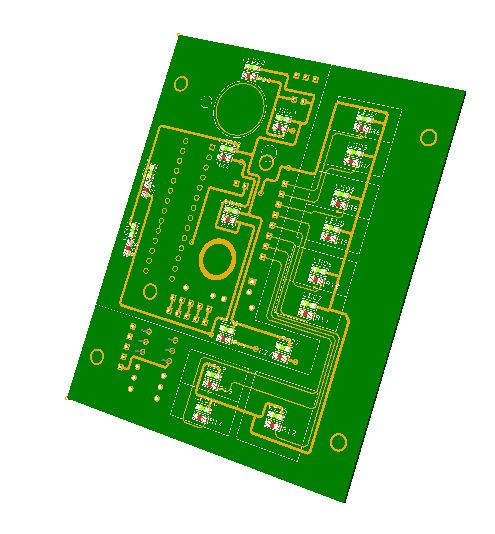
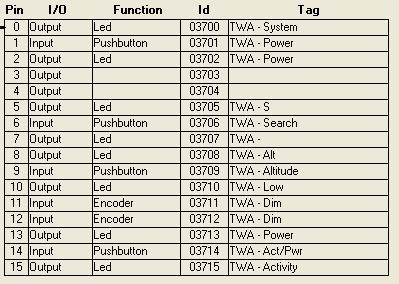
TWA pcb
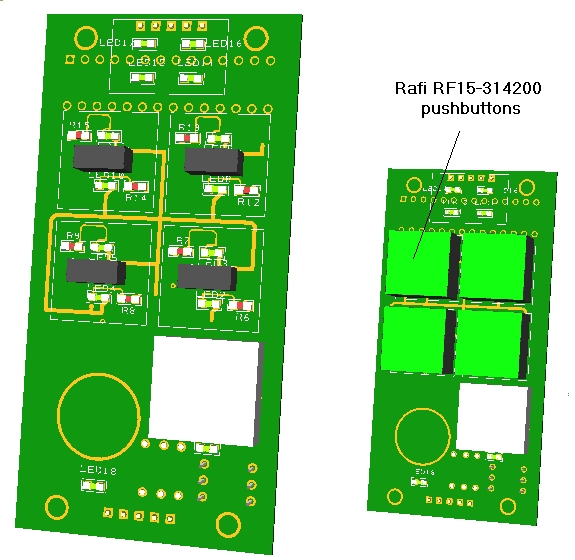
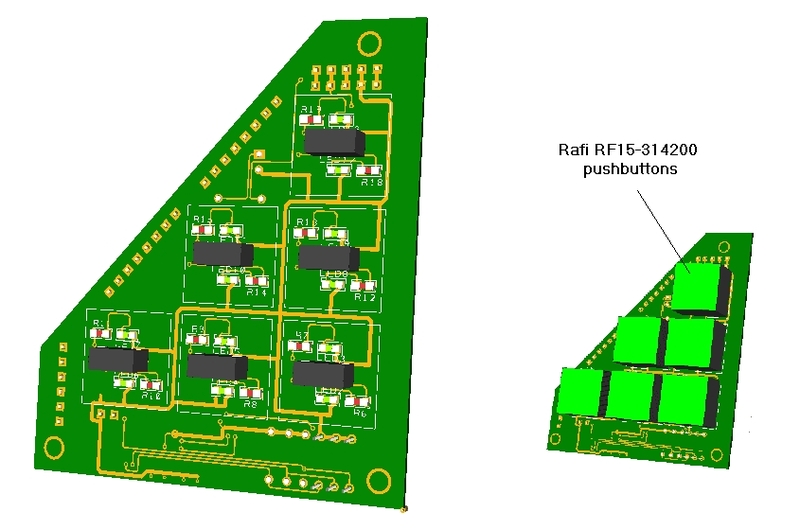
The TWA board has been designed the same way as the TWP. It needs only 12 mm allowance in the back. Rafi RF15-314200 pushbuttons can be used as well in the pcb by removing the supplied leds and pushbuttons. In this case the needed allowance in the back is 13 mm. Rafi pushbuttons are not supplied.
It comes with (1) 16 I/O chip to be connected to the digital I/O I2C channel of the PSCockpit system and its elements (resistors, connectors, …) to work with 5V and one digital encoder (DIM).
It has 2 I/O free and six SMD leds for lettering backlight are also included.
You will find the following elements in the backside:
- (1) Connector for backlight illumination.
- (2) Connectors for digital I/O I2C channel.
- (1) Mini-switch to select digital I2C channel address
- (1) Connectors for 2 free digital I/Os of the 16 I/O chip.
To complete the TWA you must add by yourself the front panel, pushbuttons caps and some separator to avoid the light going to other buttons.
Please check the dimensions of the TWA front panel at:
http://www.mediafire.com/file/st8n944v68tl4gd/TWPandTWA-A3.pdf
Regards,
Shep
It has 2 I/O free and six SMD leds for lettering backlight are also included.
You will find the following elements in the backside:
- (1) Connector for backlight illumination.
- (2) Connectors for digital I/O I2C channel.
- (1) Mini-switch to select digital I2C channel address
- (1) Connectors for 2 free digital I/Os of the 16 I/O chip.
To complete the TWA you must add by yourself the front panel, pushbuttons caps and some separator to avoid the light going to other buttons.
Please check the dimensions of the TWA front panel at:
http://www.mediafire.com/file/st8n944v68tl4gd/TWPandTWA-A3.pdf
Regards,
Shep
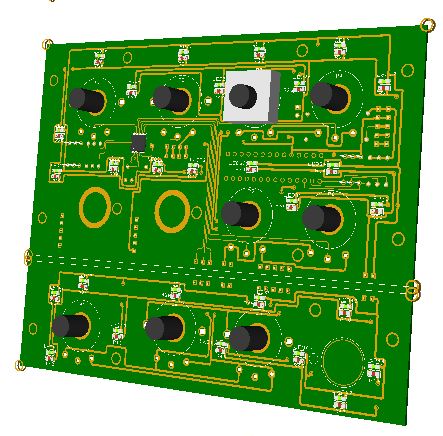
TWP pcb
The TWP board has been designed for cockpits using display screens for MFD and/or RWR where the room available in the area does not permit using large illuminated pushbuttons. It needs only 12 mm allowance in the back and the connectors have been located at the edges. Rafi RF15-314200 pushbuttons can be used as well in the pcb by removing the supplied leds and pushbuttons. In this case the needed allowance in the back is 13 mm. Rafi pushbuttons are not supplied.
It comes with (1) 40 I/O chip to be connected to the digital I/O I2C channel of the PSCockpit system and its elements (resistors, connectors, …) to work with 5V.
It has 22 I/O free where other panels in the area can be connected (left eyebrow and left indexer or Misc panel) saving one 16 I/O pcb used for those panels. Four SMD leds for lettering backlight are also included.
You will find the following elements in the backside:
- (1) Connector for backlight illumination.
- (2) Connectors for digital I/O I2C channel.
- (1) Miniswitch to select digital I2C channel address
- (3) Connectors for 22 free digital I/Os of the 40 I/O chip.
To complete the TWP you must add by yourself the front panel, pushbuttons caps and some separator to avoid the light going to other buttons.
Please check the dimensions of the TWP front panel at:
http://www.mediafire.com/file/st8n944v68tl4gd/TWPandTWA-A3.pdf
Regards,
Shep
It has 22 I/O free where other panels in the area can be connected (left eyebrow and left indexer or Misc panel) saving one 16 I/O pcb used for those panels. Four SMD leds for lettering backlight are also included.
You will find the following elements in the backside:
- (1) Connector for backlight illumination.
- (2) Connectors for digital I/O I2C channel.
- (1) Miniswitch to select digital I2C channel address
- (3) Connectors for 22 free digital I/Os of the 40 I/O chip.
To complete the TWP you must add by yourself the front panel, pushbuttons caps and some separator to avoid the light going to other buttons.
Please check the dimensions of the TWP front panel at:
http://www.mediafire.com/file/st8n944v68tl4gd/TWPandTWA-A3.pdf
Regards,
Shep
Sunday, November 27, 2016
PSCockpit System 6th Run!!!
Time to launch a new run of the PSCockit System!!
New boards for this run:
- TWP pcb.... more info here
- TWA pcb.... more info here
- X40 stepper pcb (for Clock, Total Fuel and more).... more info here
Version 1.0.0 of the PSCockpit software:
Description
- One stop hardware and software for cockpit systems. Once the cockpit is connected you can configure the software individually for each sim.
- Easy configuration and setup for people without electronic knowledge.
- Avoid excessive wiring runs along the cockpit.
The system uses small satellite PCB’s that can be distributed along the cockpit. The communication between these satellite PCB’s and the Main PCB is done with only 2 wires (I2C protocol) plus the power cables. These wires can be connected in daisy chain. The idea is to wire each of the cockpit panels to only one satellite PCB. See F16 distribution example:
Supported devices
- Digital inputs: Pushbuttons, 2 position switches, 3 position switches, digital encoders, BCD encoding (8 to 3, 16 to 4, 32 to 5) and 8x4 matrixes
- Digital outputs and leds
- Analogue inputs and outputs
- Vibration motors
- Aircores motors
- Stepper motors: Unipolar, X27 and X40
- RC Servomotors
- Segment Displays: 7 segment and SLG2016
- LCD displays: SSD1322 Graphic display 264x64, KS0108 Graphic display 128 x 64, KS0108B Text display 20x4, SSD1306 Adafruit 128x64 (ID938 and ID931)
More information, downloads and guides at http://psfalcon.blogspot.com.es/2015/05/pscockpit-system-up-to-date-software.html
Pricing and ordering information at:
http://www.viperpits.org/smf/index.php/topic,10715.0.html
Time Line
- Orders will be accepted until Dec. 18th.
- Only direct bank transfers will be accepted. Sorry for the inconvenience.
- Delivery: Starting on February 2016
Information about new boards to follow soon.
Regards,
Shep
New boards for this run:
- TWP pcb.... more info here
- TWA pcb.... more info here
- X40 stepper pcb (for Clock, Total Fuel and more).... more info here
Version 1.0.0 of the PSCockpit software:
Description
- One stop hardware and software for cockpit systems. Once the cockpit is connected you can configure the software individually for each sim.
- Easy configuration and setup for people without electronic knowledge.
- Avoid excessive wiring runs along the cockpit.
The system uses small satellite PCB’s that can be distributed along the cockpit. The communication between these satellite PCB’s and the Main PCB is done with only 2 wires (I2C protocol) plus the power cables. These wires can be connected in daisy chain. The idea is to wire each of the cockpit panels to only one satellite PCB. See F16 distribution example:
- Digital inputs: Pushbuttons, 2 position switches, 3 position switches, digital encoders, BCD encoding (8 to 3, 16 to 4, 32 to 5) and 8x4 matrixes
- Digital outputs and leds
- Analogue inputs and outputs
- Vibration motors
- Aircores motors
- Stepper motors: Unipolar, X27 and X40
- RC Servomotors
- Segment Displays: 7 segment and SLG2016
- LCD displays: SSD1322 Graphic display 264x64, KS0108 Graphic display 128 x 64, KS0108B Text display 20x4, SSD1306 Adafruit 128x64 (ID938 and ID931)
More information, downloads and guides at http://psfalcon.blogspot.com.es/2015/05/pscockpit-system-up-to-date-software.html
Pricing and ordering information at:
http://www.viperpits.org/smf/index.php/topic,10715.0.html
Time Line
- Orders will be accepted until Dec. 18th.
- Only direct bank transfers will be accepted. Sorry for the inconvenience.
- Delivery: Starting on February 2016
Information about new boards to follow soon.
Regards,
Shep
Saturday, April 30, 2016
New PScockpit System Pcbs Distribution for the F16 Block 52
New PScockpit System pcbs distribution for the F16 Block 52, now in pdf format:
You can down load at: http://psfalcon.blogspot.com.es/2015/04/ps-cockpit-system-f16-distribution-file.html
Regards,
Shep
Regards,
Shep
Sunday, April 17, 2016
PSCockpit Quick Guide v4
PS Cockpit Software V.0.9.9 Update
The new version V.0.9.9 auto installable version of the PS Cockpit Software is available for download!!
PS Cockpit Software V.0.9.9 Changelog:
- JFS magnet driven by JET_FUEL_STARTED bit (BMS4.33)
- Added "software switch" function for analogue inputs (Commnands)
- Added "software encoder" fuction for analogue inputs (Commands)
- Added all the lights for TWA and TWP (F16 Model)
- Corrected the TWA and TWP lights to work as BMS 4.33 manual, including the flashing modes
- Corrected analogue bars when testing aircores (IOLayout)
- Added momentary coils for homemade magnetic switches (Airplane Models: Solenoids)
- Added speedbrakes solenoids (F16Model: Solenoids)
- Added UHF Off bit driven by OFF selector and COMM1 switch (Airplane Models: Special I/Os)
- Added CMDS pcb and ICP Rev1 pcb description (QuickGuideV4)
- Added warning on the IOLayout page about the issue that the stepper motors have to be connected in certain expander ranges (IOLayout)
- Changed overcurrent and overpower warnings to not consider expanders changed to "None" (IOLayout)
- Added Enter, Del, Escape, Page Up and Page Down keyboards inputs in the IOLayout for better eficiency (IOLayout)
- Added warning before going into RUN mode if the sim window name where to send commands hasn't been defined (PSCockpit)
- Removed warning when changing the sim and the airplane model is the same (PSCockpit)
- Added dropdown list with BMS callbacks. Now you can assign commands directly from the BMS callbacks with a left clik of the mouse on a given position in the list of switches, pushbuttons,.. (IOLayout)
You can download it at: Download
To update the firmware of the Main Board, visit: PS Cockpit Firmware Update
Thanks all for your patient!!!
Regards,
Shep
PS Cockpit Software V.0.9.9 Changelog:
- JFS magnet driven by JET_FUEL_STARTED bit (BMS4.33)
- Added "software switch" function for analogue inputs (Commnands)
- Added "software encoder" fuction for analogue inputs (Commands)
- Added all the lights for TWA and TWP (F16 Model)
- Corrected the TWA and TWP lights to work as BMS 4.33 manual, including the flashing modes
- Corrected analogue bars when testing aircores (IOLayout)
- Added momentary coils for homemade magnetic switches (Airplane Models: Solenoids)
- Added speedbrakes solenoids (F16Model: Solenoids)
- Added UHF Off bit driven by OFF selector and COMM1 switch (Airplane Models: Special I/Os)
- Added CMDS pcb and ICP Rev1 pcb description (QuickGuideV4)
- Added warning on the IOLayout page about the issue that the stepper motors have to be connected in certain expander ranges (IOLayout)
- Changed overcurrent and overpower warnings to not consider expanders changed to "None" (IOLayout)
- Added Enter, Del, Escape, Page Up and Page Down keyboards inputs in the IOLayout for better eficiency (IOLayout)
- Added warning before going into RUN mode if the sim window name where to send commands hasn't been defined (PSCockpit)
- Removed warning when changing the sim and the airplane model is the same (PSCockpit)
- Added dropdown list with BMS callbacks. Now you can assign commands directly from the BMS callbacks with a left clik of the mouse on a given position in the list of switches, pushbuttons,.. (IOLayout)
You can download it at: Download
To update the firmware of the Main Board, visit: PS Cockpit Firmware Update
Thanks all for your patient!!!
Regards,
Shep
Monday, April 11, 2016
HOW TO Configure the CMDS Panel
For CMDS Board description, options and how to configure the expander address, see PSCockpit Quick Guide V.4 – CMDS PCB. You can access the Quick Guide from Help/Quick Guide menu in the PSCockpit software.
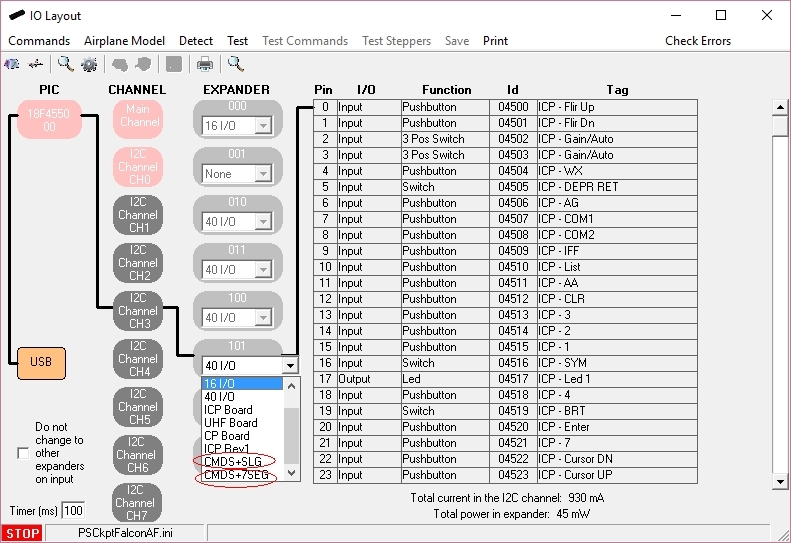
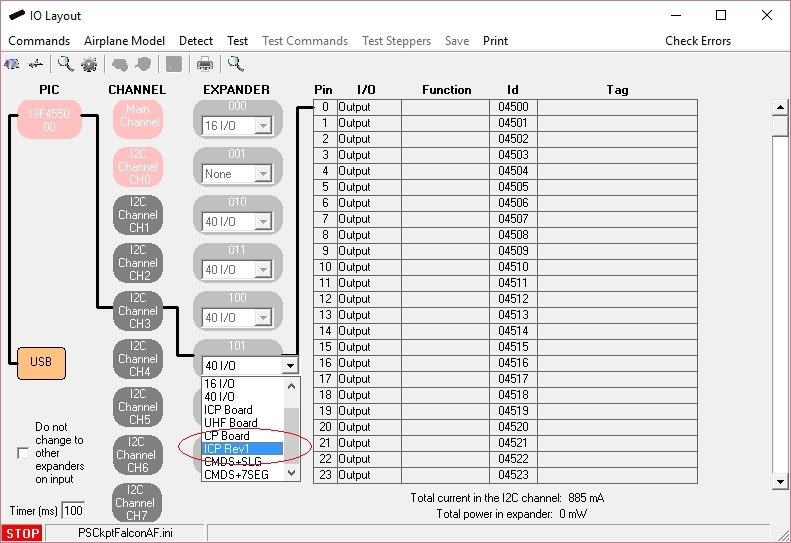
To configure the PSCockpit CMDS panel select the correct option from the Expander pull down list in the IOLayout page of the PS Cockpit Software at the correct I2C channel depending of your hardware:
- CMDS+SLG if you have SLG2016 displays in your CMDS pcb
- CMDS+7Seg if you have 7 segment displays in your CMDS pcb
In case of there is some data already in the selected expander, the software will prompt you for continue:
The software will prompt you to setup the SLG2016 or 7 segment displays in our Airplane model:
To configure the PSCockpit CMDS panel select the correct option from the Expander pull down list in the IOLayout page of the PS Cockpit Software at the correct I2C channel depending of your hardware:
- CMDS+SLG if you have SLG2016 displays in your CMDS pcb
- CMDS+7Seg if you have 7 segment displays in your CMDS pcb
The software will prompt you to setup the SLG2016 or 7 segment displays in our Airplane model:
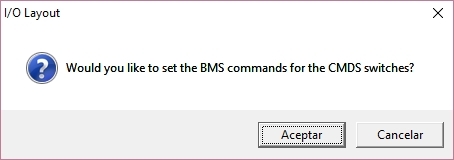
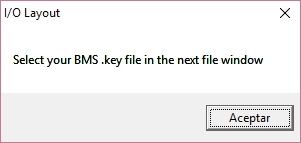
If you accept, the software will prompt you to search for your BMS .key file and will automatically search for the key strokes you have set in your .key file for the CMDS:
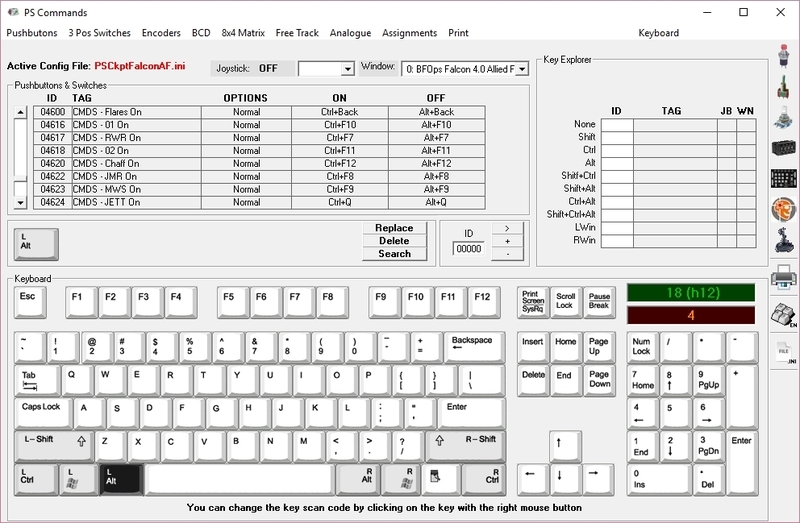
If any of the commands hasn't been set you will see a warning indicating how many commands haven't been set and the Commands page of the PSCockpit software will appear:

Once the CMDS panel is already configured you can modify the list of inputs/outputs as desire as well as the free I/O of the expander:
If any of the commands hasn't been set you will see a warning indicating how many commands haven't been set and the Commands page of the PSCockpit software will appear:

Be aware that once the configuration is saved, whenever you enter the IOLayout Page you won’t see “CMDS+SLG” label on the expander anymore but the 40 I/O label.
Regards,
Shep
Shep
HOW TO Configure the ICP Rev1 Panel
For ICP Rev1 Board description, options, and how to configure the expander address, see PSCockpit Quick Guide V.4 – ICP REV1 PCB. You can access the Quick Guide from Help/Quick Guide menu in the PSCockpit software.
Digital I/Os
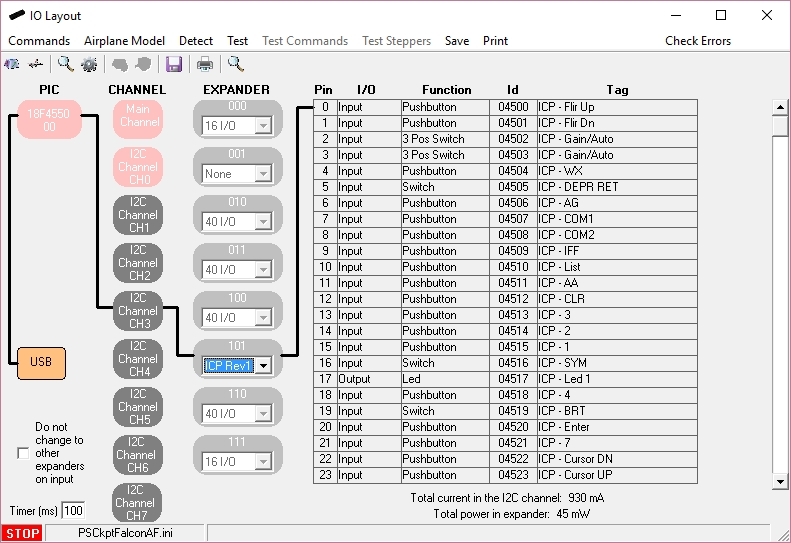
To configure the PS Cockpit ICP Rev1 panel just select ICP Rev1 Board from the Expander pull down list in the IOLayout page of the PS Cockpit Software at the correct I2C channel and expander configured in your ICP Rev1 board (see PSCockpit Quick Guide V.4 – ICP Rev 1 PCB):
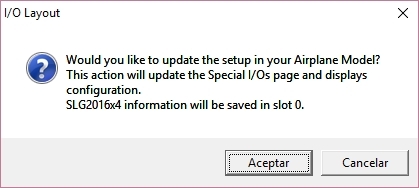
In case of there is some data already in the selected expander, the software will prompt you for continue:
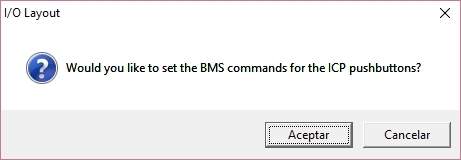
If you accept, the software will prompt you to search for your BMS .key file and will automatically search for the key strokes you have set in your .key file for the ICP:
If any of the commands hasn't been set you will see a warning indicating how many commands haven't been set and the Commands page of the PSCockpit software will appear:

Once the ICP panel is already configured you can modify the list of inputs/outputs as desire as well as the free I/O of the expander:
Be aware that once the configuration is saved, whenever you enter the IOLayout Page you won’t see “ICP Rev1 Board” label on the expander anymore but the 40 I/O label.
Analogue inputs
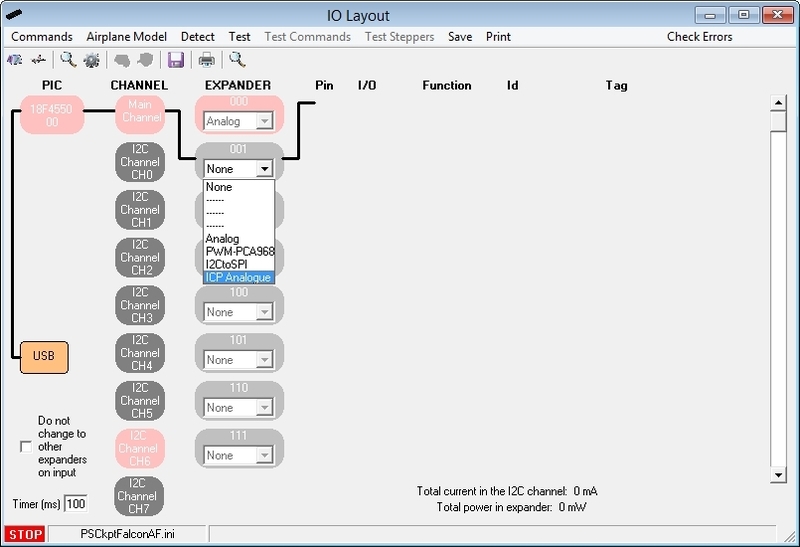
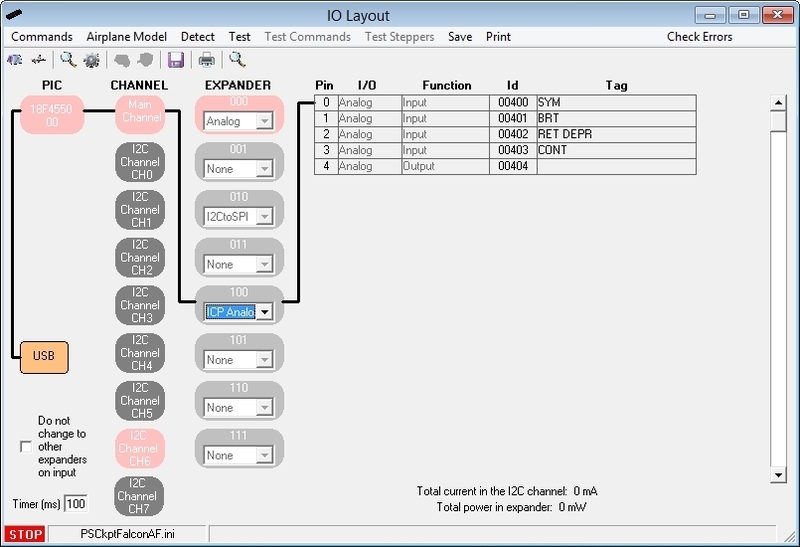
You have to repeat the process for the analogue inputs by selecting “ICP Analogue” in the I2C Main Channel:
Be aware that once the configuration is saved, whenever you enter the IOLayout Page you won’t see “ICP Analogue” label on the expander anymore but the Analogue label.
To use the analogue inputs inside the sim with the PS Cockpit Joystick refer to http://psfalcon.blogspot.com.es/2012/01/how-to-use-analog-inputs-with-ps.html
Regards,
Shep
Digital I/Os
To configure the PS Cockpit ICP Rev1 panel just select ICP Rev1 Board from the Expander pull down list in the IOLayout page of the PS Cockpit Software at the correct I2C channel and expander configured in your ICP Rev1 board (see PSCockpit Quick Guide V.4 – ICP Rev 1 PCB):
If you accept, the software will prompt you to search for your BMS .key file and will automatically search for the key strokes you have set in your .key file for the ICP:

Once the ICP panel is already configured you can modify the list of inputs/outputs as desire as well as the free I/O of the expander:
Be aware that once the configuration is saved, whenever you enter the IOLayout Page you won’t see “ICP Rev1 Board” label on the expander anymore but the 40 I/O label.
Analogue inputs
You have to repeat the process for the analogue inputs by selecting “ICP Analogue” in the I2C Main Channel:
Be aware that once the configuration is saved, whenever you enter the IOLayout Page you won’t see “ICP Analogue” label on the expander anymore but the Analogue label.
To use the analogue inputs inside the sim with the PS Cockpit Joystick refer to http://psfalcon.blogspot.com.es/2012/01/how-to-use-analog-inputs-with-ps.html
Regards,
Shep
Sunday, April 10, 2016
HOW TO Assing Keystrokes in PSCockpit System (COMMANDS)
One of the most important thing is how to interface the inputs of the cockpit (switches, encoders, BCD,...) with the sim. In the PSCockpit system, this interface is made by means of sending key strokes to the sim window once one input has changed its previous status.
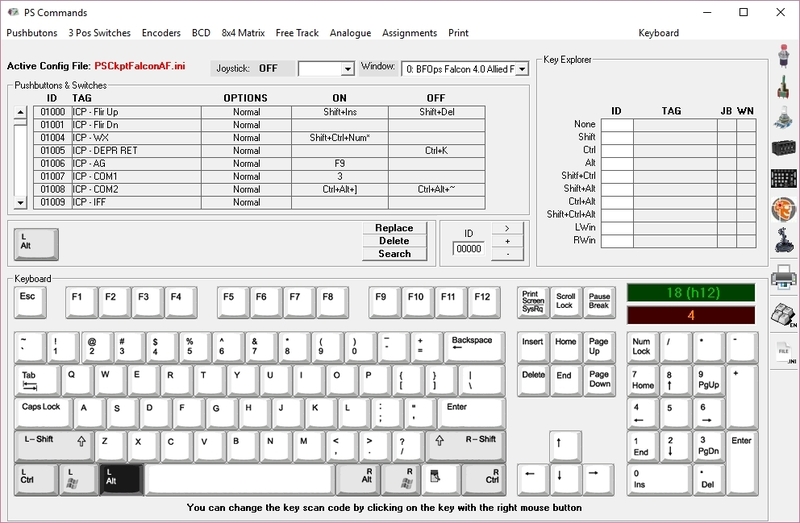
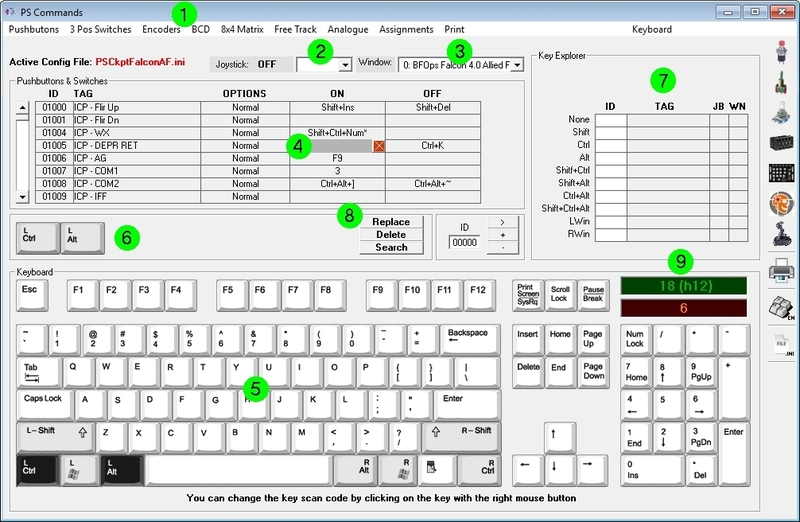
The key stroke sequence to be sent to the sim is defined in the Command page of the PSCockpit software. To set an specific command for each physical input element, follow this procedure:
You can change the keyboard to English/Spanish by clicking on Keyboard.
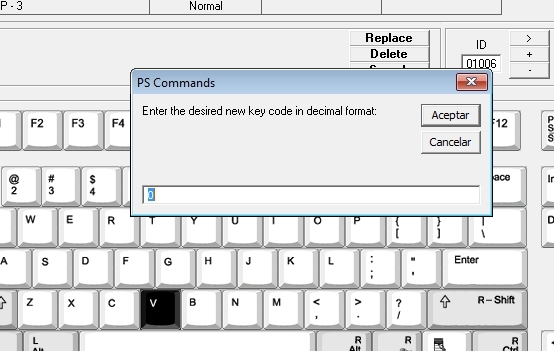
If you have another keyboard or the key is not working correctly in your sim, you can reassign the control code of the key by clicking on the desired key with the right button of the mouse. A box will appear asking for the new key code in decimal format:
For Falcon BMS sim users, the key file (.key) can be loaded by clicking on "BMS Key File".
You can read the procedure in the following post: HOW TO Assign Commands from Falcon BMS Key File
KEY STROKE OPTIONS
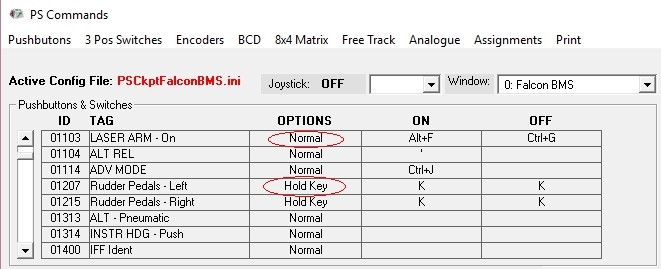
Some of the input devices have key stroke options. The explanation of those is the following:
Pushbutton and Switches:
- Normal: Each time the input is activated the ON key stroke sequence is sent to the designated window. Each time the input is deactivated the OFF key stroke sequence is sent to the designated window.
- Hold key: The stoke sequence is sent continuously until the input is deactivated. You must stablish the same key stroke sequence in either ON and OFF fields.

3 Pos Switches:
- POS 1: When the 3 position switch is activated in position 1 the key stroke sequence is sent to the designated window.
- POS 2: When the 3 position switch is activated in position 2 the key stroke sequence is sent to the designated window.
- CENTER: When the 3 position switch is deactivated (center position) the key stroke sequence is sent to the designated window.
Encoders:
- Normal: When the encoder is rotated clockwise direction, the key stroke sequence under CW Turn will be sent to the designated window. Likewise, when the encoder is rotated counterclockwise direction the key stroke sequence under CCW Turn will be sent to the designated window
- Pulse: Reserved for future use.
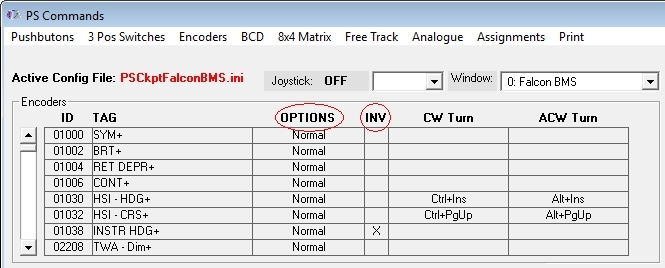
- INV: When the INV tick is checked, the key stroke sequence sent to the designated window will be the opposite of the turning direction. This option allows to avoid rewiring of the encoder in case is reversed.
Analogue Inputs
When using pots in the PSCockpit system you can modify their behavior by selecting one of the following options:
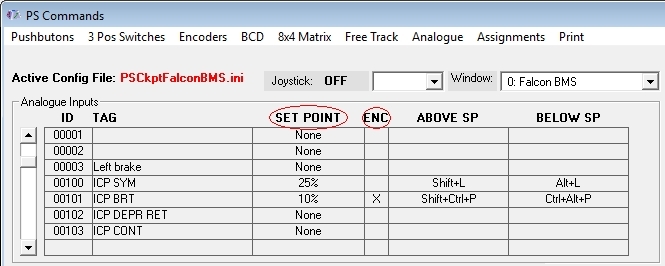
- SET POINT: By selecting a set point, a single key stroke sequence under Above SP will be sent to the designated window whenever the set point is bypassed by the analogue signal. Likewise, a single key stroke sequence will be sent to the designated window whenever the analogue signal goes under the stablished set point. The set point options are 5%, 10%, 25%, 50%, 75%, 90% and 95% of the analogue input total scale. This feature is useful to replicate by software the on/off switch functionality for pots with no such switch.
- ENC: By ticking the ENC check box, the pot will act as an encoder, sending the key stroke sequence under Above SP to the designated window each time the analogue signal bypass the amount in % established in the Set Point. Likewise, the Below SP key stroke signal will be sent to the designated windows whenever the analogue signal lower that amount in %.
Kind regards,
Shep
The key stroke sequence to be sent to the sim is defined in the Command page of the PSCockpit software. To set an specific command for each physical input element, follow this procedure:
- Select type of input element (pushbutton, switch, ...) by clicking in the upper menu.
- Select the joystick DX pushbutton in the dropdown list if you want to want to send a different key stroke combination while pressing the joystick button. If you want to send the key stroke combination without pressing any DX pushbutton of your joystick, select blank from the drop down list.
- Select the Window name of the application you want to send the key stroke combination to. To fill the name list of application windows read the following post: HOW TO Assign Key Strokes to Different Applications. Of course, the most important window name will be your favorite sim!.
- Select the position inside the matrix in which you want to place the key combination. A grey field will appear on that position.
- Select the key stroke combination by clicking on the keyboard or directly from your keyboard.
- The key stroke combination will appear in the middle frame.
- You can review in the Explorer frame if you have already assigned the key stroke.
- Click on "Replace" and the key combination will be transferred to the selected position of the matrix. If you click on "Delete" the key stroke combination will be deleted from the selected position of the matrix. If you click on "Search" the key combination will be searched in the matrix and if it is found in any position, it will be showed in the first line of the matrix.
- You can see the decimal and hexadecimal values of the key in the green frame and also the key codes for Falcon in the orange frame where you can copy by clicking on it.
If you have another keyboard or the key is not working correctly in your sim, you can reassign the control code of the key by clicking on the desired key with the right button of the mouse. A box will appear asking for the new key code in decimal format:
You can read the procedure in the following post: HOW TO Assign Commands from Falcon BMS Key File
KEY STROKE OPTIONS
Some of the input devices have key stroke options. The explanation of those is the following:
Pushbutton and Switches:
- Normal: Each time the input is activated the ON key stroke sequence is sent to the designated window. Each time the input is deactivated the OFF key stroke sequence is sent to the designated window.
- Hold key: The stoke sequence is sent continuously until the input is deactivated. You must stablish the same key stroke sequence in either ON and OFF fields.

3 Pos Switches:
- POS 1: When the 3 position switch is activated in position 1 the key stroke sequence is sent to the designated window.
- POS 2: When the 3 position switch is activated in position 2 the key stroke sequence is sent to the designated window.
- CENTER: When the 3 position switch is deactivated (center position) the key stroke sequence is sent to the designated window.
Encoders:
- Normal: When the encoder is rotated clockwise direction, the key stroke sequence under CW Turn will be sent to the designated window. Likewise, when the encoder is rotated counterclockwise direction the key stroke sequence under CCW Turn will be sent to the designated window
- Pulse: Reserved for future use.
- INV: When the INV tick is checked, the key stroke sequence sent to the designated window will be the opposite of the turning direction. This option allows to avoid rewiring of the encoder in case is reversed.
Analogue Inputs
When using pots in the PSCockpit system you can modify their behavior by selecting one of the following options:
- SET POINT: By selecting a set point, a single key stroke sequence under Above SP will be sent to the designated window whenever the set point is bypassed by the analogue signal. Likewise, a single key stroke sequence will be sent to the designated window whenever the analogue signal goes under the stablished set point. The set point options are 5%, 10%, 25%, 50%, 75%, 90% and 95% of the analogue input total scale. This feature is useful to replicate by software the on/off switch functionality for pots with no such switch.
- ENC: By ticking the ENC check box, the pot will act as an encoder, sending the key stroke sequence under Above SP to the designated window each time the analogue signal bypass the amount in % established in the Set Point. Likewise, the Below SP key stroke signal will be sent to the designated windows whenever the analogue signal lower that amount in %.
Kind regards,
Shep
Subscribe to:
Posts (Atom)