
Saturday, June 9, 2012
PSCockpit Quick Guide
It will help you on wiring the system in your cockpits.
Download from: http://www.mediafire.com/view/?6kacpd31w3bvvve
Regards,
Shep


Monday, April 23, 2012
PS Gauges Update
Hi everyone,
Got my Airis OnePad 970 yesterday!!!
Here is a picture with the center console gauges with PSUdp software:
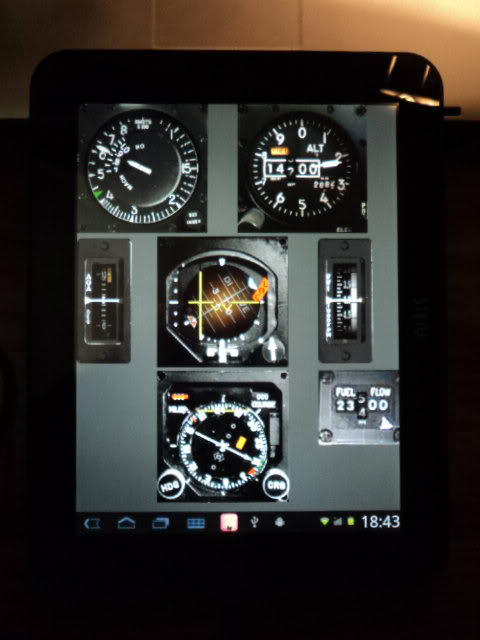
I made a little update on PSGauges to fix a display problem regarding the different dip of the device.
You can download it here: Update
Regards,
Shep
Got my Airis OnePad 970 yesterday!!!
Here is a picture with the center console gauges with PSUdp software:
I made a little update on PSGauges to fix a display problem regarding the different dip of the device.
You can download it here: Update
Regards,
Shep
Sunday, April 22, 2012
PS Cockpit Software
You can download the PSCockpit v.0.8.0 (Beta) sofware to control the PSCockpit System in the following link: http://www.mediafire.com/download.php?d80terg9airfhd2
Use it at your own risk!!!
Regards,
Shep
Use it at your own risk!!!
Regards,
Shep
Monday, January 16, 2012
HOW to Make Your Own Configuration with the PSCockpit System
The list of the number of outputs/inputs you need per element is the following:
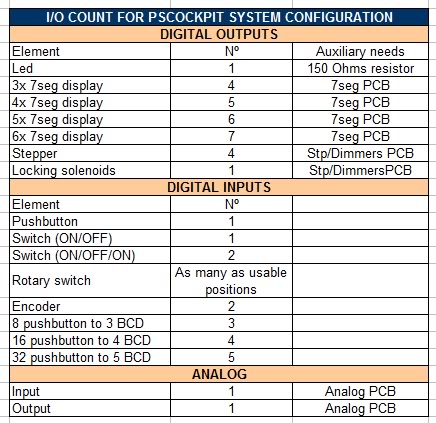
For digital inputs/outputs you can select two types of expanders: 16 I/O and 40 I/O. You can mix inputs and outputs in each expander as they are configurable but there are several restrictions to take in account:
a) The elements can’t share expanders: For example, if you are planning to use a 32 pushbutton inputs matrix you need a expander with (5) inputs unused, you can’t use (3) inputs of one expander and (2) inputs of other expander.
b) Maximum current per I/O: 25 mA for the 16I/O, 15 mA for the 40 I/O.
c) Maximum power dissipation per expander: It means you can’t use all the expander for outputs to handle 25 mA because it should exceed the power dissipation capacity of the expander. As it depends on the ambient temperature and the heat dissipation method, I will establish some limiting values by testing the expanders.
d) The daisy chain for the expanders connected to one channel should not exceed 1A current, but if you need more, you can disconnect the daisy chain power supply at one point and supply power in it.
Example: AVTR panel
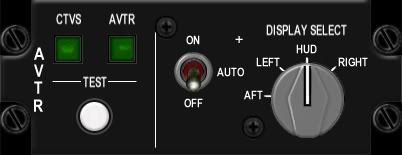
The panel consists of the following elements:
- (2) leds => 2 outputs
- (1) pushbutton => 1 input
- (1) 3pos switch => 2 inputs
- (1) rotary switch with 4 positions => 4 inputs
Total I/O count: 9 I/O. Expander selected: 16 I/O
That was easy. As I have 7 I/O free in this expander and I want to save some money, I will be using the expander to add another near panel in it. I found it!!:
EPU panel
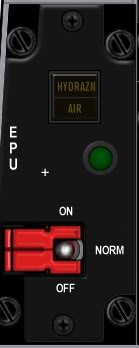
The panel consists of the following elements:
- (3) leds => 3 outputs
- (1) 3pos switch => 2 inputs
Total I/O count: 5 I/O to add to the above expander.
This is how I calculated the list of expanders you can find attached in the following post:
http://www.viperpits.org/smf/index.php?topic=7237.msg98798#msg98798
Things get a little more complicated once you have calculated all the expanders and you have to group them in rows of 8 to connect them to one I2C channel. But I’m sure nothing you guys can't resolve .
Regards,
Shep
For digital inputs/outputs you can select two types of expanders: 16 I/O and 40 I/O. You can mix inputs and outputs in each expander as they are configurable but there are several restrictions to take in account:
a) The elements can’t share expanders: For example, if you are planning to use a 32 pushbutton inputs matrix you need a expander with (5) inputs unused, you can’t use (3) inputs of one expander and (2) inputs of other expander.
b) Maximum current per I/O: 25 mA for the 16I/O, 15 mA for the 40 I/O.
c) Maximum power dissipation per expander: It means you can’t use all the expander for outputs to handle 25 mA because it should exceed the power dissipation capacity of the expander. As it depends on the ambient temperature and the heat dissipation method, I will establish some limiting values by testing the expanders.
d) The daisy chain for the expanders connected to one channel should not exceed 1A current, but if you need more, you can disconnect the daisy chain power supply at one point and supply power in it.
Example: AVTR panel
The panel consists of the following elements:
- (2) leds => 2 outputs
- (1) pushbutton => 1 input
- (1) 3pos switch => 2 inputs
- (1) rotary switch with 4 positions => 4 inputs
Total I/O count: 9 I/O. Expander selected: 16 I/O
That was easy. As I have 7 I/O free in this expander and I want to save some money, I will be using the expander to add another near panel in it. I found it!!:
EPU panel
The panel consists of the following elements:
- (3) leds => 3 outputs
- (1) 3pos switch => 2 inputs
Total I/O count: 5 I/O to add to the above expander.
This is how I calculated the list of expanders you can find attached in the following post:
http://www.viperpits.org/smf/index.php?topic=7237.msg98798#msg98798
Things get a little more complicated once you have calculated all the expanders and you have to group them in rows of 8 to connect them to one I2C channel. But I’m sure nothing you guys can't resolve .
Regards,
Shep
Wednesday, January 11, 2012
HOW TO use analog inputs with the PS Cockpit System (PSJoystick)
The PSJoystick allows the PSCockpit system to read analog inputs from an analog expander and send them to the PC as joystick axes so they can be configured in your favourite sim as a direct input.
Edited on Aug, 17th, 2022:
Once the PSCockpit Main Board is connected to the PC it will be detected by the system as a joystick with 32 buttons, 8 axes and 1 POV hat. To verify everything is correct go to Game Devices and you will see a device named PSCockpit:
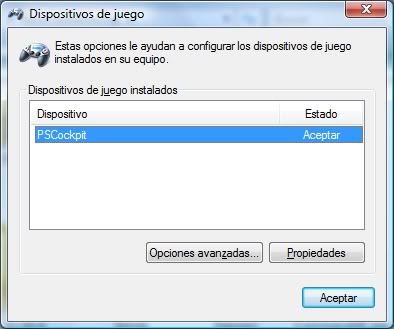
Opps, it is in Spanish!!. Sorry for that.
Click on Properties to see the device:
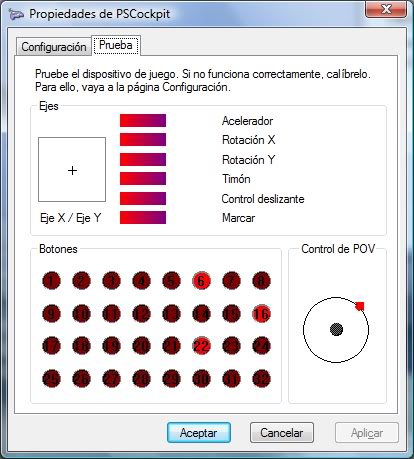
Opps, in Spanish again!! 
Configuring the joystick
To configure the system we have to add an analog expander. Open the IO Layout page of the PSCockpit software and select Analog on the expander dropdown list. You will see the list of analog inputs and outputs available for the Analog expander. In the tag section you can put the name of the device:
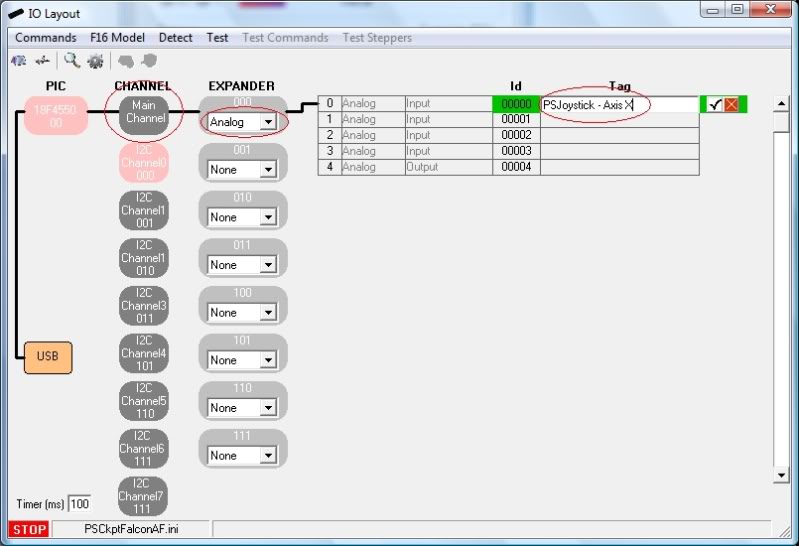
Note: Analog expander can only be used on the Main Channel.
You can add up to 8 analog expanders to the system but as we have only 8 axes it should be enough to attach only two. We will find another good use for the rest of analog expanders…
Let’s now configure the analog inputs, buttons and the POV of the PSJoystick.
Open the Joystick page of the PSCockpit system and configure what axis you want to drive with the analog input by selecting the switch and the expander and clicking on the ID to see a dropdown list with the analog input tags we have entered before:
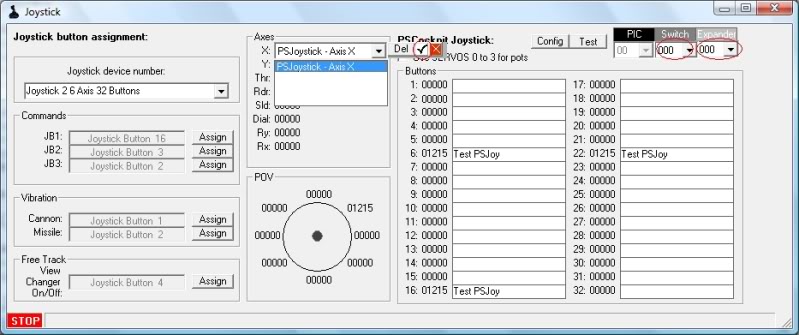
You can assign also the joystick buttons and POV buttons selecting the desire inputs of the digital I/O expanders of the system.
Once everything is configured, click on the “Config” command to send the values to the PSCockpit Main Board. The configuration values will be stored in the eeprom of the pic and they will be used even if you don’t run the PSCockpit software. Be careful to not detach the Main Board while writing the configuration.
Time to test!!!
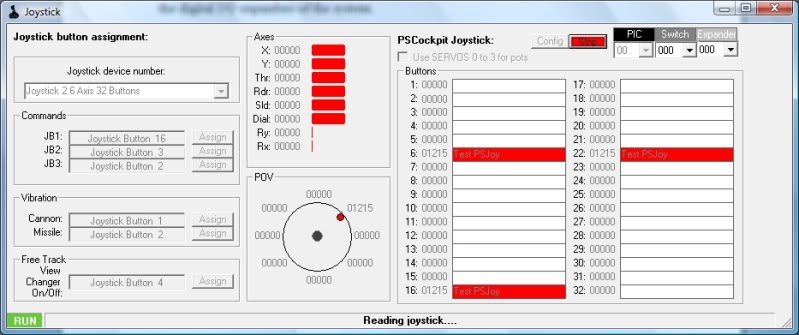
Click on the “Test” command and you will see the PSJoystick working:
You can also see it working on Game Devices of Windows:
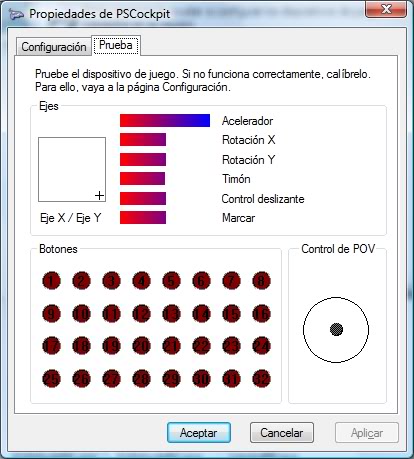
Opps. Spanish again!!
What if I don’t have yet the analog expander?
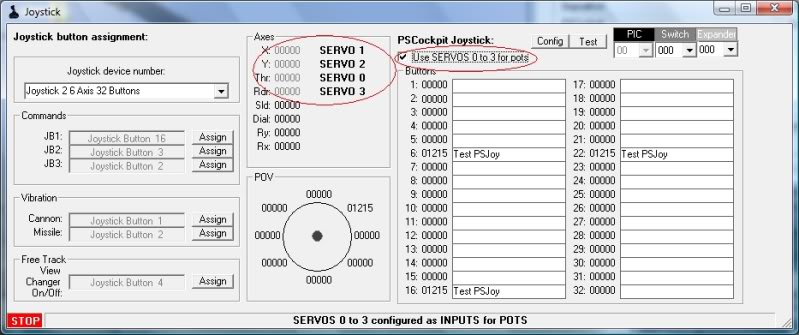
For the people not using the servos 0 to 3 outputs of the Main Board, you can use them as inputs for pots. In this situation, click on the check box “Use SERVOS 0-3 for pots” and the Main Board will read the pots values on these inputs:
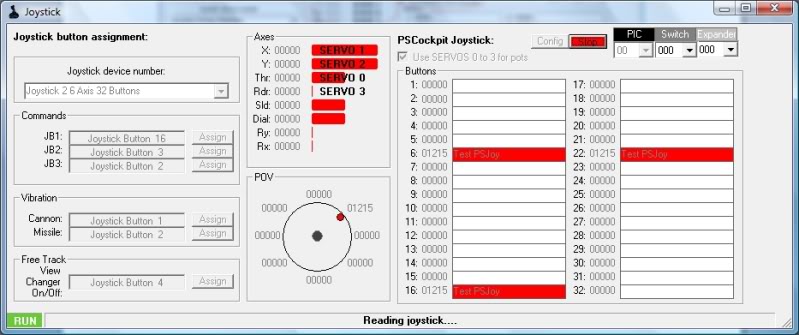
Click again the “Config” command and after writing the eeprom, click on the “Test” command:
Regards,
Shep
========================================================================
If you have more than 2 analogue expanders on your PSCockpit system or your PSJoy driver is not working, you can use vJoy software.
See this post for more information: How to Use Vjoy
========================================================================
Once the PSCockpit Main Board is connected to the PC it will be detected by the system as a joystick with 32 buttons, 8 axes and 1 POV hat. To verify everything is correct go to Game Devices and you will see a device named PSCockpit:
Opps, it is in Spanish!!. Sorry for that.
Click on Properties to see the device:
Configuring the joystick
To configure the system we have to add an analog expander. Open the IO Layout page of the PSCockpit software and select Analog on the expander dropdown list. You will see the list of analog inputs and outputs available for the Analog expander. In the tag section you can put the name of the device:
Note: Analog expander can only be used on the Main Channel.
You can add up to 8 analog expanders to the system but as we have only 8 axes it should be enough to attach only two. We will find another good use for the rest of analog expanders…
Let’s now configure the analog inputs, buttons and the POV of the PSJoystick.
Open the Joystick page of the PSCockpit system and configure what axis you want to drive with the analog input by selecting the switch and the expander and clicking on the ID to see a dropdown list with the analog input tags we have entered before:
You can assign also the joystick buttons and POV buttons selecting the desire inputs of the digital I/O expanders of the system.
Once everything is configured, click on the “Config” command to send the values to the PSCockpit Main Board. The configuration values will be stored in the eeprom of the pic and they will be used even if you don’t run the PSCockpit software. Be careful to not detach the Main Board while writing the configuration.
Time to test!!!
Click on the “Test” command and you will see the PSJoystick working:
You can also see it working on Game Devices of Windows:
Opps. Spanish again!!
What if I don’t have yet the analog expander?
For the people not using the servos 0 to 3 outputs of the Main Board, you can use them as inputs for pots. In this situation, click on the check box “Use SERVOS 0-3 for pots” and the Main Board will read the pots values on these inputs:
Click again the “Config” command and after writing the eeprom, click on the “Test” command:
Regards,
Shep
Wednesday, December 7, 2011
HOW TO Encoding/Multiplexing with the PS Cockpit System
When you have a certain amount of pushbuttons in a system where only one of them is going to be pressed at a time (i.e. keyboard) there is an electrical interface technique to reduce the number of total inputs called multiplexing or encoding.
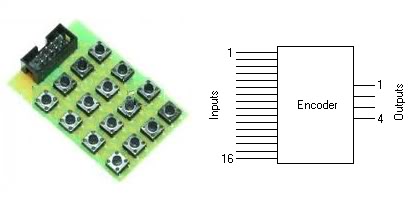 The device used for multiplexing is known as a multiplexer or encoder. You can find this type of chips in the electronic market. Pitifully, these chips encoders can handle only a maximum of 16 inputs to encode 4 outputs as, for our purposes, we should need a 36 inputs/5 outputs encoder to use it for ICP and MFDs keyboards.
PS Cockpit System can handle 3 types of encoders:
- 8 inputs to 3 outputs.
- 16 inputs to 4 outputs.
- 32 inputs to 5 outputs.
For the first two you can always use an encoder chip or make it of your own as we are going to do here for a MFD.
Making the truth table
The first thing to do is to make the truth table for the MFD. This is where the relationship between the given pushbuttons and the outputs is going to be established.
We have 28 pushbuttons in a MFD, 20 OSB plus 8 for GAIN, CON, SYM and BRT. The truth table will be:
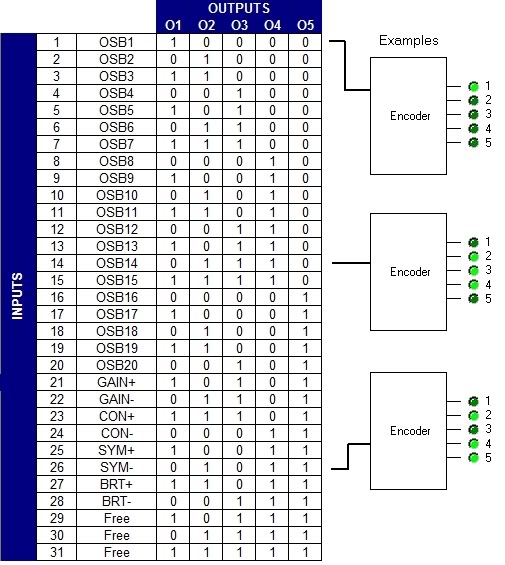
You can see in the examples that each pushbutton will activate the corresponding outputs of the encoder.
Electrical schema
To translate the truth table to an electrical schema we have to just set the 5 outputs and the pushbuttons and make the wiring from the pushbutton to the output. In the examples, the OSB1 has to be connected only to output 1; the OSB14 has to be connected to output 2, 3 and 4; and the SYM- has to be connected to output 2, 3, 4 and 5.
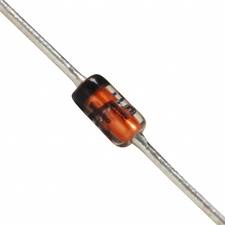
To isolate one pushbutton to another we will use the diode 1N4148, who is very useful at high frequencies with a reverse recovery time of no more than 4ns and very cheap, as we will need one of it per connection.
This is how the electrical schema looks like for the 5 first pushbuttons:
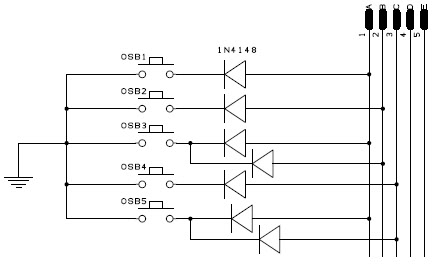 The complete schema in the PFD attached.
Now you can make the board with your favourite program:

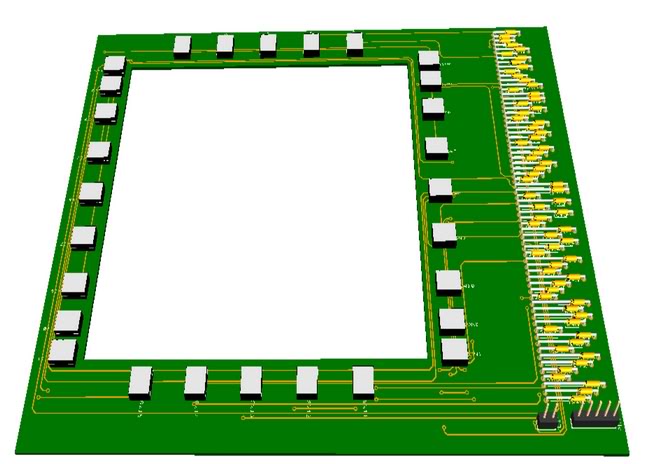
And, of course, call your friend to make the board .
Here you have the results of the MFD where I have added also some leds for lighting. Is anything more interesting than a few hours working on your favourite hobby?
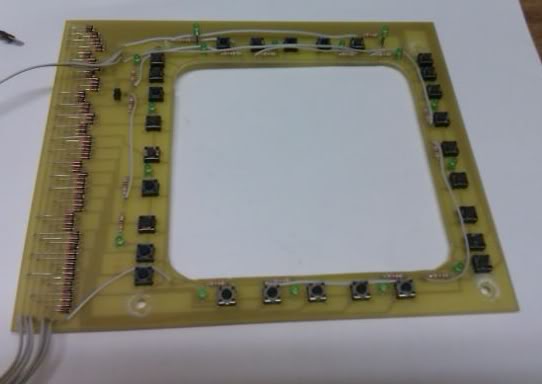
Now we can connect the board to one of our expanders. I have chosen the 16I/O expander with 010 address and I have connected the MFD to pins 8 to 12.

PS Cockpit Software configuration
Now we are ready to tell the software were we have connected our MFD with a encoder system of 32 inputs to 5 outputs.
Go to the IO Layout page of the PS Cockpit Software, select I2C channel 0 and expander 010. In the corresponding pin 8 select “Input” from the dropdown list and 32 to 5 BCD of the function dropdown list. Set the desire TAG and accept.

Time for testing: Click on the “Test” command and you will see which inputs are activated when you press any of the pushbuttons:
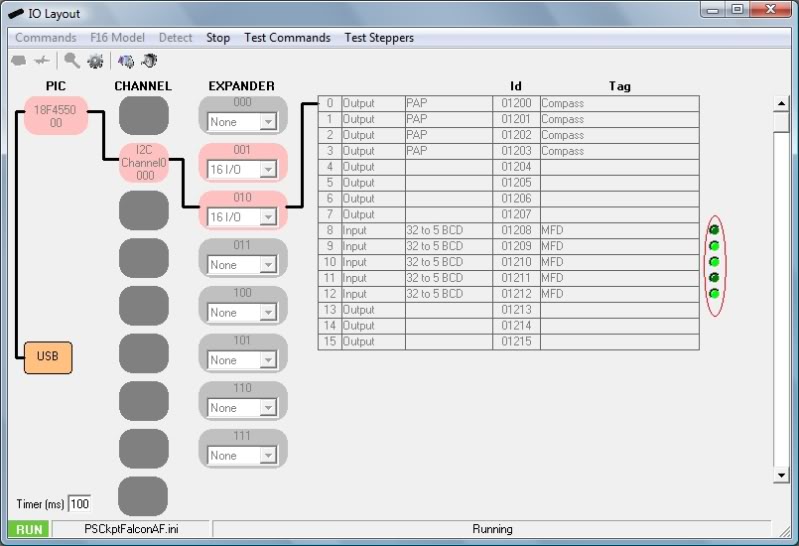
Sending commands to the simulator
We have now to tell the PS Cockpit Software the commands we want to send the simulator on every key. Remember the truth table; each key will activate one or several inputs.
Open the Commands page and select BCD. With the scroll bar on the left you can select the corresponding tag. Depending on the type of encoder you will see a different table according with the amount of inputs. In this case, select the tag MFD and we will see a table of 32 cells where the columns are the first two outputs of the encoder (truth table = O1-O2 = low bits) and the rows are the last three outputs of the encoder (truth table = O3-O4-O5 = high bits).
Select the corresponding cell and type the key to send to the simulator on the keyboard. Click on “Replace” command to accept:
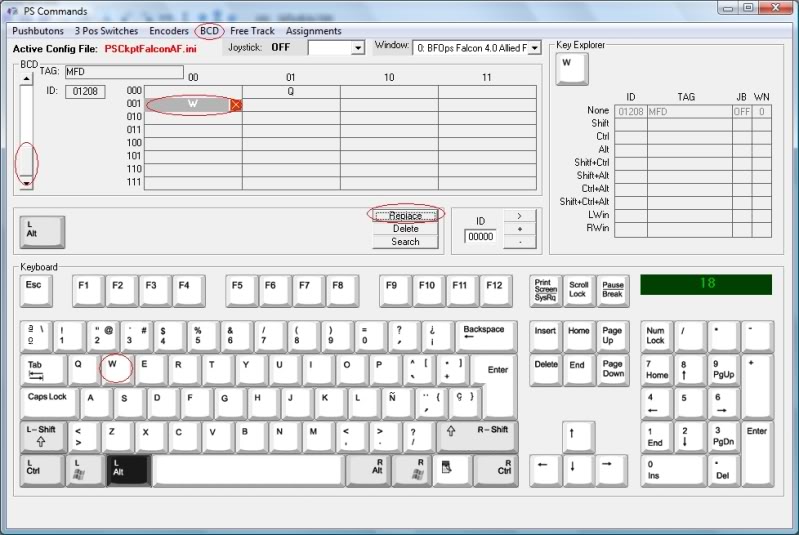
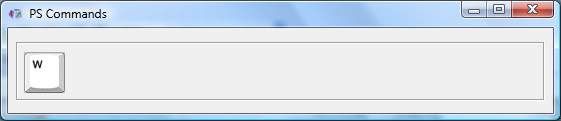
Time for testing: Go back to IO Layout page, click on “Test” command and on “Test commands”. A small window will appear and the corresponding command will be shown as you press any pushbutton:
Of course, you can always use (2) encoders of 16 inputs/4 outputs or use the 40I/O expander board of the PS Cockpit System to connect directly all the pushbuttons of the MFD.
Regards,
Shep
PS Cockpit System can handle 3 types of encoders:
- 8 inputs to 3 outputs.
- 16 inputs to 4 outputs.
- 32 inputs to 5 outputs.
For the first two you can always use an encoder chip or make it of your own as we are going to do here for a MFD.
Making the truth table
The first thing to do is to make the truth table for the MFD. This is where the relationship between the given pushbuttons and the outputs is going to be established.
We have 28 pushbuttons in a MFD, 20 OSB plus 8 for GAIN, CON, SYM and BRT. The truth table will be:
You can see in the examples that each pushbutton will activate the corresponding outputs of the encoder.
Electrical schema
To translate the truth table to an electrical schema we have to just set the 5 outputs and the pushbuttons and make the wiring from the pushbutton to the output. In the examples, the OSB1 has to be connected only to output 1; the OSB14 has to be connected to output 2, 3 and 4; and the SYM- has to be connected to output 2, 3, 4 and 5.
To isolate one pushbutton to another we will use the diode 1N4148, who is very useful at high frequencies with a reverse recovery time of no more than 4ns and very cheap, as we will need one of it per connection.
This is how the electrical schema looks like for the 5 first pushbuttons:
Now you can make the board with your favourite program:
. Here you have the results of the MFD where I have added also some leds for lighting. Is anything more interesting than a few hours working on your favourite hobby?
Now we can connect the board to one of our expanders. I have chosen the 16I/O expander with 010 address and I have connected the MFD to pins 8 to 12.
PS Cockpit Software configuration
Now we are ready to tell the software were we have connected our MFD with a encoder system of 32 inputs to 5 outputs.
Go to the IO Layout page of the PS Cockpit Software, select I2C channel 0 and expander 010. In the corresponding pin 8 select “Input” from the dropdown list and 32 to 5 BCD of the function dropdown list. Set the desire TAG and accept.
Time for testing: Click on the “Test” command and you will see which inputs are activated when you press any of the pushbuttons:
Sending commands to the simulator
We have now to tell the PS Cockpit Software the commands we want to send the simulator on every key. Remember the truth table; each key will activate one or several inputs.
Open the Commands page and select BCD. With the scroll bar on the left you can select the corresponding tag. Depending on the type of encoder you will see a different table according with the amount of inputs. In this case, select the tag MFD and we will see a table of 32 cells where the columns are the first two outputs of the encoder (truth table = O1-O2 = low bits) and the rows are the last three outputs of the encoder (truth table = O3-O4-O5 = high bits).
Select the corresponding cell and type the key to send to the simulator on the keyboard. Click on “Replace” command to accept:
Time for testing: Go back to IO Layout page, click on “Test” command and on “Test commands”. A small window will appear and the corresponding command will be shown as you press any pushbutton:
Of course, you can always use (2) encoders of 16 inputs/4 outputs or use the 40I/O expander board of the PS Cockpit System to connect directly all the pushbuttons of the MFD.
Regards,
Shep
Tuesday, November 22, 2011
PS Cockpit System - How to use steppers
For X-27 and X40 stepper motors visit this post: link
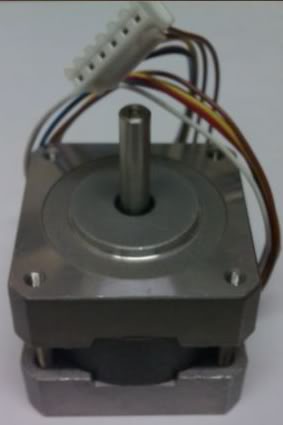
The following picture is a simplified stepper motor diagram. It can be seen that there are 4 stator poles and 2 rotor poles. Real stepper motors have much more rotor poles.

The number of rotor poles defines the steps of the stepper motor. Typical steps are 3.6°, 1.8° or 0.9° and they will give us the resolution of our indicator along with the operation mode of the stepper.
The unipolar stepper motor can be driven with to different modes:
In “Normal” mode the poles are activated in sequence A-C-D-F:
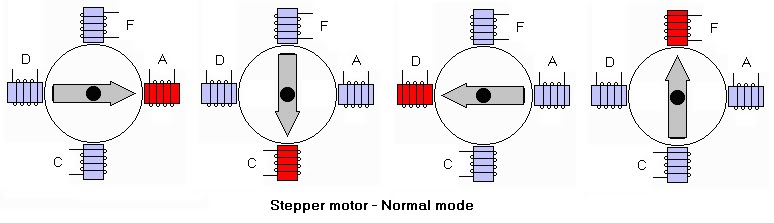
In “Half Step” mode the poles are activated in sequence A-(AC)-C-(CD)-D-(DF)-F-(FA)

As you can see the “Half Step” mode gives us the double of resolution for our indicators.
In example, one stepper motor with 1.8º steps will need 360º/1.8º = 200 steps to make a full turn in “Normal” mode and our indicator will have a 1.8º of resolution while in “Half Step” mode it will need 360º/0.9º = 400 steps to make a full turn and our indicator will have a 0.9º of resolution.
Resolution vs. synchronization
As the stepper motors are driven by energizing the stator coils or poles, we have to delay the outputs some time to let the rotor of the motor reach the position it should be in order to energize the next coil. The delay depends on the electrical characteristics of the motor, on the presence of static friction and on the external torque.
The PS Cockpit System uses timers to adjust the delay needed in each stepper motor.
So, if we set a timer of one of our stepper motor to 20ms, in “Normal” mode it will need 200 steps * 20 ms = 4 seconds to make a full turn, while in “Half Step” mode will need 400 steps * 20 ms = 8 seconds to complete a full turn.
If we are updating our cockpit with info from the sim, let’s say, every 200 ms, the indicator will always be out of synch.
Of course this is unacceptable for indicators which need speed and accuracy and so other way than the stepper motors has to be used.
Selecting the stepper motor
Ok. Too much theory for today. Let’s go for an example.
I’m thinking of driving the compass of my cockpit with a stepper motor because it needs a non-stop system as it has neither bottom nor upper limits.
As the resolution of the compass dial is 5º, I have selected one stepper motor with 1.8º of resolution that will give me a resolution of 1.8º in “Normal” mode and 0.9º in “Half Step” mode which can be acceptable.
Also I’m going to drive a light weight indicator, so 5 VDC will give me enough torque to move it.
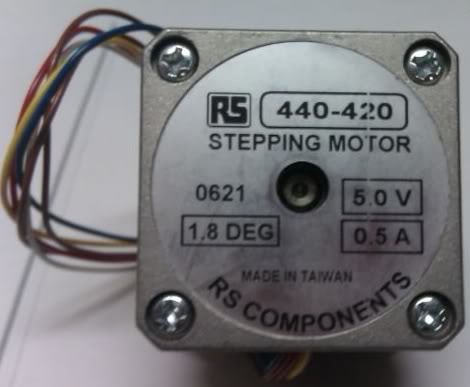
I’m refreshing my cockpit each 200 ms from the data extracted of my sym, so it will give me between 10 to 20 steps of rotation each time the refreshing is done using between 10 to 20 ms for each step.
That means I can drive the compass in a range of 9º (10 steps * 0.9 º/step) to 36º (20 steps * 1.8º/step) between refreshes which sounds very acceptable for this instrument.
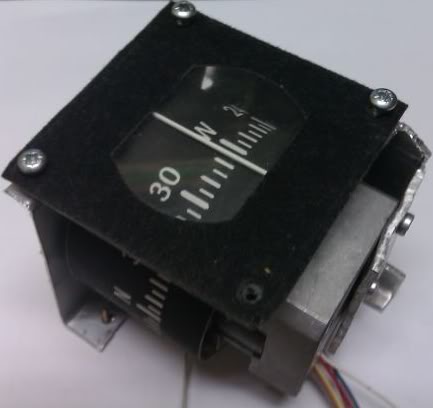
I’ve made the compass with the stepper in it:
Connecting the stepper motor
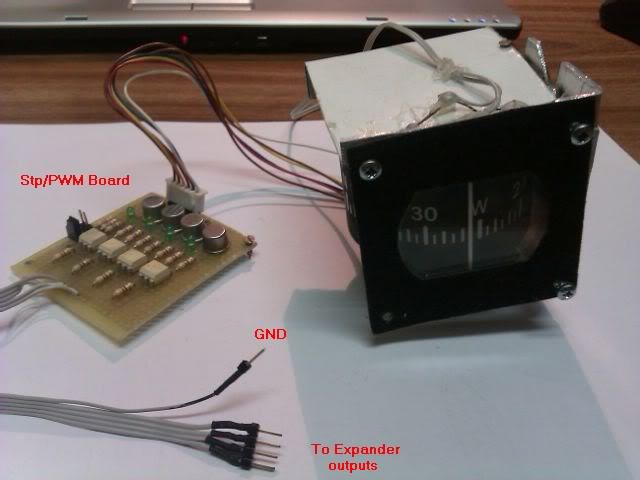
I have taken a look to the wiring diagram of the stepper motor and found the correlation coils of A-C-D-F and the common B-E of the Stp/PWM board of the PS Cockpit System:
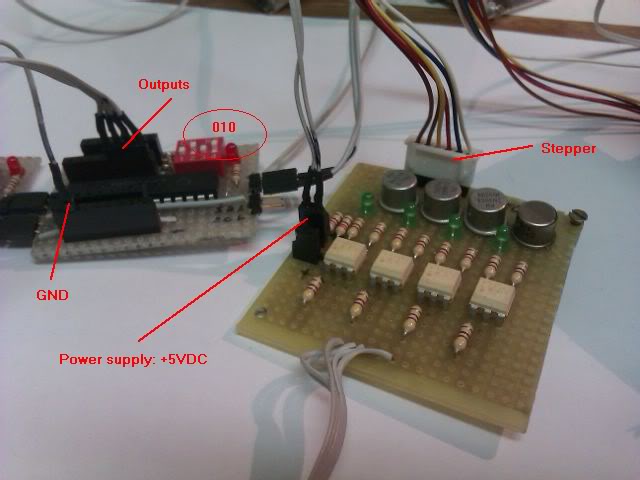
I have chosen a 16I/O expander addressed with 010 on channel 0 of the PS Cockpit System to connect the Stp/PWM board to.
Configuring the stepper motor
Now we have to tell the PS Cockpit Software we have connected a stepper motor to the system. For that, go to PS Layout page and select I2C channel 0 and 010 expander and select a 16I/O expander type. The list of I/O will appear on the right of the page.

On the I/O dropdown list select “Output” and on the Function dropdown list select “Stepper”. Give a tag name for the stepper -I’ve obviously named “Compass”- and accept it. The software will fill the needed outputs automatically
The PS Cockpit software knows now it has a stepper motor in that location but doesn’t know what magnitude it has to show on it. To do this go to the F16 model page and select Steppers:
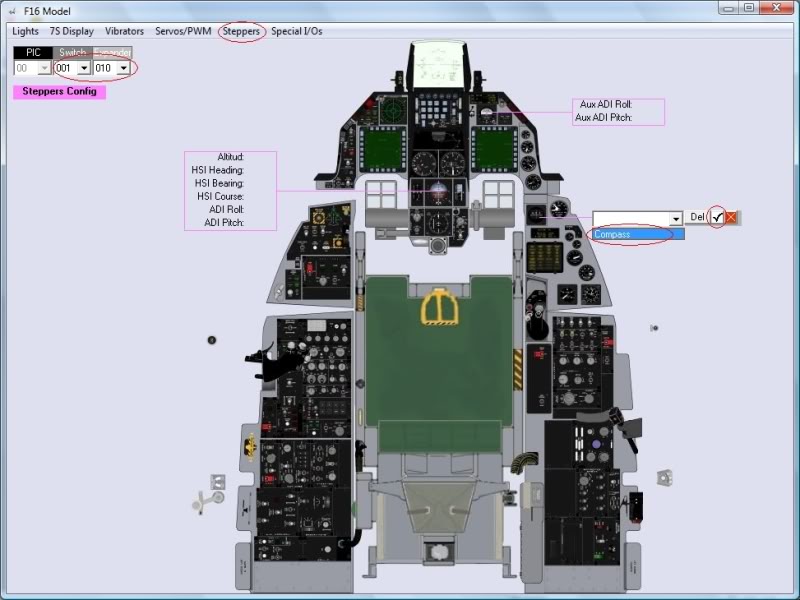
Select the I2C channel 001 and expander 001, click on the “Compass” label to see the dropdown list of all the steppers connected to that expander and select the tag of the desire stepper on the dropdown list. “Compass” in this case. Accept it and the number of the first output of the Layout page will be shown:
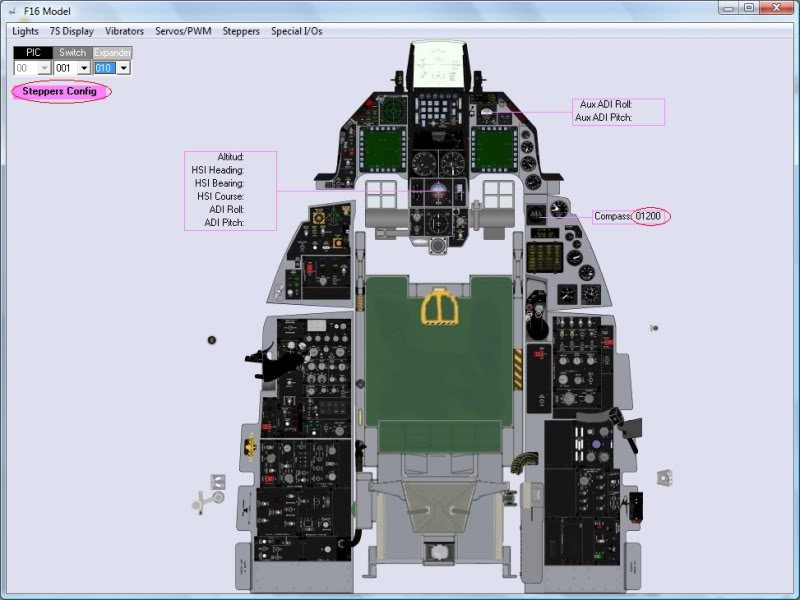
One “step” more and we are done: We have to configure the type of stepper and the values of the indicator. To do this click on “Stepper Config” label and the following page will appear:
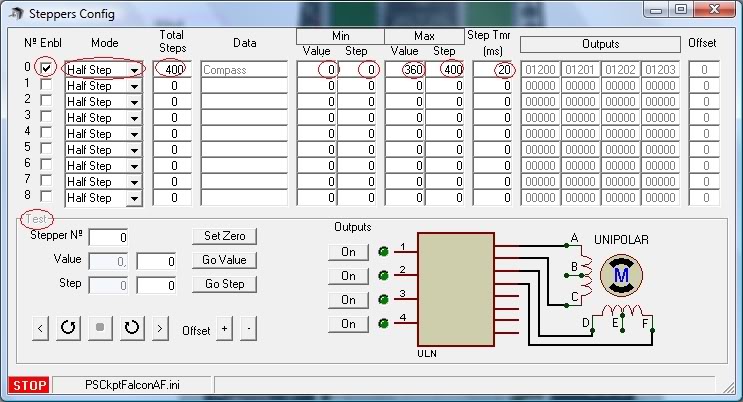
The “Stepper Config” page shows all the data of the steppers and it will be used later to test the stepper. By now we have to see that the “Compass” tag and the related outputs are showed.
We can also put some values although we can change them when in test mode:
- Enbl: Click on the checkbox to enable the stepper.
- Mode: Select the desire mode to drive the stepper (Normal or Half Step)
- Total steps: Set the total steps of your stepper (i.e. 400 for 1.8º stepper in Half Step mode; 200 for 1.8º stepper in Normal mode; 100 for 3.6º stepper in Normal mode; 200 for 3.6º stepper in Half Step mode; …)
- Min. Value and Step: The relationship between the lower value of the magnitude and the step number. In this case 0º of the compass will be at step number 0.
- Max. Value and Step: The relationship between the upper value of the magnitude and the step number. In this case 360º of the compass will be at step number 400. This will give us a non-stop indicator.
- Step Tmr: The value of the timer in ms to wait the rotor of the stepper reach the correct position once a pole has been activated.
The test frame only will be available when in test mode.
Normally we set the maximum value of the magnitude and the maximum steps together. To change the rotation direction of the stepper set the maximum value of the magnitude at the minimum step.
Testing the stepper motor
Close the “Steppers Config” page and the “F16 Model” page and go back to the “I/O Layout” page. Click on “Test” command and on “Test Steppers” command:
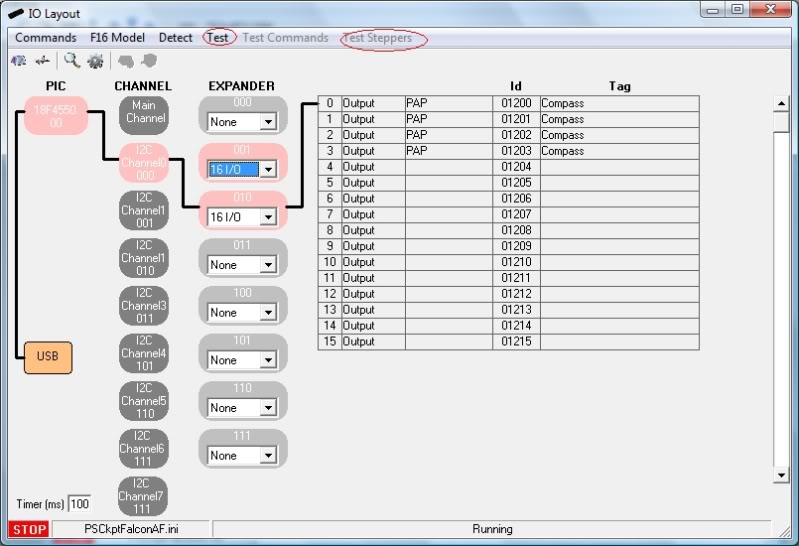
The “Steppers Config” will be shown again and the “Test” frame will be now available:
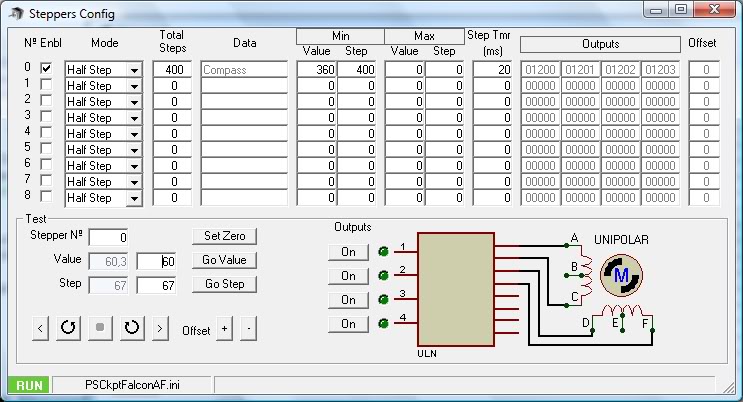
For testing the stepper you have the following tools:
- Stepper nº: Select the desire stepper to test.
- Outputs: You can activate each output individually to test them.
- CCW: Move the stepper continuously counter clock wise
- Stop: Stops the stepper
- CW: Moves the stepper continuously clock wise
- Step+: Moves the stepper one step forward
- Offset: In case you are using “Half step mode” you can use this tool to select and intermediate value between steps.
With the above tools you have to move the indicator to the 0 value, in this case “North” and then click on the “Set Zero” command to let the software know how many steps will need to move in relationship with the magnitude.
Once the 0 is established, you can also use the following tools:
- Value: Set the value of the magnitude you want the stepper to go to and click on the “Go Value” command and the stepper will find the shorter direction to reach that value.
- Step: Set the value of the step you want the stepper to go to and click on the “Go Step” command and the stepper will find the shorter direction to reach that value.
You can also change the configuration of the steppers in the list.
The software will remember the position of the stepper even you if you exit from the application.
This video shows you how to test it. Sorry for the quality.
Regards,
Shep
Wednesday, November 16, 2011
PS Cockpit System - How to use LCD Display
PS Cockpit System PCB is able to drive up to 2 LCD graphic display modules based on the KS0108 driver. You can connect the modules to the Main PCB of the system:
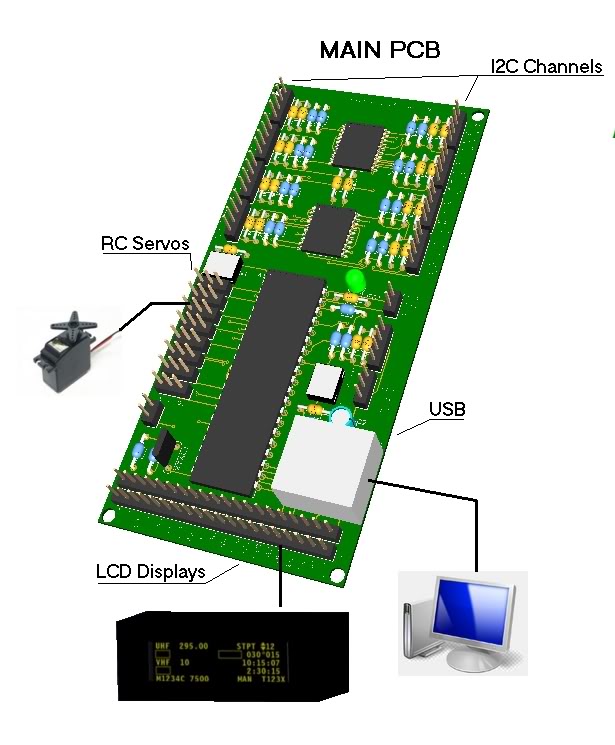 The connectors pin diagram is the following:
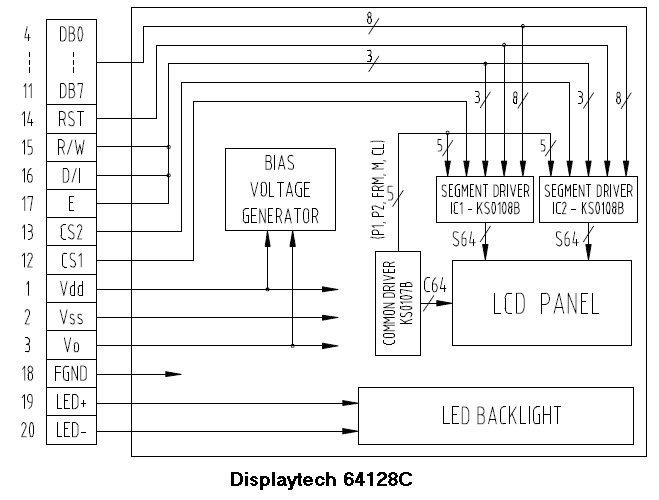
Look closely to your LCD datasheet to find the corresponding pin-out.
I have used a Displaytech 64128C LCD graphic module with the following pin-out:
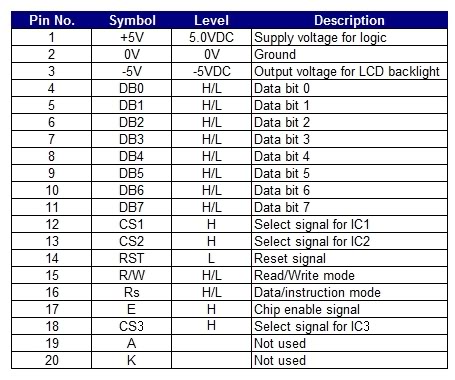
This LCD Display is a little tricky as it needs a negative supply voltage for the LCD on Vo. I turned around by using a PC power supply which gives us a source of -5VDC.
Once the LCD module has been connected the PS Cockpit System at start up will display the PS logo and when you run the PS Cockpit software the DED info will appear on the LCD.
If you only have one LCD module the PS Cockpit System can also display the PFL info in it. To do this, you have to go to the F16 model and select Special I/Os page. In the “Show DED/PFL” select the desire input from the expander (i.e. F-ACK pushbutton on the left eyebrow). Now whenever you push the pushbutton the display will show you the first screen of the PFL. Keep pushing this pushbutton to go through all the pages of the PFL. Once all the pages of the PFL have been showed the display will show the DED screen again.
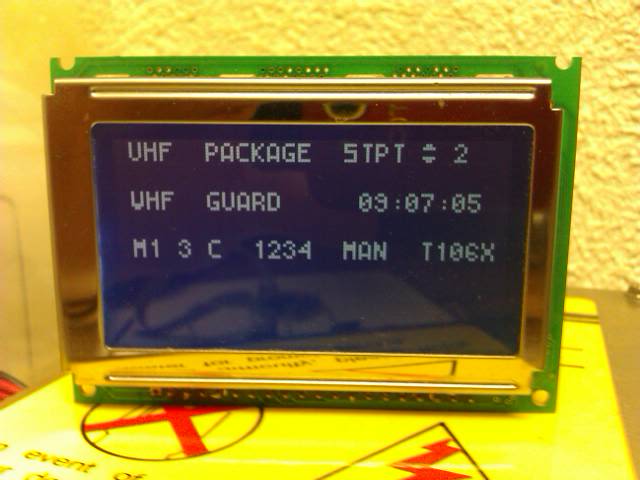
Here is a video of how the Displaytech display is working as the F-16 DED with the Falcon AF sim:
Look closely to your LCD datasheet to find the corresponding pin-out.
I have used a Displaytech 64128C LCD graphic module with the following pin-out:
This LCD Display is a little tricky as it needs a negative supply voltage for the LCD on Vo. I turned around by using a PC power supply which gives us a source of -5VDC.
Once the LCD module has been connected the PS Cockpit System at start up will display the PS logo and when you run the PS Cockpit software the DED info will appear on the LCD.
If you only have one LCD module the PS Cockpit System can also display the PFL info in it. To do this, you have to go to the F16 model and select Special I/Os page. In the “Show DED/PFL” select the desire input from the expander (i.e. F-ACK pushbutton on the left eyebrow). Now whenever you push the pushbutton the display will show you the first screen of the PFL. Keep pushing this pushbutton to go through all the pages of the PFL. Once all the pages of the PFL have been showed the display will show the DED screen again.
Here is a video of how the Displaytech display is working as the F-16 DED with the Falcon AF sim:
| Regards, Shep | |
Subscribe to:
Posts (Atom)