You can download new version of PSKeys as per Dunc recommendations here:
PSKeys v.2.0 Setup
Thanks Dunc!!
Regards,
Shep

Tuesday, August 13, 2013


Monday, July 8, 2013
HOW TO Assign Commands Directly From your BMS .key File
Now you can assign commands to your hardware directly from your BMS .key file in the PSCockpit Software v.0.9.1.
To do this, go to Command Page and select “BMS .key file” from the Keyboard menu. Click on Load to open your BMS .key file and you will see the list of all the callbacks already assigned. When you click on one of them, the software will read and display the key combination. To assign it to one of your switches, pushbuttons, etc, just click on Replace.

Edited on April 10th, 2016
------------------------------------------------------------------------------------------------------------------------
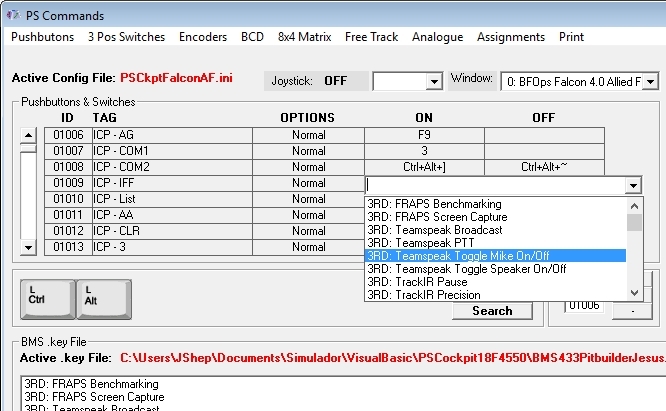
From version 0.9.9 you can also assign commands from a drop down list directly in the element matrix by clicking on it with the right button of the mouse once you have loaded the .key file:
------------------------------------------------------------------------------------------------------------------------
Regards,
Shep
To do this, go to Command Page and select “BMS .key file” from the Keyboard menu. Click on Load to open your BMS .key file and you will see the list of all the callbacks already assigned. When you click on one of them, the software will read and display the key combination. To assign it to one of your switches, pushbuttons, etc, just click on Replace.
Edited on April 10th, 2016
------------------------------------------------------------------------------------------------------------------------
From version 0.9.9 you can also assign commands from a drop down list directly in the element matrix by clicking on it with the right button of the mouse once you have loaded the .key file:
------------------------------------------------------------------------------------------------------------------------
Regards,
Shep
Saturday, June 29, 2013
HOW TO use Adafruit 16-Channel Servo Driver with the PS Cockpit System
Now the PSCockpit System can drive the Adafruit 16-Channel Servo Driver:
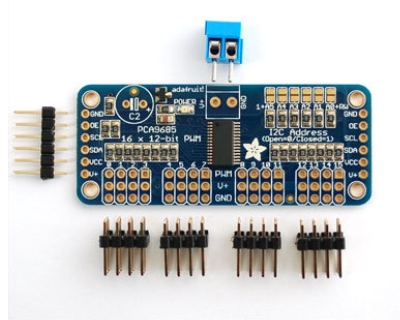
For more information, check http://www.adafruit.com/products/815
You have to consider the following details:
- The Adafruit board is non compatible with the SSC-32 board for servos. You can only use only one of the system at once.
- Only 2 Adafruit boards can be connected to the PSCockpit System.
- Adafruit boards have to be connected only to the Main I2C Channel of the Main Board.
- The firmware of the Main Board has to be updated to version 1.4.0
- PSCockpit software must be version 0.9.1 or higher
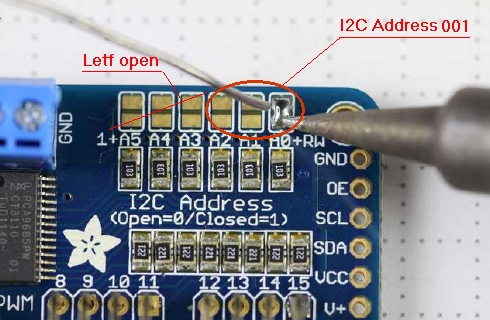
- I2C address of the Adafruit board has to be selected with the 3 less significant digits, the other 3 must remain open:
The wiring is as follows:
Main Board Main I2C Channnel ---> Adafruit
5V+ ---> VCC
GND ---> GND
SCD ---> SDA
SCL ---> SCL
To power the servos use the terminal block of the Adafruit board.
Read carefully the Adafruit datasheet for assembly, adding a capacitor and other things.
Configuring the Adafruit board
To configure the system we have to add the Adafruit board. Open the IO Layout page of the PSCockpit software and select PWM-PCA9685 on the expander dropdown list of the Main I2C channel. You will see the list of PWM outputs available for the Adafruit boards. In the tag section you can put the name of each device:
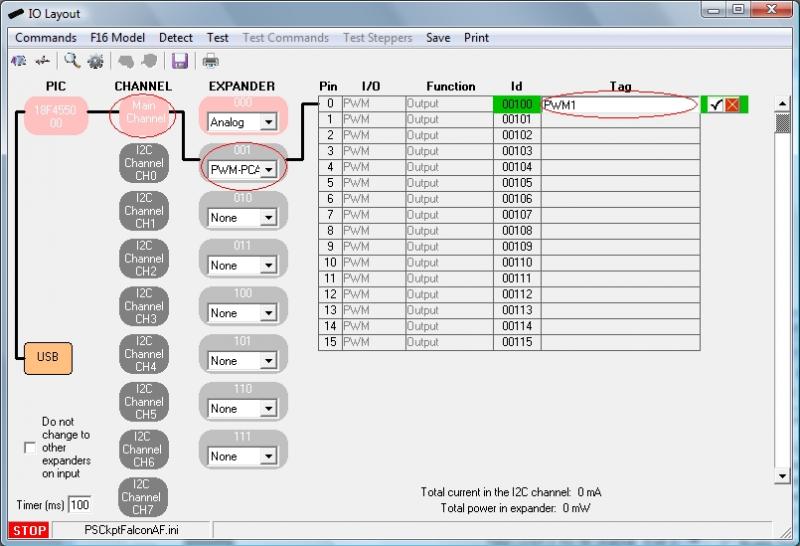
Note: Adafruit board can only be used on the Main Channel.
Once you have attached the Adafruit board to the Main I2C Channel you can click “Detect”. This action will detect and configure the Adafruit board. If everything is correct the PWM-PCA9685 expander will appear in pink.
To select the Adafruit board to be used instead of the SSC-32 for servos, go to F16Model and select Servos/PWM page. You will see “Use PWM-PCA9685” checkbox. Once you check it, the servo channels dropdown list will be filled with the tags configured in the IOLayout:
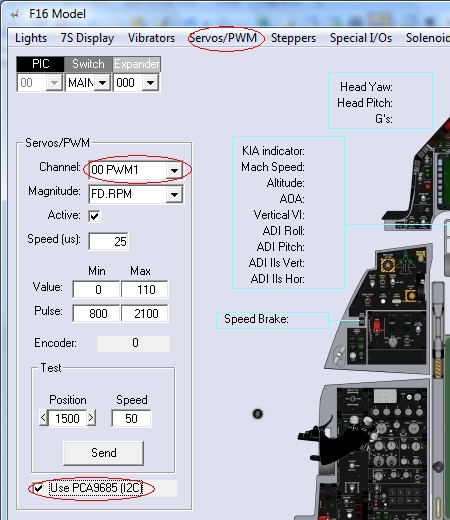
To configure and to add scales, see steps 6 and 7 in the following post: How to use Aircores
Regards,
Shep
For more information, check http://www.adafruit.com/products/815
You have to consider the following details:
- The Adafruit board is non compatible with the SSC-32 board for servos. You can only use only one of the system at once.
- Only 2 Adafruit boards can be connected to the PSCockpit System.
- Adafruit boards have to be connected only to the Main I2C Channel of the Main Board.
- The firmware of the Main Board has to be updated to version 1.4.0
- PSCockpit software must be version 0.9.1 or higher
- I2C address of the Adafruit board has to be selected with the 3 less significant digits, the other 3 must remain open:
The wiring is as follows:
Main Board Main I2C Channnel ---> Adafruit
5V+ ---> VCC
GND ---> GND
SCD ---> SDA
SCL ---> SCL
To power the servos use the terminal block of the Adafruit board.
Read carefully the Adafruit datasheet for assembly, adding a capacitor and other things.
Configuring the Adafruit board
To configure the system we have to add the Adafruit board. Open the IO Layout page of the PSCockpit software and select PWM-PCA9685 on the expander dropdown list of the Main I2C channel. You will see the list of PWM outputs available for the Adafruit boards. In the tag section you can put the name of each device:
Note: Adafruit board can only be used on the Main Channel.
Once you have attached the Adafruit board to the Main I2C Channel you can click “Detect”. This action will detect and configure the Adafruit board. If everything is correct the PWM-PCA9685 expander will appear in pink.
To select the Adafruit board to be used instead of the SSC-32 for servos, go to F16Model and select Servos/PWM page. You will see “Use PWM-PCA9685” checkbox. Once you check it, the servo channels dropdown list will be filled with the tags configured in the IOLayout:
To configure and to add scales, see steps 6 and 7 in the following post: How to use Aircores
Regards,
Shep
Wednesday, April 10, 2013
HOW TO Connect and Configure your OLED 256x64 display
Edited on Aug, 17th, 2022:
-------------------------------------------------------------------------------------------------------------------------
For 11th Run displays see this post: v2 OLED display
-------------------------------------------------------------------------------------------------------------------------
The OLED display is supplied with a driver board attached to the display pcb. This driver board has a voltage regulator to convert the 5V to 3,3V, which supply power to the OLED display and two signal converters to convert 5V signals coming from the Main Pcb to 3,3V signals going to the display.
The OLED is configured to be used as 6800 Parallel 8 bit interface.
Before connecting the OLED display turn off the power supply of the Main Pcb and detach the USB cable from the computer.
Edited on Feb, 18th, 2014:
------------------------------------------------------------------------------------------------------------------------
Make a cable with 20 wire and connect straight pin to pin:
Be sure you have firmware version 1.5.0 or higher (1.5.1 recommended) in the Main PCB. You can see your firmware version by clicking on Help/About in the PSCockpit Software)
Make a cable with 14 wires and connect it from pin DBO to E.
Power the board directly from the power supply separately from the signals cable with SWG24 wires (thicker that the normal paralel strips used in PC connections).
------------------------------------------------------------------------------------------------------------------------
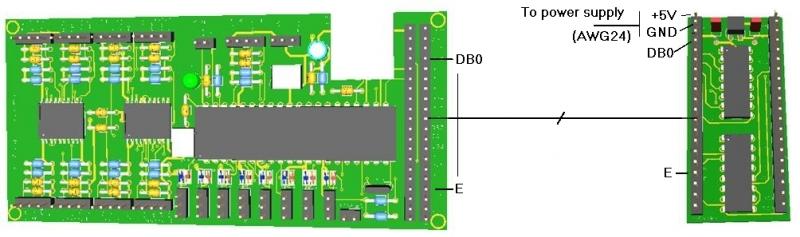
Not all the wires/pins are used for this display. If you want to make a cable with less wires, these are the pins used: +5V, GND, DB0, DB1, DB2, DB3, DB4, DB5, DB6, DB7, RST, R/W, Rs, and E.
Turn on power and connect the USB cable to your computer.
Run PSCockpit software and go to the LCD page and select the OLED display on the drop down list in the corresponding LCD tab. LCD 1 is used for the LCD connected to the most external connector of the Main Pcb and LCD 2 for the inner connector:
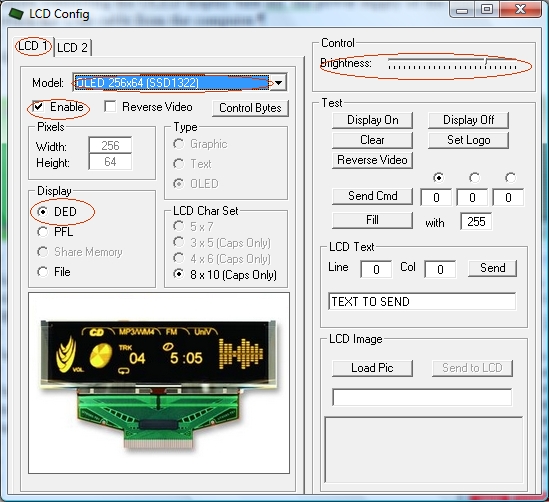
Don’t forget to check “Enable” and the “DED” or “PFL” to use with our sim and the desire brightness of the display with the slider bar.
In “Test” area you have some usual commands for you to try. They are self explanatory.
This display accepts 3 bytes commands. Select the corresponding option button above the commands text box to send one, two or three bytes.
You can also send monochrome bitmaps to the OLED but the horizontal length of the bitmap has to be multiple of 4.
NOTES:
* The OLED display is activated only when you enter PSCockpit software and is deactivated when you exit the program. This is to avoid image persistence on the OLED.
* The OLED display may be light sensitive. Caution should be taken to avoid exposure of this device to any light source during normal operation.
* The OLED display is not radiation protected.
Some pictures of the running OLED display:


Kind regards,
Shep
The OLED is configured to be used as 6800 Parallel 8 bit interface.
Before connecting the OLED display turn off the power supply of the Main Pcb and detach the USB cable from the computer.
Edited on Feb, 18th, 2014:
------------------------------------------------------------------------------------------------------------------------
Be sure you have firmware version 1.5.0 or higher (1.5.1 recommended) in the Main PCB. You can see your firmware version by clicking on Help/About in the PSCockpit Software)
Make a cable with 14 wires and connect it from pin DBO to E.
Power the board directly from the power supply separately from the signals cable with SWG24 wires (thicker that the normal paralel strips used in PC connections).
------------------------------------------------------------------------------------------------------------------------
Turn on power and connect the USB cable to your computer.
Run PSCockpit software and go to the LCD page and select the OLED display on the drop down list in the corresponding LCD tab. LCD 1 is used for the LCD connected to the most external connector of the Main Pcb and LCD 2 for the inner connector:
Don’t forget to check “Enable” and the “DED” or “PFL” to use with our sim and the desire brightness of the display with the slider bar.
In “Test” area you have some usual commands for you to try. They are self explanatory.
This display accepts 3 bytes commands. Select the corresponding option button above the commands text box to send one, two or three bytes.
You can also send monochrome bitmaps to the OLED but the horizontal length of the bitmap has to be multiple of 4.
NOTES:
* The OLED display is activated only when you enter PSCockpit software and is deactivated when you exit the program. This is to avoid image persistence on the OLED.
* The OLED display may be light sensitive. Caution should be taken to avoid exposure of this device to any light source during normal operation.
* The OLED display is not radiation protected.
Some pictures of the running OLED display:


Kind regards,
Shep
Monday, March 11, 2013
HOW TO Install your 256x64 OLED Display into the DED box
The box I have selected is from Hammond Manufacturing, part number 1598ABK. It comes with two detachable front and rear aluminium plates:
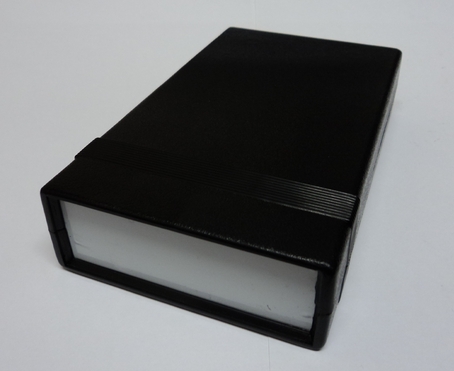
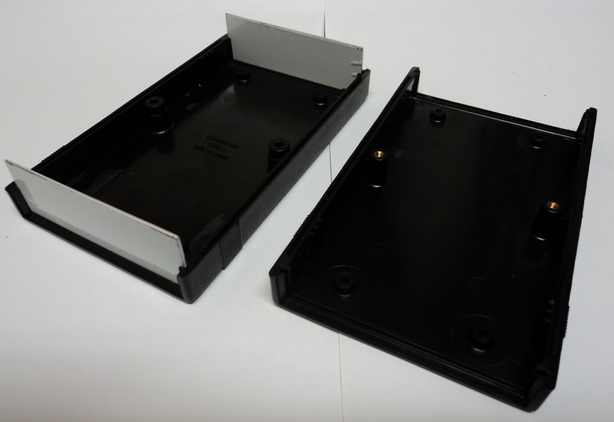
To fit the display into the box we have to disassemble the OLED display, make some modifications of the OLED pcb and make some adjustment in the box.
Please follow the follow the steps carefully:
1. Unbend the 4 little flanges of the aluminium frame of the OLED display
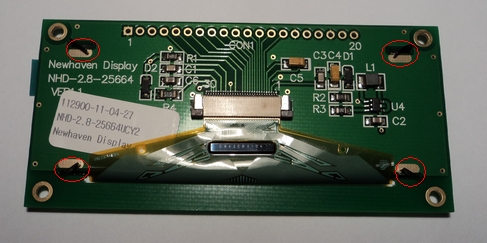
2. Detach the aluminium frame from the pcb and then detach the crystal from the aluminium frame by pressing carefully the crystal from both ends. There is also a plastic protector attached to the crystal and frame. Remove it from the frame and stick it again to the OLED crystal:

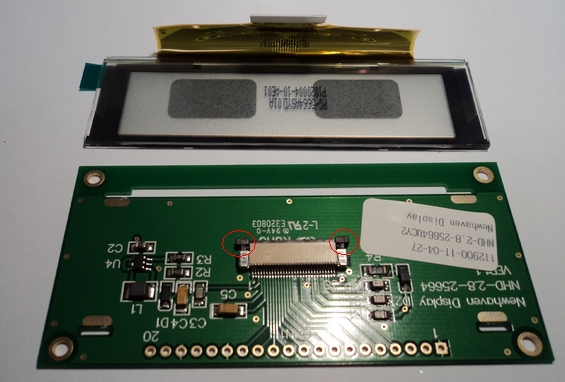
3. Remove the crystal ribbon from the pcb by gently pushing out the two flanges of the connector:
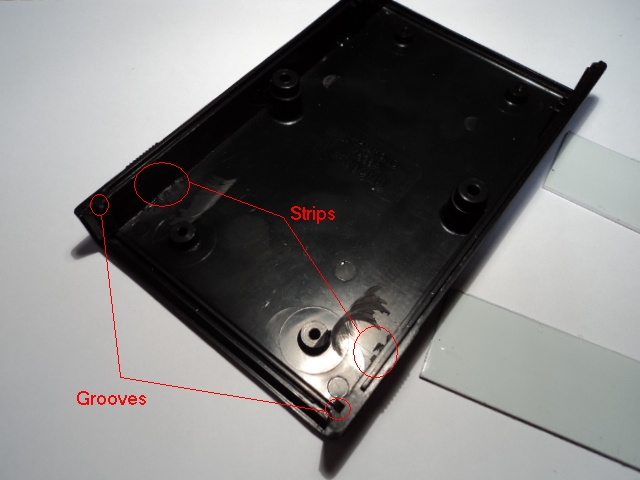
4. Now, if you try to insert the crystal into the front groove of the box, you will notice that the crystal doesn’t enter smoothly. The groove of the box has to be enlarged a little with a cutter. Also the little strips of the internal face of the box have to be removed. The modifications of the grooves have to be done in both parts of the box while the strips can be removed in only one part of the box.
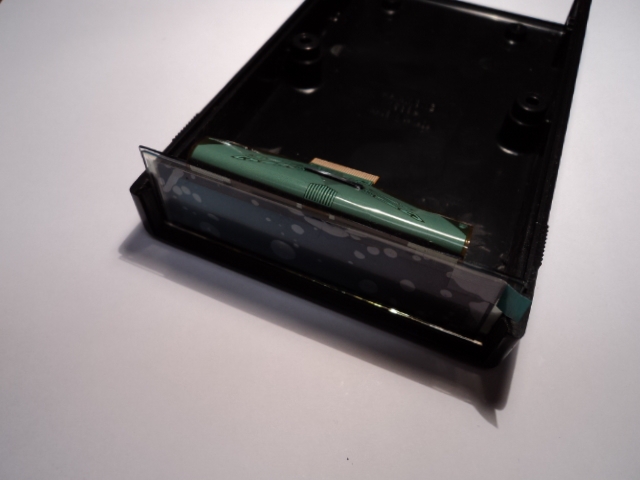
5. Now the crystal can be inserted in the box:

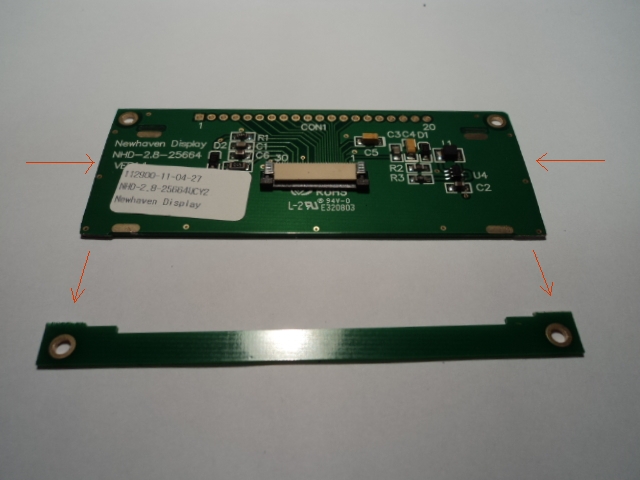
6. To allow the OLED display pcb get inside the box, cut the bottom side of the PCB wich has no copper nor elements and reduce a little the sides of the pcb with the sandpaper:
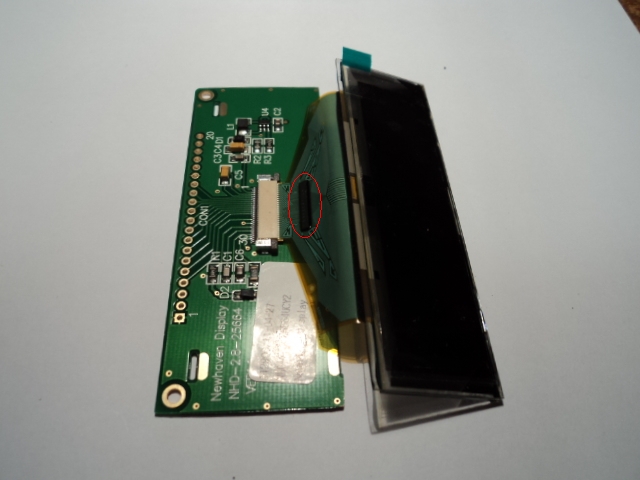
7. Attach again the crystal to the pcb. The little chip of the ribbon has to be on top:
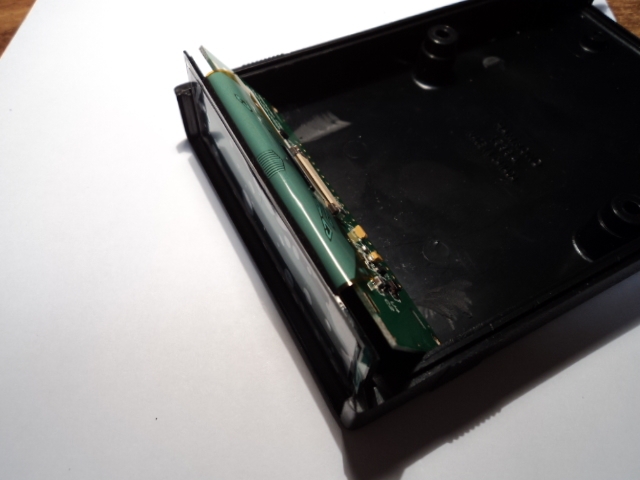
8. Place the crystal and the pcb in the box:
9. Close the box carefully with the top part:

You can even reuse the aluminium frame with some modification:
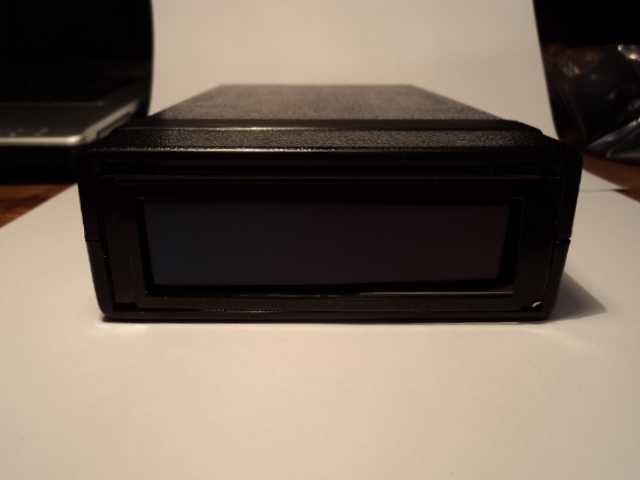 Coming soon……. connecting the OLED display.
Kind regards,
Shep
To fit the display into the box we have to disassemble the OLED display, make some modifications of the OLED pcb and make some adjustment in the box.
Please follow the follow the steps carefully:
1. Unbend the 4 little flanges of the aluminium frame of the OLED display
2. Detach the aluminium frame from the pcb and then detach the crystal from the aluminium frame by pressing carefully the crystal from both ends. There is also a plastic protector attached to the crystal and frame. Remove it from the frame and stick it again to the OLED crystal:
3. Remove the crystal ribbon from the pcb by gently pushing out the two flanges of the connector:
4. Now, if you try to insert the crystal into the front groove of the box, you will notice that the crystal doesn’t enter smoothly. The groove of the box has to be enlarged a little with a cutter. Also the little strips of the internal face of the box have to be removed. The modifications of the grooves have to be done in both parts of the box while the strips can be removed in only one part of the box.
5. Now the crystal can be inserted in the box:
6. To allow the OLED display pcb get inside the box, cut the bottom side of the PCB wich has no copper nor elements and reduce a little the sides of the pcb with the sandpaper:
7. Attach again the crystal to the pcb. The little chip of the ribbon has to be on top:
8. Place the crystal and the pcb in the box:
9. Close the box carefully with the top part:
You can even reuse the aluminium frame with some modification:
Kind regards,
Shep
Wednesday, February 6, 2013
New Encoder Interface Option of the PSCockpit System
As explained before, you can connect incremental encoders to the PSCockpit System to emulate some rotaries of the real cockpit. The digital signals coming from the encoders are checked every PSCockpit Software cycle time. This means that if you move too fast the encoder or you have encoders with more than 12 signals of resolution; the software is not able to catch up the electric signals thus the commands sent to the sim may not be accurate or slow.
To resolve this problem, now you can use the encoders as if they were a single pushbutton: in one rotational direction, sending a selected command to the sim and sending a different command in the reverse rotational direction by holding a desired pushbutton of your joystick:

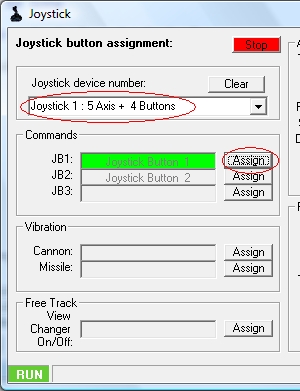
To do this, first, with your favourite Joystick connected, go to the Joystick Page of the PSCockpit Software, select the device in the “Joystick device number” dropdown list and click on the corresponding “Assign” button. Now, press the joystick button you want to be assigned. In example, I have assigned the Joystick button 1 to the PSCockpit JB1:
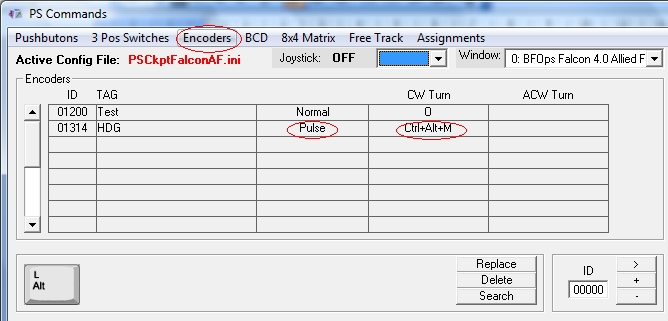
Go to the Commands page of the PSCockpit Software and select the “Encoders” tab. Select “Pulse” function in the HDG encoder and assign the desired key combination:
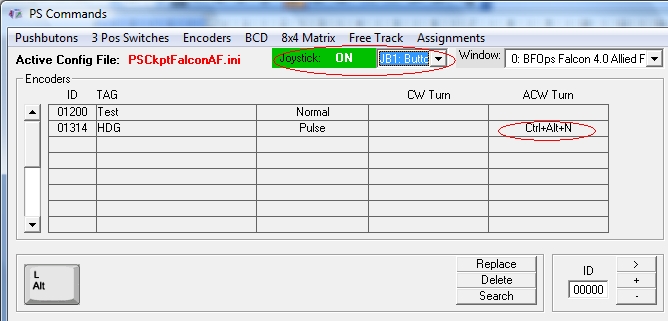
Now, press the joystick button or select the JB1 from the dropdown list “Joystick” and assign the key combination to the ACW Turn field:
Remember: in the PSCockpit System you can program 3 joystick buttons and assign a different key combination for each button. This can be made in all the inputs elements connected to the PSCockpit boards. Also you can define at what window you want to send that command in the “Window” dropdown list.
Kind regards,
Shep
To resolve this problem, now you can use the encoders as if they were a single pushbutton: in one rotational direction, sending a selected command to the sim and sending a different command in the reverse rotational direction by holding a desired pushbutton of your joystick:
To do this, first, with your favourite Joystick connected, go to the Joystick Page of the PSCockpit Software, select the device in the “Joystick device number” dropdown list and click on the corresponding “Assign” button. Now, press the joystick button you want to be assigned. In example, I have assigned the Joystick button 1 to the PSCockpit JB1:
Go to the Commands page of the PSCockpit Software and select the “Encoders” tab. Select “Pulse” function in the HDG encoder and assign the desired key combination:
Now, press the joystick button or select the JB1 from the dropdown list “Joystick” and assign the key combination to the ACW Turn field:
Remember: in the PSCockpit System you can program 3 joystick buttons and assign a different key combination for each button. This can be made in all the inputs elements connected to the PSCockpit boards. Also you can define at what window you want to send that command in the “Window” dropdown list.
Kind regards,
Shep
Thursday, January 24, 2013
OLED Display for PSCockpit System
 Display driver for the 256x64 OLED driver already implemented: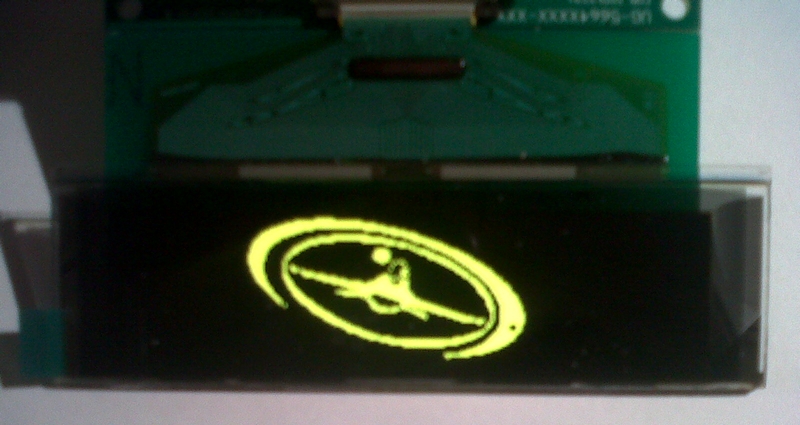
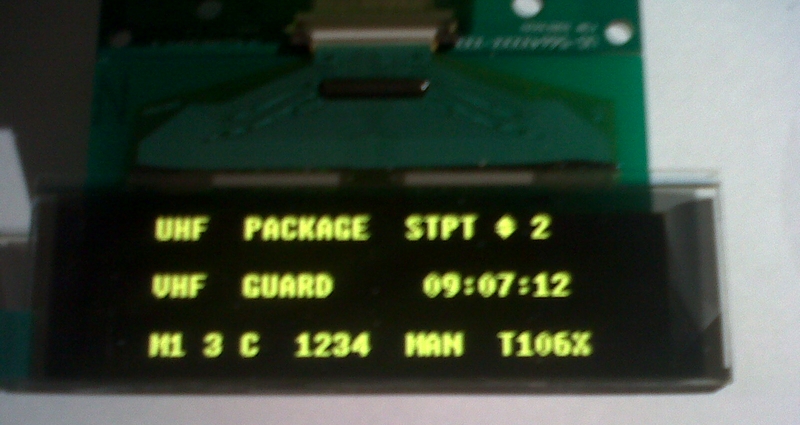
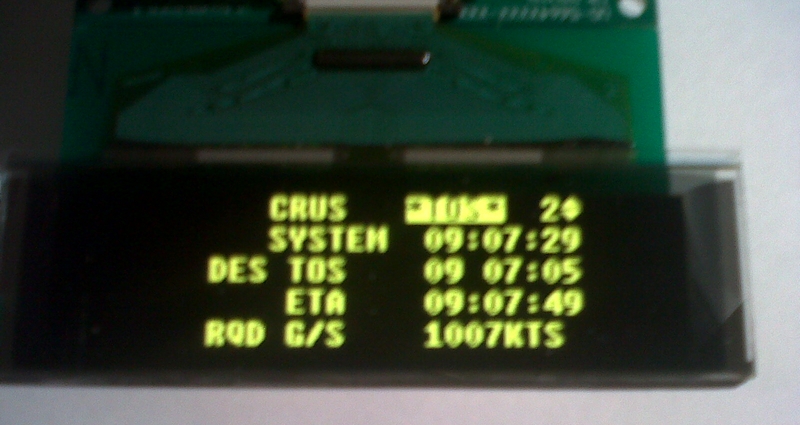
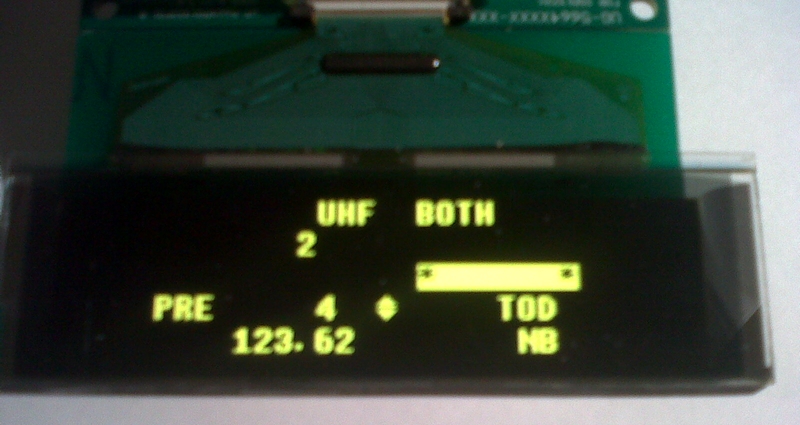
Regards,
Shep
Sunday, January 13, 2013
PS COCKPIT PCBs SECOND RUN!!!
Time to launch second run of the PSCockpit PCB´s with the new additional analogue board for rotaries!!!
 Description
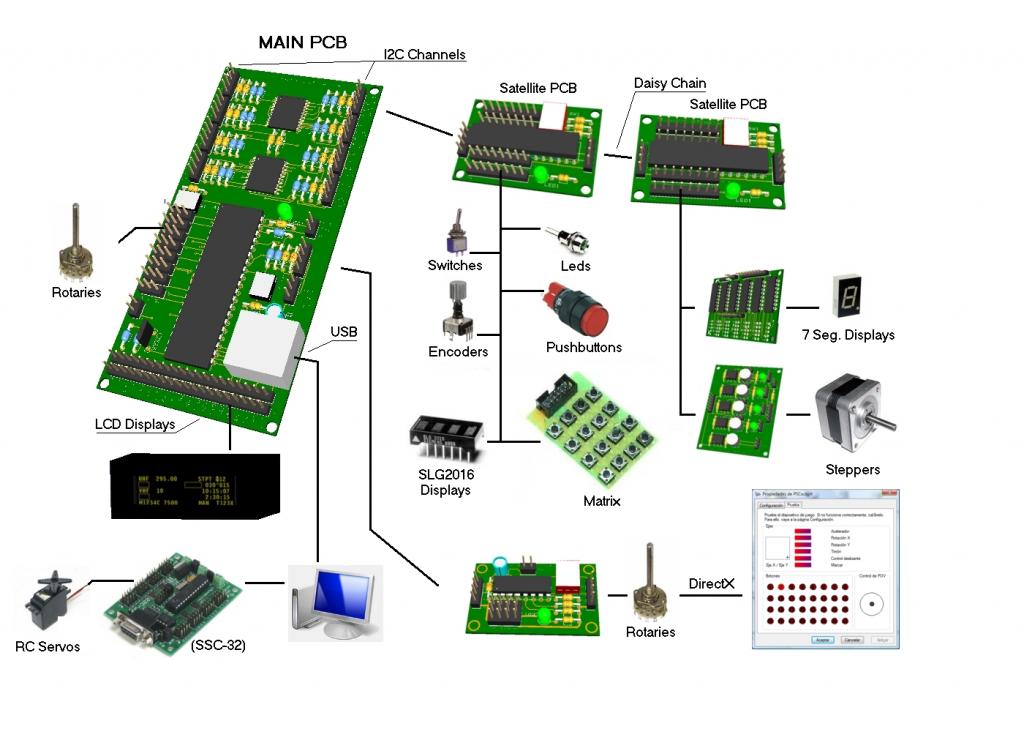
For people who don’t know the system, the PSCockpit system has been developed with the following objectives:
- One stop hardware and software for cockpit systems. Once the cockpit is connected you can configure the software individually for each sim.
- Easy configuration and setup for people with out electronic knowledge.
- Avoid excessive wiring runs along the cockpit: The system uses small satellite PCB’s that can be distributed along the cockpit. The communication between these satellite PCB’s and the Main PCB is done with only 2 wires (I2C protocol) plus the power cables. These wires can be connected in daisy chain. The idea is to wire each of the cockpit panels to only one satellite PCB.
For more information about the system, please look at the following links:
- PSCockpit firs run post: http://viperpits.org/smf/index.php?topic=7237.0
- PSCockpit Quick Guide: http://www.mediafire.com/view/?6kacpd31w3bvvve
- PSCockpit distribution example: http://www.mediafire.com/download.php?crkrwvt9csg92ri
- All "How to's" in a row at http://psfalcon.blogspot.com.es/search/label/PS%20Cockpit%20PCB%20System
Prices
The prices of the PCB’s already mounted and tested are the following:
- Main PCB: 60 €
- Digital expander for 40 inputs/outputs: 33 €
- Digital expander 16 inputs/outputs: 10 €
- Steppers/Other voltage outputs pcb: 28 €
- 7 segment displays pcb for 6 displays: 18 €
- Analogue pcb for 4 inputs/ 1 output: 20 €
- Yellow OLED display (85mm x 40mm), 256x64 for DED: 55 €
- Shipments: 15€ / 25€ depending on the total weight order
Time Line
- The run will be cancelled if there are less than 10 people.
- Orders will be accepted until Feb. 3rd.
- Payments to be done since there are 10 people until Feb. 10th. Sorry for the inconvenience but only direct bank transfers will be accepted.
- Deliveries: 4-5 weeks from the end of the run.
Complete Panels
If you don’t care to have real pushbuttons, switches and leds in you panels, I can provide you with low cost panels, already wired, configured, tested and ready for backlight alone with the PSCockpit system:

For prices and delivery dates for the panels, please send me a PM with your requirements.
Regards,
Shep
For people who don’t know the system, the PSCockpit system has been developed with the following objectives:
- One stop hardware and software for cockpit systems. Once the cockpit is connected you can configure the software individually for each sim.
- Easy configuration and setup for people with out electronic knowledge.
- Avoid excessive wiring runs along the cockpit: The system uses small satellite PCB’s that can be distributed along the cockpit. The communication between these satellite PCB’s and the Main PCB is done with only 2 wires (I2C protocol) plus the power cables. These wires can be connected in daisy chain. The idea is to wire each of the cockpit panels to only one satellite PCB.
For more information about the system, please look at the following links:
- PSCockpit firs run post: http://viperpits.org/smf/index.php?topic=7237.0
- PSCockpit Quick Guide: http://www.mediafire.com/view/?6kacpd31w3bvvve
- PSCockpit distribution example: http://www.mediafire.com/download.php?crkrwvt9csg92ri
- All "How to's" in a row at http://psfalcon.blogspot.com.es/search/label/PS%20Cockpit%20PCB%20System
Prices
The prices of the PCB’s already mounted and tested are the following:
- Main PCB: 60 €
- Digital expander for 40 inputs/outputs: 33 €
- Digital expander 16 inputs/outputs: 10 €
- Steppers/Other voltage outputs pcb: 28 €
- 7 segment displays pcb for 6 displays: 18 €
- Analogue pcb for 4 inputs/ 1 output: 20 €
- Yellow OLED display (85mm x 40mm), 256x64 for DED: 55 €
- Shipments: 15€ / 25€ depending on the total weight order
Time Line
- The run will be cancelled if there are less than 10 people.
- Orders will be accepted until Feb. 3rd.
- Payments to be done since there are 10 people until Feb. 10th. Sorry for the inconvenience but only direct bank transfers will be accepted.
- Deliveries: 4-5 weeks from the end of the run.
Complete Panels
If you don’t care to have real pushbuttons, switches and leds in you panels, I can provide you with low cost panels, already wired, configured, tested and ready for backlight alone with the PSCockpit system:
For prices and delivery dates for the panels, please send me a PM with your requirements.
Regards,
Shep
Monday, November 19, 2012
PSCockpit System Firmware v.1.2 Update
I have modified the firmware of the PSCockpit Main Board to correct some bugs and to add the future analogue expanders functionality. You don’t need to update the firmware if you are not affected.
Firmware v.1.2 Change Log:
- Corrected bug not able to read inputs from expanders connected to channels 4 to 7. This bug only applies on early versions of the firmware. I will send a PM to those people that should apply the firmware update because of this reason.
- Corrected bug of commands sent to sim after "First read". This bug was only affecting the 40I/O expander.
- Included new functionality to read analog expanders connected to Main Channel.
The firmware update can only be done with Windows XP/Vista operating system.
Download the file here http://www.mediafire.com/download.php?bjigkkydd15dntz, unrar into any folder and follow the instructions of the file FirmwareUpdate.pdf.
Regards,
Shep
Firmware v.1.2 Change Log:
- Corrected bug not able to read inputs from expanders connected to channels 4 to 7. This bug only applies on early versions of the firmware. I will send a PM to those people that should apply the firmware update because of this reason.
- Corrected bug of commands sent to sim after "First read". This bug was only affecting the 40I/O expander.
- Included new functionality to read analog expanders connected to Main Channel.
The firmware update can only be done with Windows XP/Vista operating system.
Download the file here http://www.mediafire.com/download.php?bjigkkydd15dntz, unrar into any folder and follow the instructions of the file FirmwareUpdate.pdf.
Regards,
Shep
Monday, October 22, 2012
New PS UDP Setup File
For the ones who are having problems installing PS UDP in your computer, specially Windows 7 users, I have improved the installation Setup program. Hope it helps!
You can download all the files for PSUDP here: PSUDP
Installation notes:
- Unrar the file
- Install PS UDP in your computer with PSUdpSetUp.exe
- Install PSGauges.apk in all your favorite android devices
- Enjoy
Regards,
Shep
You can download all the files for PSUDP here: PSUDP
Installation notes:
- Unrar the file
- Install PS UDP in your computer with PSUdpSetUp.exe
- Install PSGauges.apk in all your favorite android devices
- Enjoy
Regards,
Shep
Monday, October 8, 2012
Version 0.8.0.2 of the PSCockpit Software
PSCockpit v.0.8.0.2 Changelog
- "IOCARD 7SEG DISPLAYS NOT CONFIGURED" message removed
- Aux Tacan Channel 7 segment diaplays now working
- UFC Tacan Channel 7 segment displays now working
- Added one digit to UFC Tacan channel --> 0 = Channel X, 1 = Channel Y
- Added one digit to Aux Tacan channel --> 0 = Channel X, 1 = Channel Y
- Added X and Y UFC Tacan channel outputs for alphanumeric display
- Added X and Y Aux Tacan channel outputs for alphanumeric display
- Added aux tacan channel in syncrho with sim
- Altitud mB now working
- Fixed steppers now working on 40 I/O board
- 4-Digit 5x7 Dot Matrix Alphanumeric Intelligent Display SLG2016 implemented
- Key input directly from keyboard in Command page
- English (US) keyboard added for commands
- Added Falcon and hexadecimal key codes for commands
- Added 8x4 pushbuttons matrix functionality
- Added PCF8591P analog I2C inputs/outputs funcionality
- Fixed a problem with serial the interface RS232 when loading .key
You can download it at http://www.mediafire.com/download.php?ng9j471cxon03nq
To install this new version the old version must be installed. Just unrar the files an put them in your PSCockpit directory.
If you need to register the FSCSC.ocx in windows, double click on the fsdt_32bit.reg for 32 bits OS or fsdt_64bit.reg for 64 bits OS.
Kind regards,
Shep
- "IOCARD 7SEG DISPLAYS NOT CONFIGURED" message removed
- Aux Tacan Channel 7 segment diaplays now working
- UFC Tacan Channel 7 segment displays now working
- Added one digit to UFC Tacan channel --> 0 = Channel X, 1 = Channel Y
- Added one digit to Aux Tacan channel --> 0 = Channel X, 1 = Channel Y
- Added X and Y UFC Tacan channel outputs for alphanumeric display
- Added X and Y Aux Tacan channel outputs for alphanumeric display
- Added aux tacan channel in syncrho with sim
- Altitud mB now working
- Fixed steppers now working on 40 I/O board
- 4-Digit 5x7 Dot Matrix Alphanumeric Intelligent Display SLG2016 implemented
- Key input directly from keyboard in Command page
- English (US) keyboard added for commands
- Added Falcon and hexadecimal key codes for commands
- Added 8x4 pushbuttons matrix functionality
- Added PCF8591P analog I2C inputs/outputs funcionality
- Fixed a problem with serial the interface RS232 when loading .key
You can download it at http://www.mediafire.com/download.php?ng9j471cxon03nq
To install this new version the old version must be installed. Just unrar the files an put them in your PSCockpit directory.
If you need to register the FSCSC.ocx in windows, double click on the fsdt_32bit.reg for 32 bits OS or fsdt_64bit.reg for 64 bits OS.
Kind regards,
Shep
Saturday, September 22, 2012
HOW TO Implement the Magnetic Held Switches in the PSCockpit System
Some of the switches of our cockpit may have electric coils to hold the contact of the switch at a certain position. When the coil is deactivated the switch returns to the OFF position.
This behaviour is easily implemented with the PSCockpit System. We will need to wire the contact of the switch to a I/O Satellite Pcb and the coil to a Stp/Other Voltages Pcb as the coil will need other voltage and more current to activate. The electric schema could be the following:
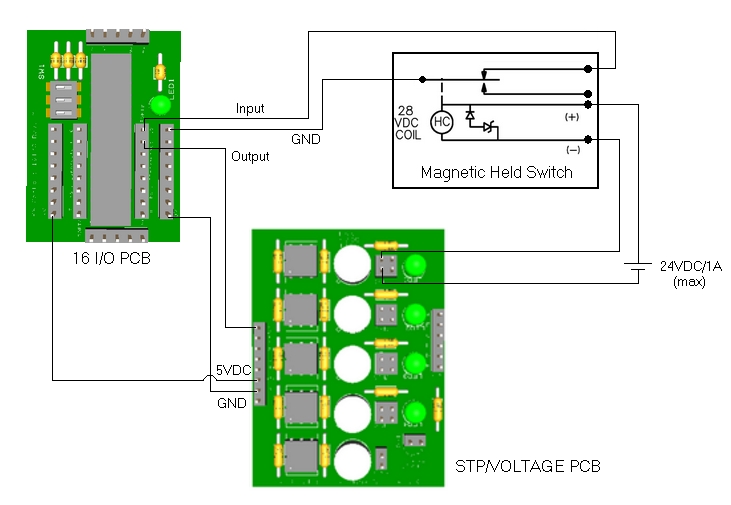 The configuration of this wiring in the PSCockpit Software is the following:
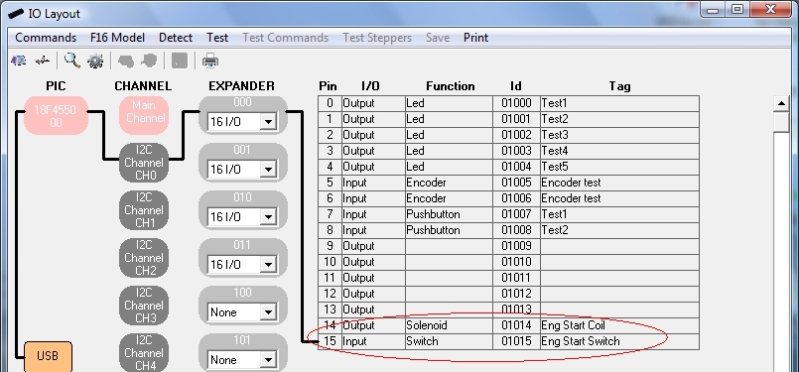
You can easily test the circuit (input and output individually) in Test mode.
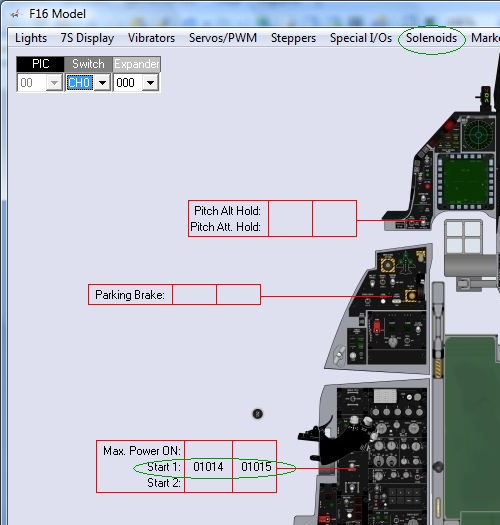
In order to link the switch with its coil, go to the F16 Model and select the Solenoids page. Enter the corresponding switch and coil Id´s:
Of course, you want the switch to send the keystroke to the sim, so, go to Commands page and configure the switch:

Now, when the switch is activated, the command will be sent to the sim and the coil will be energized. Depending on the switch function, the coil will be deactivated by the PSCockpit Software when in Run mode.
Edited on April, 10th, 2016
--------------------------------------------------------------------------------------------------------------------------
For homemade magnetic switches -the ones which needs only momentary energy to set back the switch to the original position- you have to set the coil output in the field called "Momentary coil":
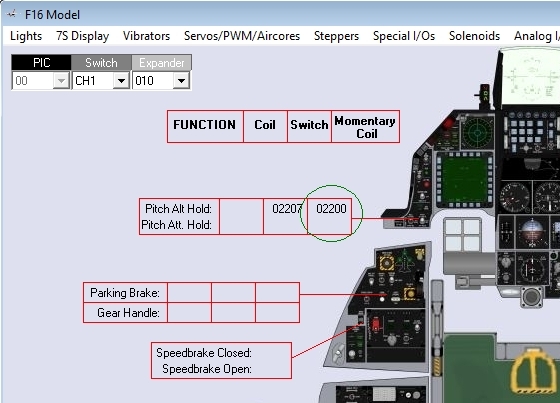
The momentary coil output works as follows:
- Switch is activated ---> momentary coil remains de-energized
- Condition to return switch to original position is met ---> momentary coil is energized
- Switch returns to original position by means of the coil ---> momentary coil is de-energized
Of course, is you return the switch to the original position manually, the momentary coil is never energized.
---------------------------------------------------------------------------------------------------------------------
Regards,
Shep
This behaviour is easily implemented with the PSCockpit System. We will need to wire the contact of the switch to a I/O Satellite Pcb and the coil to a Stp/Other Voltages Pcb as the coil will need other voltage and more current to activate. The electric schema could be the following:
You can easily test the circuit (input and output individually) in Test mode.
In order to link the switch with its coil, go to the F16 Model and select the Solenoids page. Enter the corresponding switch and coil Id´s:
Of course, you want the switch to send the keystroke to the sim, so, go to Commands page and configure the switch:
Now, when the switch is activated, the command will be sent to the sim and the coil will be energized. Depending on the switch function, the coil will be deactivated by the PSCockpit Software when in Run mode.
Edited on April, 10th, 2016
--------------------------------------------------------------------------------------------------------------------------
For homemade magnetic switches -the ones which needs only momentary energy to set back the switch to the original position- you have to set the coil output in the field called "Momentary coil":
- Switch is activated ---> momentary coil remains de-energized
- Condition to return switch to original position is met ---> momentary coil is energized
- Switch returns to original position by means of the coil ---> momentary coil is de-energized
Of course, is you return the switch to the original position manually, the momentary coil is never energized.
---------------------------------------------------------------------------------------------------------------------
Regards,
Shep
Wednesday, September 19, 2012
HOW TO Assign Key Strokes to Different Programs in PSCockpit Software (Launcher)
When you are assigning your key strokes of each of your pushbuttons and switches connected to the PSCockpit expanders, you can select in which window of the system you want that keystroke to be sent to. This is made by selecting in the “Window” dropdown list the correct window name:
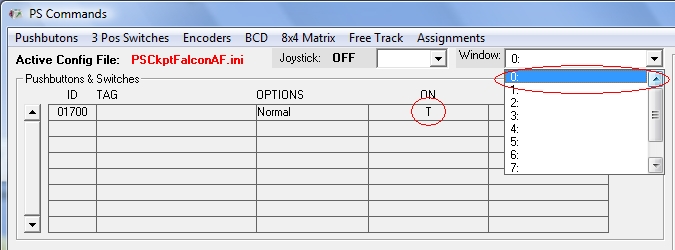
If your list of windows is empty, you can configure it in then Launcher page of the PSCockpit Software.
The Launcher is a configuration page where you can add any program to be run when you are going to play your favourite sim. In this way, you don’t have to run manually all the required programs for your cockpit, the Launcher will take care of them!
To fill the Launcher page you can manually fill the text fields or you can place the cursor on the desire field and click on the “Search” button to select the desire program. The program will automatically select the program and the path. You have to fill manually the command options and the window name:
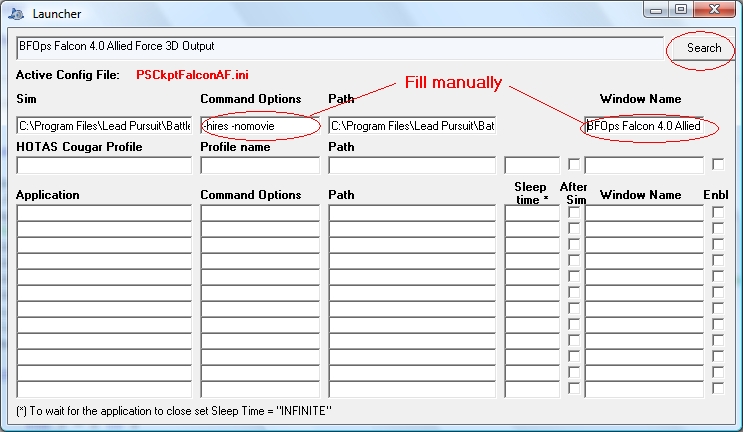
You can even select the proper profile of the Hotas Cougar. The launcher will check if the Hotas Cougar is loaded with that profile, and if it is not, it will load it for you.
In the Launcher page you will find the following tags:
- Application: The name of the program to be launched.
- Command options: The command options to be included in the launched program
- Path: The path from where the program have to be run
- Sleep time: The time in ms you want to wait for the next program to be run. Put INFINITE if you want the Laucher to wait until the program has successfully run.
- After Sim: Check this box if you want this program to be launcher after the sim.
- Window name: The name of the window once the program has started. To know the window name of a program, minimize the program, go to the Windows Task Bar and look for the window name of the program. If you don’t see the complete window name, place the mouse on the program window of the Task Bar and wait for the Tip Text to appear.
- Enbl: Check this box if you want the program to be launched. Unchecking this box the launcher will skip this program.
As the applications can be launched before or after the sim, they have to be placed in the correct sequence. This is an example of how has to be done:
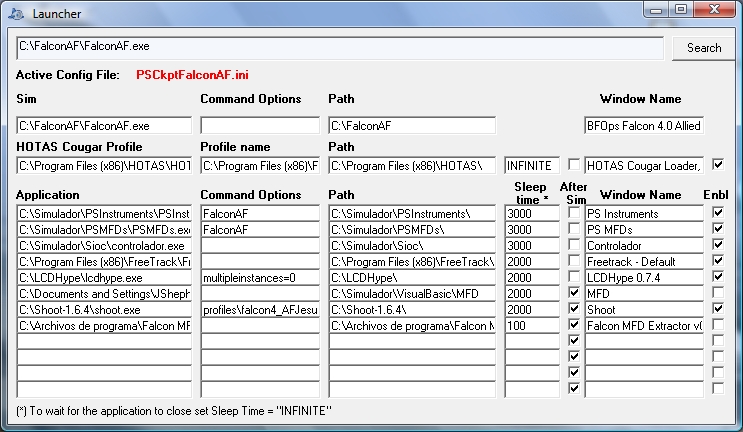
Usual Windows Names are:
- BMS: Falcon BMS
- OpenFalcon: F4 3D Output
- Falcon AF: BFOps Falcon 4.0 Allied Force 3D Output
- Red Viper: F4 3D Output
- MSFSX: Microsoft Flight Simulator X
Once you have filled the Launcher page you can go back to the Commands page and you will see the windows names in the Windows dropdown list:
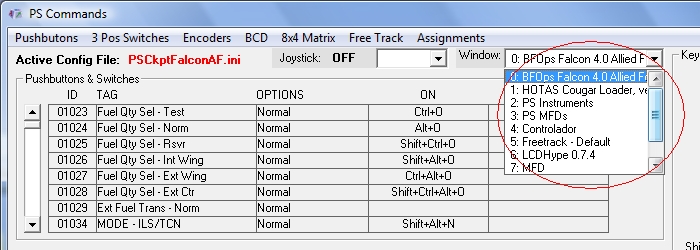
Now, you can send any keystroke to other normal programs used when you are flying with your pushbuttons and switches: FreeTrack, Shoot, TeamSpeak, …
Finally, to run the Launcher you have to click on the “Launch Sim” icon instead of the “Run” icon from the PSCockpit Console page.
Regards,
Shep
If your list of windows is empty, you can configure it in then Launcher page of the PSCockpit Software.
The Launcher is a configuration page where you can add any program to be run when you are going to play your favourite sim. In this way, you don’t have to run manually all the required programs for your cockpit, the Launcher will take care of them!
To fill the Launcher page you can manually fill the text fields or you can place the cursor on the desire field and click on the “Search” button to select the desire program. The program will automatically select the program and the path. You have to fill manually the command options and the window name:
You can even select the proper profile of the Hotas Cougar. The launcher will check if the Hotas Cougar is loaded with that profile, and if it is not, it will load it for you.
In the Launcher page you will find the following tags:
- Application: The name of the program to be launched.
- Command options: The command options to be included in the launched program
- Path: The path from where the program have to be run
- Sleep time: The time in ms you want to wait for the next program to be run. Put INFINITE if you want the Laucher to wait until the program has successfully run.
- After Sim: Check this box if you want this program to be launcher after the sim.
- Window name: The name of the window once the program has started. To know the window name of a program, minimize the program, go to the Windows Task Bar and look for the window name of the program. If you don’t see the complete window name, place the mouse on the program window of the Task Bar and wait for the Tip Text to appear.
- Enbl: Check this box if you want the program to be launched. Unchecking this box the launcher will skip this program.
As the applications can be launched before or after the sim, they have to be placed in the correct sequence. This is an example of how has to be done:
Usual Windows Names are:
- BMS: Falcon BMS
- OpenFalcon: F4 3D Output
- Falcon AF: BFOps Falcon 4.0 Allied Force 3D Output
- Red Viper: F4 3D Output
- MSFSX: Microsoft Flight Simulator X
Once you have filled the Launcher page you can go back to the Commands page and you will see the windows names in the Windows dropdown list:
Now, you can send any keystroke to other normal programs used when you are flying with your pushbuttons and switches: FreeTrack, Shoot, TeamSpeak, …
Finally, to run the Launcher you have to click on the “Launch Sim” icon instead of the “Run” icon from the PSCockpit Console page.
Regards,
Shep
Saturday, September 15, 2012
ANALOGUE PCF8591P EXPANDER
We have another expander for our system: Analogue PCF8591P with 4 analogue inputs and 1 analogue output, 8 bits resolution.
You can connect up to 8 analogue expanders to the I2C Main Channel of the PSCockpit board. Please refer to HOW TO use analog inputs with the PS Cockpit System (PSJoystick) for configuration here.
The firmware has to be upgraded and the software will come with this feature since revision 1.0.0.
This is how the new baby looks like:
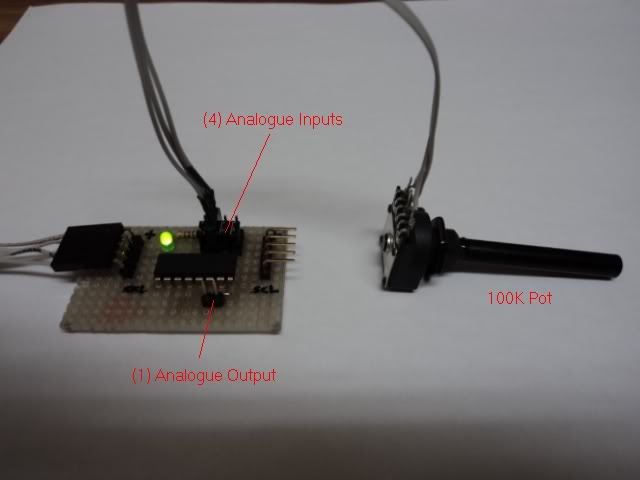
Regards,
Shep
You can connect up to 8 analogue expanders to the I2C Main Channel of the PSCockpit board. Please refer to HOW TO use analog inputs with the PS Cockpit System (PSJoystick) for configuration here.
The firmware has to be upgraded and the software will come with this feature since revision 1.0.0.
This is how the new baby looks like:
Regards,
Shep
Wednesday, August 29, 2012
HOW TO get your Tacan channels working with the PSCockpit System
If you are planning to use 7 segment displays to display the UFC and Aux Tacan Channel you have tree options in the PSCockpit system:
- Using (4) 7seg. displays.
- Using (3) 7 segment displays and (1) 14 segment alphanumeric display
- Using 4-Digit 5x7 Dot Matrix Alphanumeric Intelligent Display SLG2016
And the last option, only for the Aux Comm Tacan Channel, using the Cherry pushwheels.
Option 1: Using (4) 7seg. displays.
Configure your 7s displays as usual in the IO Layout:

Select the correct Id in the F16Model page by clicking on 7S Display and make the configuration of your 4 digits as shown in the picture:
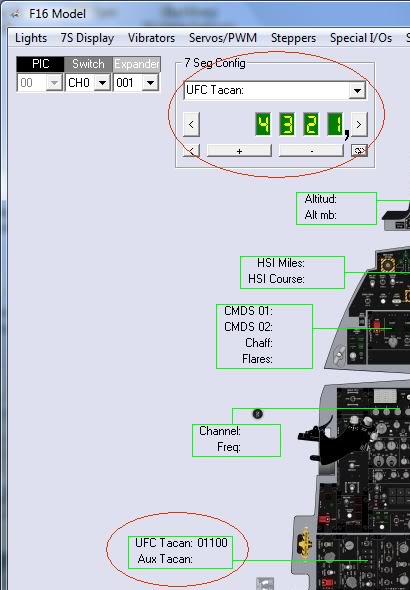
Now, when you run your sim ,the PSCockpit software will display the Tacan channel in the first 3 digits of the display and the last one will show a 0 when the band X is selected in the sim and will show a 1 when the band Y is selected in the sim.
Option 2: Using (3) 7 segment displays and (1) 14 segment alphanumeric display
To use this option you must try to get 14 segment displays with the same dimensions that the 7 segment displays, the same colour and the same brightness. This could be difficult to find.
Remember that all segment display have to be Common Cathode as well as the 14 segment display.
I have found the Kingbright PSC39-21GWA is a little bigger that the Avago HSDP-7803 and probably can be use it. But, sorry, I didn’t try it.
As before, configure your 7s displays as usual in the IO Layout, this time using a 3x7 Seg. Display.
Now we have to connect the segments. We are going to use to a 5VDC power supply. To limit the current to 25 mA we will use a 120 Ohms resistor. This resistor can be change a little 80-160 Ohms to get the same brightness as the rest of the 7 seg. displays. The wiring will be the following:
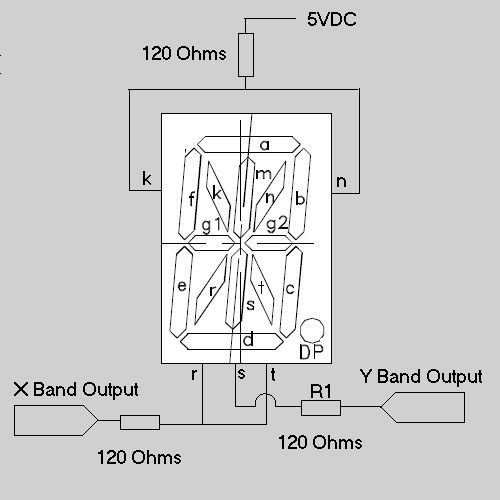
The resistor R1 might need also some adjustment to get the same brightness as the others.
Now, if we activate the X band output, will see an X on the display and if we activate the Y band output, will see and Y on the display.
The X and Y band outputs can be selected on the PSCockpit Software in the F16 Model page (Lights) as shown in the picture:
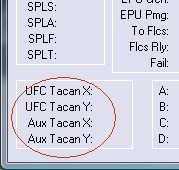
Option 3: Using 4-Digit 5x7 Dot Matrix Alphanumeric Intelligent Display SLG2016
Proceed as a normal 4-Digit 5x7 Dot Matrix Alphanumeric Intelligent Display SLG2016 like explained in the following post:
http://psfalcon.blogspot.com.es/2012/08/how-to-use-5x7-dot-matrix-alphanumeric.html
Option 4: Using Cherry pushwheels.
The Cherry pushwheels are selector switches with very small dimensions for front-mounting. The ones we are going to use are the PE series with 10 switching positions BCD.
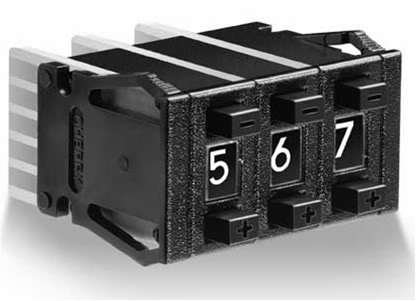
I have selected the Cherry PE C - A - 3 - 4 - 00 (4 digits BCD complete with end caps) and 3 spacers 609-0760 which gives me a total dimensions of 24x45 mm.
You may want to order also (2) stops 609-0013 to limit the first and last digit of your auxiliary tacan channel. Look at the Cherry catalogue for other options as illumination.
To set the Cherry pushwheel for realism you will have to dismantled under your responsibility the first digit to change the number strip to 0-1-0-1-01-…. and X-Y-X-Y-… for the last digit.
To connect each of the pushwheel to the PSCockpit System, go to I/O Layout page and select “16 to 4 BCD” inputs in a location with 4 consecutive inputs free:
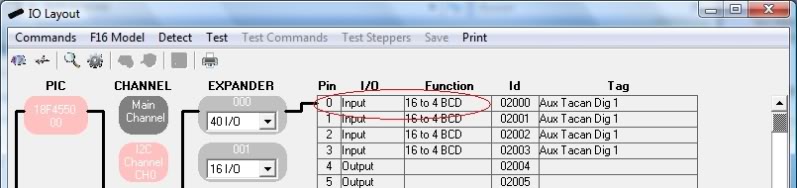
We have to wire each of the pushwheel as shown in the picture according to the pins selected in the IO Layout page:
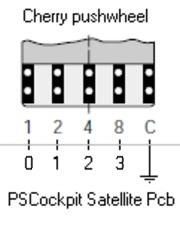 To test the Cherry pushwheel click on test and verify that the inputs are ON according to the following true table:
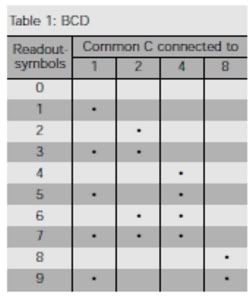
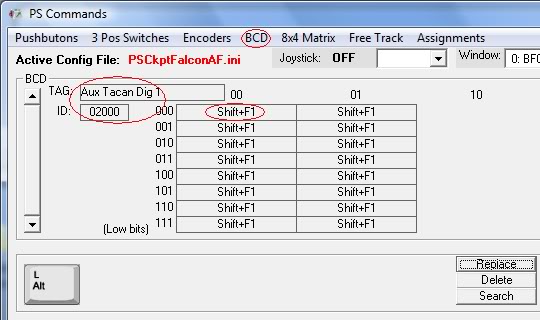
Once we have tested each of the pushwheels we have to put the commands to be sent to the sim. For this, go to the Commands page, select BCD, select the correct ID for each pushwheel and fill the matrix with the command that changes the Aux Tacan channel in your sim, in this case, for digit number one, Shift+F1.
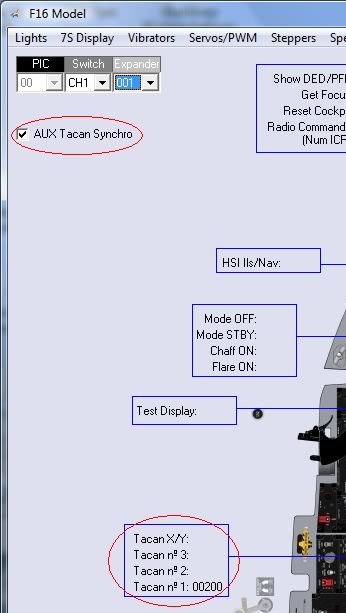
If you want to get your Aux Tacan channel in synchrony with the sim, go to F16 Model page, select Special I/Os, fill the data of the Aux Tacan channel and check the checkbox “Aux Tacan Synchro”:
Now, when you enter the cockpit the tacan channel of the sim will display your cockpit tacan channel. Yihaaaaaa.
Regards,
Shep
- Using (4) 7seg. displays.
- Using (3) 7 segment displays and (1) 14 segment alphanumeric display
- Using 4-Digit 5x7 Dot Matrix Alphanumeric Intelligent Display SLG2016
And the last option, only for the Aux Comm Tacan Channel, using the Cherry pushwheels.
Option 1: Using (4) 7seg. displays.
Configure your 7s displays as usual in the IO Layout:
Select the correct Id in the F16Model page by clicking on 7S Display and make the configuration of your 4 digits as shown in the picture:
Now, when you run your sim ,the PSCockpit software will display the Tacan channel in the first 3 digits of the display and the last one will show a 0 when the band X is selected in the sim and will show a 1 when the band Y is selected in the sim.
Option 2: Using (3) 7 segment displays and (1) 14 segment alphanumeric display
To use this option you must try to get 14 segment displays with the same dimensions that the 7 segment displays, the same colour and the same brightness. This could be difficult to find.
Remember that all segment display have to be Common Cathode as well as the 14 segment display.
I have found the Kingbright PSC39-21GWA is a little bigger that the Avago HSDP-7803 and probably can be use it. But, sorry, I didn’t try it.
As before, configure your 7s displays as usual in the IO Layout, this time using a 3x7 Seg. Display.
Now we have to connect the segments. We are going to use to a 5VDC power supply. To limit the current to 25 mA we will use a 120 Ohms resistor. This resistor can be change a little 80-160 Ohms to get the same brightness as the rest of the 7 seg. displays. The wiring will be the following:
The resistor R1 might need also some adjustment to get the same brightness as the others.
Now, if we activate the X band output, will see an X on the display and if we activate the Y band output, will see and Y on the display.
The X and Y band outputs can be selected on the PSCockpit Software in the F16 Model page (Lights) as shown in the picture:
Option 3: Using 4-Digit 5x7 Dot Matrix Alphanumeric Intelligent Display SLG2016
Proceed as a normal 4-Digit 5x7 Dot Matrix Alphanumeric Intelligent Display SLG2016 like explained in the following post:
http://psfalcon.blogspot.com.es/2012/08/how-to-use-5x7-dot-matrix-alphanumeric.html
Option 4: Using Cherry pushwheels.
The Cherry pushwheels are selector switches with very small dimensions for front-mounting. The ones we are going to use are the PE series with 10 switching positions BCD.
I have selected the Cherry PE C - A - 3 - 4 - 00 (4 digits BCD complete with end caps) and 3 spacers 609-0760 which gives me a total dimensions of 24x45 mm.
You may want to order also (2) stops 609-0013 to limit the first and last digit of your auxiliary tacan channel. Look at the Cherry catalogue for other options as illumination.
To set the Cherry pushwheel for realism you will have to dismantled under your responsibility the first digit to change the number strip to 0-1-0-1-01-…. and X-Y-X-Y-… for the last digit.
To connect each of the pushwheel to the PSCockpit System, go to I/O Layout page and select “16 to 4 BCD” inputs in a location with 4 consecutive inputs free:
We have to wire each of the pushwheel as shown in the picture according to the pins selected in the IO Layout page:
Once we have tested each of the pushwheels we have to put the commands to be sent to the sim. For this, go to the Commands page, select BCD, select the correct ID for each pushwheel and fill the matrix with the command that changes the Aux Tacan channel in your sim, in this case, for digit number one, Shift+F1.
If you want to get your Aux Tacan channel in synchrony with the sim, go to F16 Model page, select Special I/Os, fill the data of the Aux Tacan channel and check the checkbox “Aux Tacan Synchro”:
Now, when you enter the cockpit the tacan channel of the sim will display your cockpit tacan channel. Yihaaaaaa.
Regards,
Shep
Subscribe to:
Posts (Atom)