Tuesday, August 23, 2022

PSCockpit Main Board Troubleshooting Guide

GENERAL CONSIDERATIONS

To properly run the Main Board, take in account these general considerations:
  • Run PSCockpit software with Admin rights.
  • Close PSCockpit software, disconnect the USB cable from the PC and turn off the Main Board and wait a few seconds in every test. If there is a leakage in any board, the Main Board chip can go to sleep mode in case of not enough voltage.
  • Follow this startup sequence: Power on Main Board, connect USB cable to your PC and enter PSCockpit software.
  • Select one USB port (2.0 preferred) for PSCockpit Main Board and try not to connect any other device on that USB port.
  • Displays&Gauges and PSCockpit Main Board should have their own USB port and never interchange them.
  • Power Analogue and Aircore Controller expanders at the same time that the Main Board.

MAIN BOARD DETECTION

If PSCockpit Main Board is not detected in PSCockpit software, check for driver issues. The USB port where PSCockpit Main Board is connected should have only its own driver. You can follow this procedure:
  • Close PSCockpit Software
  • Download and install USBDeview USBDeview: Link 
  • Disconnect all USB devices from your computer, including PSCockpit Main board.
  • Open USBDeview with Administrator rights
  • Uninstall all the drivers. No worries, as soon as you reconnect your devices the controllers will be loaded again automatically.
  • Reset PSCockpit Main Board by powering OFF and ON
  • Connect PSCocktpit Main board to your computer to an USB 2.0 port
  • Look in to USBDeview for PSCockpit controller
  • Open PSCockpit Software and check the bottom left LED is green (Main Board Status)
  • Goto IOLayout and click Detect. All detected expanders must be orange.
EXPANDERS DETECTION

If some expanders are not detected in PSCockpit software, follow this procedure:
  • Disconnect all the expanders from the Main Board
  • Check all the expanders one at a time to see if any of them is causing the problem
  • Double check the hardware addresses of your boards. You can set the expander type you want to test in all the addresses of the I/O Layout page at a given I2C channel, connect the expander at that I2C channel then, and click on “Detect”. The real address of the expander will be painted in orange. Check that the one in orange has the components configured as the expander you have connected. If you test one output where you have connected physically an input, it may damage the board.
  • If all the expanders are working as expected one by one but when you connect all at a time the system doesn’t work, you may have either a lack of power supply (you will need to add another power supply or change it with a more powerful one) or the wires are excessively long. In this last case you can apply power directly from the power supply to any of your farthest boards.

RANDOM DISCONNECTIONS AND/OR SWITCHES ACTIVATING THEMSELVES

This issue is related with a loss of power in some point of the system.

Check any of these four possible situations:

1. Faulty device:
If the loss of power is related with a faulty device means that is draining current to ground.

You can troubleshoot this issue by connecting the I2C channels one by one and test all the devices connected to the boards. If one of them is faulty, either the I2C channel or one of the pcbs will stop working.

Once you have isolated the expander, check the connections and welds of all the devices connected to that expander. Check also that the expander and the screws supporting the expander do not touch any welded part of the board.

2. Current requirement exceeds the maximum allowed current in one of the I2C channels:
The I2C channels powered from the Main Board with the pcbs connected in daisy chain have some current constrains depending on the wire (length and thickness) or it might happen that, in a given moment, one or several devices connected to an I2C channel are requiring more power at once, exceeding the maximum current: i.e. the seven segment displays require more power when they show the "8" digit than when they show the "1" digit.

To solve this issue, you can always power any of the pcbs in the daisy chain directly from the power supply using the existing +5V and GND pins. Look for the pcbs with higher power requirement and/or further position in the daisy chain. Take a close look at the 40I/O boards with all their pins configured as outputs.

3. Lack of power of your power supply:
If any of the above solutions didn't work, you might think that your power supply is not powerful enough. You can either change the power supply with a powerful one or add another one in parallel. In this case, don't forget to connect both commons with a thick wire.

4. Interferences or low voltage in the I2C wires:
To avoid this situation you can make the I2C daisy chain directly in the connectors bypassing the pcbs. This will make the I2C channel signals stronger and connecting the chips directly to the Main Board avoiding any restriction or interference that could happen at the pcbs. The daisy chain will show as:
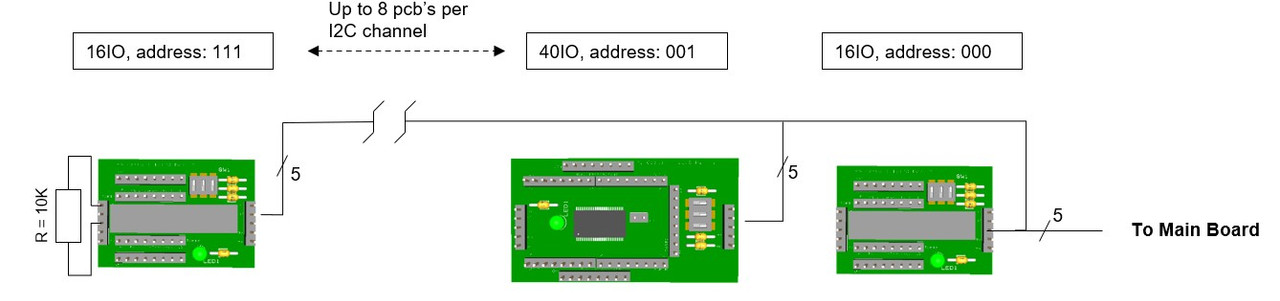

You can use the free connectors left in the pcbs to give power from the power supply to avoid point 2.
 

PSCOCKPIT and DCS

If you are having any issue with DCS, see this post: PSCOCKPIT/DCS TROUBLESHOOTING GUIDE

Regards,
Shep
Wednesday, August 17, 2022

HOW TO Configure the TRIM Panel

 For TRIM and TRIM INDICATOR pcb description, options and how to configure the expander address, see PSCockpit Quick Guide V.6 – TRIM PCB and TRIM INDICATOR PCB. You can access the Quick Guide from Help/Quick Guide menu in the PSCockpit software.

The TRIM pcb must be configured either the digital expander and the analogue expander. 

TRIM Digital Expander

To configure the PSCockpit TRIM panel select the correct option from the Expander pull down list in the IOLayout page of the PS Cockpit Software at the correct I2C channel:


In case of there is some data already in the selected expander, the software will prompt you for continue:


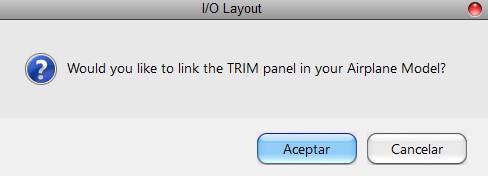
The software will prompt you to setup the TRIM panel in our Airplane model:

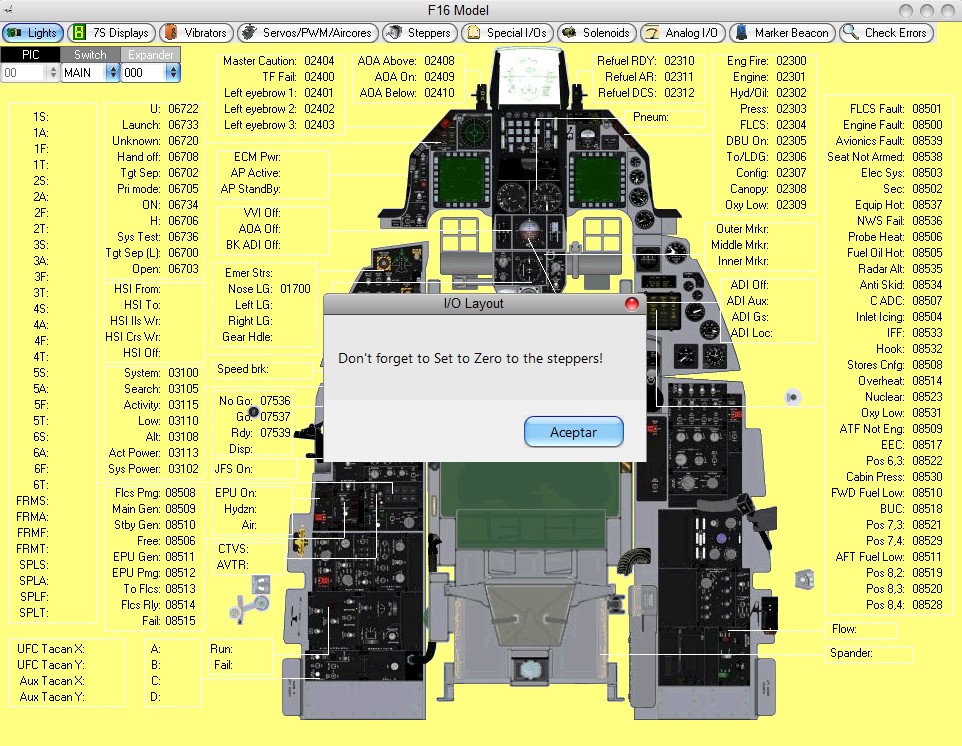
If you accept, the Airplane page will show up and the steppers of the TRIM indicator will be configured. You will be reminder to set to zero your steppers. This action has to be done once the process of configuring the TRIM panel is finished.


The software will also prompt you to add the standard BMS commands for the TRIM:


If you accept, the software will prompt you to search for your BMS .key file, typically in ..\Falcon BMS vX.X\User\Config folder, and will automatically search for the keystrokes you have set in your .key file for the TRIM:


If any of the commands hasn't been set, you will see a warning indicating how many commands haven't been set and the Commands page of the PSCockpit software will appear:


Once the TRIM panel is already configured you can modify the list of inputs/outputs as desire as well as the free I/O of the expander:


Be aware that once the configuration is saved, whenever you enter the IOLayout Page you won’t see “TRIM” label on the expander anymore but the “16 I/O” label.

TRIM Analogue Expander

In the same way as the digital expander, to configure the PSCockpit TRIM panel for analogue inputs, select the correct option from the Expander pull down list in the IOLayout page of the PS Cockpit Software at the correct I2C channel in the Main Channel:


In case of there is some data already in the selected expander, the software will prompt you for continue:


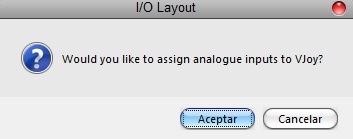
The software will prompt you to assign the analogue inputs to VJoy:


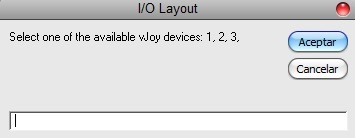
If you accept, the software will prompt you to select one of the free available vJoy devices:


The VJoy page will appear. You can select the devices you have previously selected to see the configuration:

Once the analogue inputs of the TRIM panel is already configured you can modify the list of analogue inputs as desire:


For more information about configuring vJoy devices, see: Configuring vJoy

Be aware that once the configuration is saved, whenever you enter the IOLayout Page you won’t see “TRIM Analogue” label on the expander anymore but the “Analogue” label.

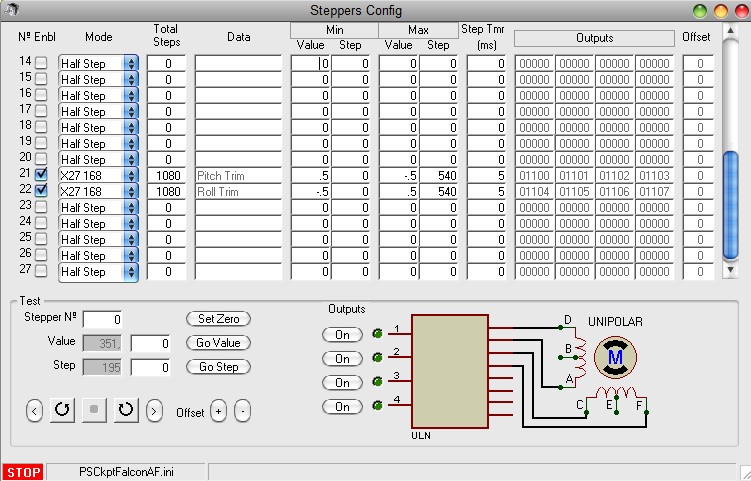
You can now set to zero your steppers of the TRIM panel. See X27 Steppers

Your steppers will be shown at 21 and 22 positions:


HOW TO Connect and Configure your OLED V2 256x64 display


Since PSCockpit 11th Run, a new OLED 256x24 display is supplied.

This new display does not need the driver board as it is 5V tolerant.

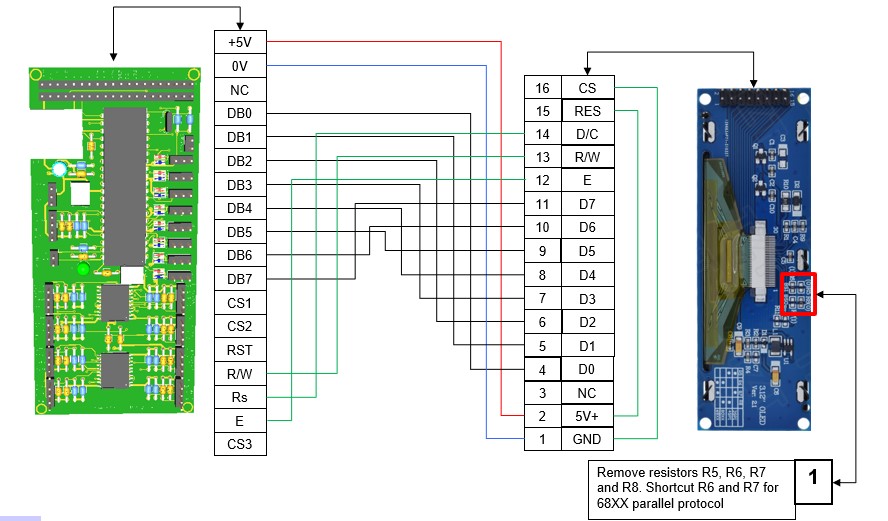
For connecting the display directly to the Main Board follow this wiring schematic:


Check that the display is configured for 6800 Parallel 8 bit interface. See note 1 in above picture.

You can power the board directly from the power supply separately from the signals cable: pins 1 and 2 of the display.

Before connecting the OLED display turn off the power supply of the Main Pcb and detach the USB cable from the computer.

Be sure you have firmware version 1.5.0 or higher (1.5.1 recommended) in the Main PCB. You can see your firmware version by clicking on Help/About in the PSCockpit Software)

Turn on power and connect the USB cable to your computer.

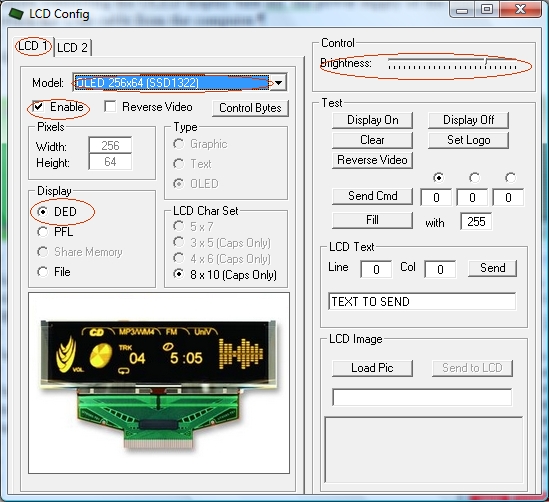
Run PSCockpit software and go to the LCD page and select the OLED display on the drop down list in the corresponding LCD tab. LCD 1 is used for the LCD connected to the most external connector of the Main Pcb and LCD 2 for the inner connector:


Don’t forget to check “Enable” and the “DED” or “PFL” to use with our sim and the desire brightness of the display with the slider bar.

In “Test” area you have some usual commands for you to try. They are self explanatory.

This display accepts 3 bytes commands. Select the corresponding option button above the commands text box to send one, two or three bytes.

You can also send monochrome bitmaps to the OLED but the horizontal length of the bitmap has to be multiple of 4.

NOTES:
* The OLED display is activated only when you enter PSCockpit software and is deactivated when you exit the program. This is to avoid image persistence on the OLED.

* The OLED display may be light sensitive. Caution should be taken to avoid exposure of this device to any light source during normal operation.

* The OLED display is not radiation protected.

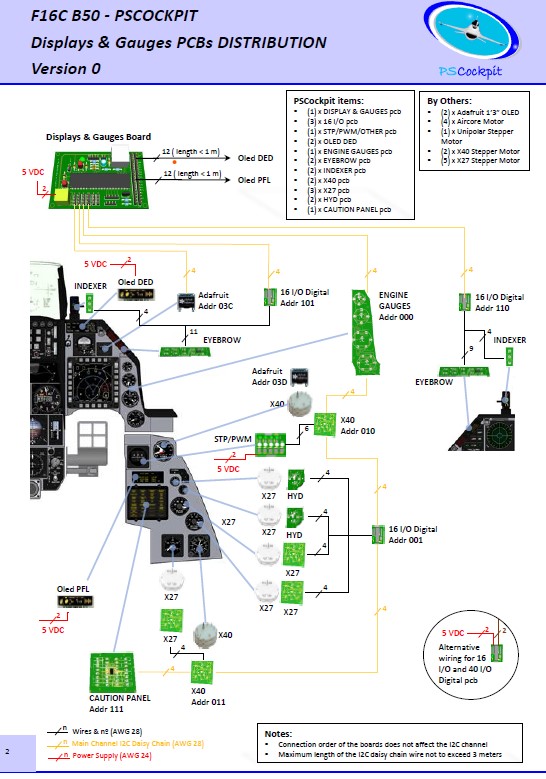
PS Cockpit System F16 distribution file for Main and Displays&Gauges boards

  This is the distribution file for the F16 when using the Main and Displays&Gauges boards.


You can download the F16 Cockpit for Main and Displays&Gauges distribution file in pdf format at:

F16 Distribution File for Main and Displays&Gauges boards 

Regards,
Shep
PS Cockpit System F16 distribution file (Revision 3)

 The distribution file for the F16 has been changed to reflect the new board or the 11th Run.


You can download the F16 Cockpit Rev.3 distribution file in pdf format at:

F16 Distribution File Rev3

Regards,
Shep
Monday, June 13, 2022

TRIM and TRIM Indicator pcbs

Hi all,

Last boards have arrived last week.

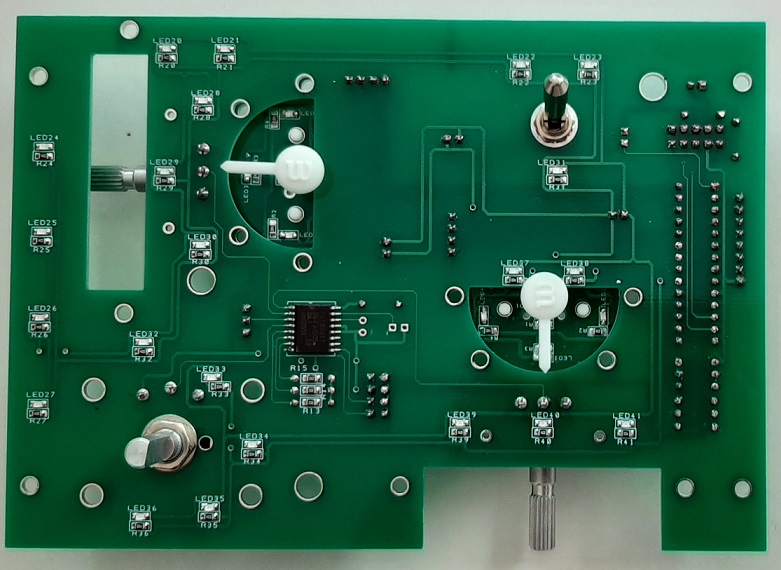
I have mounted and tested the new TRIM pcb with the two TRIM Indicator pcb and this is how it looks:


An update of the components:

PCA9505: Complete sourced.

MCP23017: Is already available but not yet received.

PIC18F4550: Supplier has delay the estimated date to July, 18th.

Display OLED 256x64: Working with another display with no luck yet.

Thanks for your patient and support.
Shep

Thursday, May 12, 2022

PSCockpit chips sourcing issues

Hi all,I’m working on your boards, but it’s being a hard work to source all the components of the boards because of the lack of chips around the world.

All the components and boards have been already ordered but the status some of the components are as follows:

PCA9505
Affecting the following boards: 40 I/O, ICP, Caution Panel, UHF, CMDS, TWP.
The supplier of the boards has found the chips and will send the affected boards by the end of May

MCP23017
Affecting the following boards: 16 I/O, TWA, X40, ELEC, AUDIO, TRIM.
The supplier will have them in stock by 30/05/2022 as stated in the web page.

PIC18F4550
Affecting the following boards: Main Board, Displays&Gauges boards.
The supplier will have them in stock by 30/05/2022 as stated in the web page.

Display OLED 256x64
Affecting the DED and PFD displays
The supplier will have them in stock by 26/12/2022 as stated in the web page.
I have ordered one different OLED display to make some trials for substitution

All Other components and boards are already in my hand and working on them.
In case of any further sourcing issues, I will contact you one by one to decide if you want separate shipments.

Thanks for you patient and support.
Shep

Saturday, January 22, 2022

Running PSCockpit and Helios in DCS

Edited on Dec, 2022:
====================================================================
Below files are obsolete. You can find the new .lua files in your PSCockpit v1.0.5 directory

Download .lua files from: https://www.mediafire.com/file/zzpop31qgx90gqu/PSCockpit+DCS+Export+Lua+Files.zip/file
====================================================================

1. Copy the following files to "\Users\@USER\Saved Games\DCS\Scripts\PSCockpit\" folder:
- PSCockpitExport.lua
- ExportPSCockpit-A10C.lua
- ExportPSCockpit-F16C-50.lua

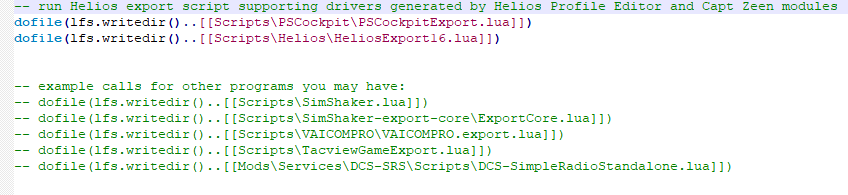
If you have already a Export.lua generated by Helios, add the following line before Helios do file line:

dofile(lfs.writedir()..[[Scripts\PSCockpit\PSCockpitExport.lua]])


If you don’t use Helios or do not have a Export.lua file copy file Export.lua to "\Users\@USER\Saved Games\DCS\Scripts\" folder

If there are no folders descripted above, create them

Regards,
Shep

Friday, January 7, 2022

TRIM and TRIM INDICATOR boards

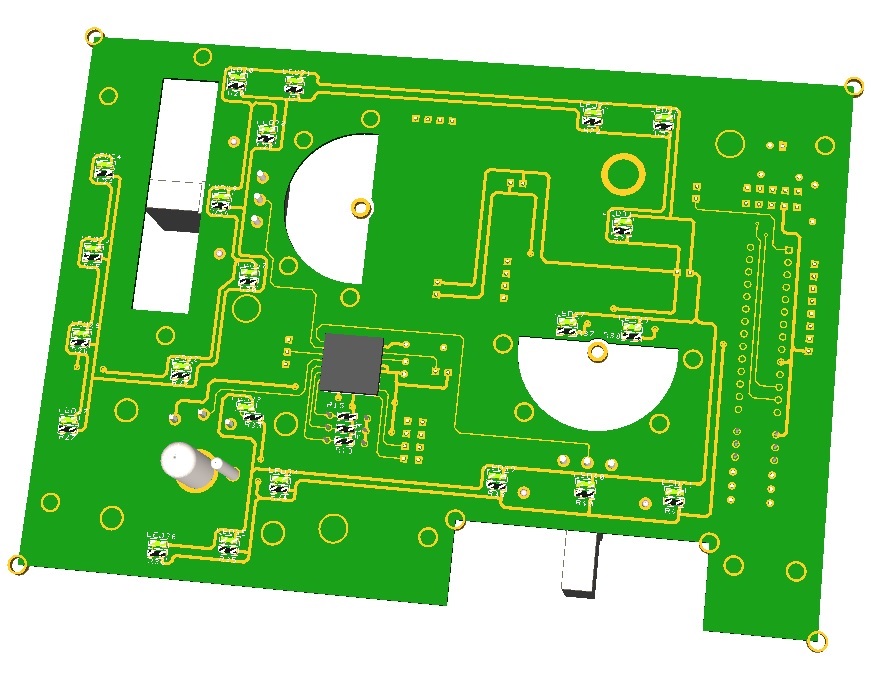
The TRIM board has been designed to drive (3) pots for yaw, roll and pitch trims and (2) X27 stepper motors for roll trim and pitch trim indicators. This configuration allows to have the indication of pitch trim and roll trim in both trim AP and MANUAL modes and the pots will drive the analogue trim axes in your simulator.

The pots are not motor-driven but the TRIM board has mounting holes to develop this function in the future.

The TRIM and TRIM INDICATOR boards have been designed to work in conjunction to complete the Trim panel of the F16.


The TRIM board comes with the following elements:
- (1) 16 I/O chip to be connected to the digital I/O I2C channel of the PSCockpit system and its elements (resistors, connectors, …) to work with 5V
- (1) analogue chip to be connected to the Main Channel of the PSCockpit system and its elements (resistors, connectors, …) to work with 5V
- (3) potentiometers for yaw, roll and pitch trims
- (1) toggle switch with locking lever
- (21) SMD leds for lettering backlight.
- (7) Free digital I/Os
- (1) Free analogue input

You will find the following elements in the backside:
- (1) Connector for backlight illumination.
- (1) Connectors for digital I/O I2C channel.
- (1) Connectors for analogue Main Channel.
- (2) Mini-switch to select digital and analogue I2C channel addresses.
- (1) Connector for free digital I/Os.
- (1) Connector for free analogue input.


The TRIM INDICATOR board is prepared to hold an X27 589 stepper motor and is attached to the TRIM board with 4 screws leaving a gap of 5 mm where the indicator panel and indicator must be placed.

The TRIM INDICATOR board has also the necessary pins to connect the X27 stepper motor and the backlight leds to the TRIM board thus no external connections are needed to drive the stepper nor the backlight, been these driven by the TRIM board.

You will need (2) TRIM INDICATOR boards for (1) TRIM board.

The TRIM INDICATOR board comes with the following elements:
- (4) SMD leds for indicator panel backlight.

To complete the TRIM panel of the F16, you must add by yourself the following elements:
- (1) TRIM front panel
- (2) TRIM indicator panels
- (2) Indicator needles
- (1) knob for Yaw trim
- (2) circular 50 mm x 12 mm knobs for roll and pitch trim
- (2) X27 589 stepper motors

Please check the dimensions of the TRIM panels, knobs and needles at:
https://www.mediafire.com/file/qtkz1zlzesg9464/TrimPanel-A3.pdf/file


Regards,
Shep
Thursday, December 30, 2021

PSCOCKPIT/DCS TROUBLESHOOTING GUIDE

First of all, take in account that commands are sent as keystrokes and nothing to do with .lua files. Lua files extract the data from DCS for lights, values and displays but do not send any command to DCS.


EXTRACTING DATA FROM DCS

If you have any problem extracting data from DCS, you should check these:
- Lua files are copied in the right directory: \Users\\”YOUR USER NAME”\\Saved Games\DCS\Scripts\
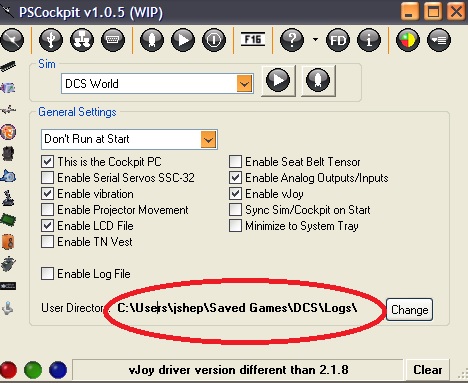
- Logs directory is correct in PSCockpit:


- For DCS stable version: \Users\”YOUR USER NAME”\Saved Games\DCS\Logs\
- For DCS Open Beta version: \Users\”YOUR USER NAME”\Saved Games\DCS.openbeta\Logs\ (Please, one of the openbeta users confirm this!)

Check that you have the correct folder above by navigating with the File Explorer. If not, you must create it.

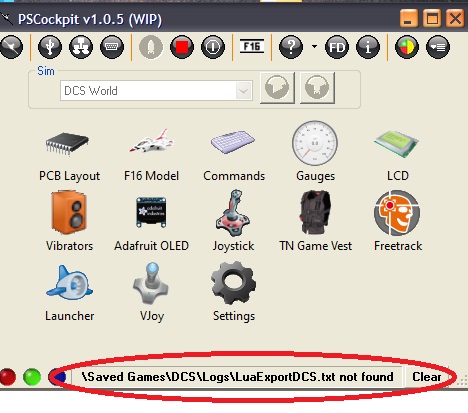
Run PSCockpit and check you don’t have any message in the bottom bar:


Running PSCockpit and Helios in DCS

Edited on Dec, 2022:
====================================================================
Below files are obsolete. You can find the new .lua files in your PSCockpit v1.0.5 directory

Download .lua files from: https://www.mediafire.com/file/zzpop31qgx90gqu/PSCockpit+DCS+Export+Lua+Files.zip/file
====================================================================

1. Copy the following files to "\Users\@USER\Saved Games\DCS\Scripts\PSCockpit\" folder:
- PSCockpitExport.lua
- ExportPSCockpit-A10C.lua
- ExportPSCockpit-F16C-50.lua

If you have already a Export.lua generated by Helios, add the following line before Helios do file line:

dofile(lfs.writedir()..[[Scripts\PSCockpit\PSCockpitExport.lua]])


If you don’t use Helios or do not have a Export.lua file copy file Export.lua to "\Users\@USER\Saved Games\DCS\Scripts\" folder

If there are no folders descripted above, create them

SENDING COMMANDS TO DCS

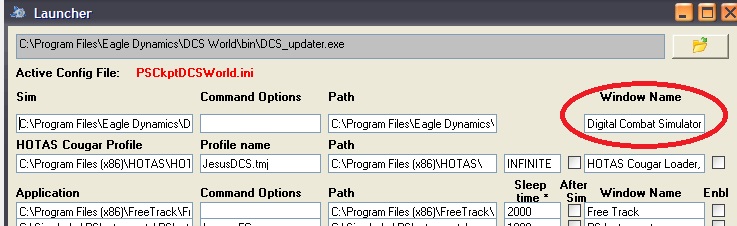
Verify you have the right Window Name in PSCockpit/Launcher page:


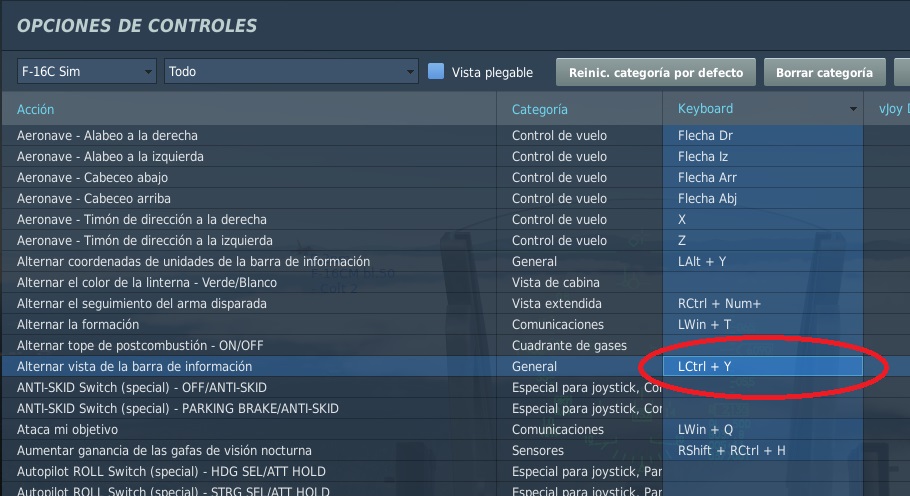
To test that the commands are sent correctly, open DCS Control Window and check that the correct key combination sent is highlighted:


Known issues: When in flight, some of the commands are not received correctly. It seems that DCS needs some consolidation time. You can download the PSCockpit v105WIP here

Errors in LuaExportDCS subroutine

Some errors of “LuaExportDCS subroutine” received in the messages pane of PSCockpit are caused by the impossibility of opening the data transfer file between PSCockpit and DCS.

You can solve this issue by adjusting some of the timers either in PSCockpit and PSCockpitExport.lua file.

In PSCockpit, increase the timer “Sim data”:


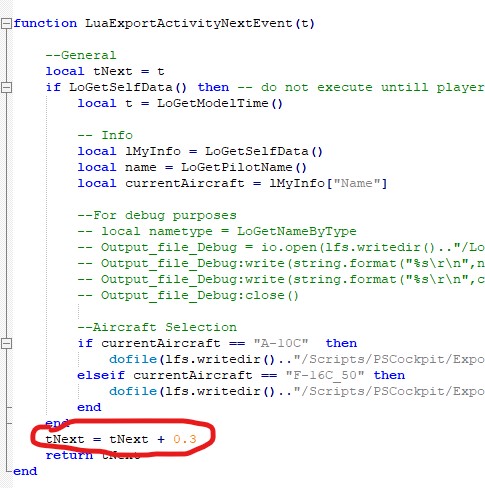
In PSCockpitExport.lua file, increase the timer tNext:


Any comments will be appreciated to improve this troubleshooting guide.

If any of you is still having any issues, I’m opened to review your configuration through TeamViewer. Please, send me an email to set a meeting.

Regards and Happy New Year!

Shep

PSCockpit and PSCockpit Displays&Gauges Systems 11th Run!!!

Time to launch a new run of the PSCockpit System!!
Those of you who don’t know yet how this system can handle, please read the following links
PSCockpit System: PS Tools: PSCockpit 9th Run (psfalcon.blogspot.com)

PSCockpit Displays and Gauges: PS Tools: Displays & Gauges (psfalcon.blogspot.com)

More information, downloads and guides at:
PS Tools: PSCockpit System Up to Date Software, Firmware, Guides and Boards (psfalcon.blogspot.com)

This run features the new Trim and Trim Indicator pcbs:

Time to launch a new run of the PSCockpit System!!

Those of you who don’t know yet how this system can handle, please read the following links
PSCockpit System: https://psfalcon.blogspot.com/2020/01/pscockpit-9th-run.html

PSCockpit Displays and Gauges: https://psfalcon.blogspot.com/search/label/Displays%20%26%20Gauges

More information, downloads and guides at:
https://psfalcon.blogspot.com/2015/05/pscockpit-system-up-to-date-software.html

This run features the new Trim and Trim Indicator pcbs:


More info about these boards to follow.


PSCockpit System Prices:
The prices of the PCB’s already mounted and tested are the following:
- Main PCB: 60 €
- Digital expander for 40 inputs/outputs: 33 €
- Digital expander 16 inputs/outputs: 10 €
- Steppers/Other voltage outputs pcb: 28 €
- 7 segment displays pcb for 6 displays: 18 €
- Analogue pcb for 4 inputs/ 1 output: 20 €
- Yellow OLED display (85mm x 40mm), 256x64 for DED or PFL: 65 €
- I2CtoSPI pcb: 25€
- Aircore Controller pcb: 24€
- Aircore pcb: 15€
- Vibration motors pcb: 38€
- I/O Enhancement pcb: 6,5€
- Caution Panel board: 40€
- UHF board: 90€
- ICP pcb Rev 1: 90€
- CMDS board (with 2 rotary switches 30º & 45º, no toggles, no displays): 80€
- CMDS options:
- Miniature toggles 6 mm diam. (1 with locking lever): 50€
- SGL2016 displays Not available
- HDLG-1414 displays: 35€ (each)
- 7 segment displays pcb with 8 displays: 35€
- TWP board: 40€
- TWA board: 20€
- X40 stepper board: 20€
- PWM board: 20€
- ELEC board: 50€
- AUDIO1 & AUDIO2 board: 100€

New boards:
- TRIM board: 80€
- TRIM INDICATOR board: 15€

PSCockpit Displays&Gauges System Prices:
The prices of the PCB’s already mounted and tested are the following:
- Displays & Gauges pcb: 55€
- X27 stepper pcb: 15€
- Eyebrow lights pcb: 15€
- Indexer pcb: 15€
- Engine Gauges for Aircores with electronics for PSCockpit System pcb: 90€
- Engine Gauges for X27 or Aircores without electronics: 65€
- Hyd pcb: 15€

Other components by demand:
- Wire and connectors
- Engine Gauges, Eyebrow and Indexer panels
- Gauges panels
- Stepper motors X27
- Aircore Motors

- Shipments: 10€/ 18€ / 28€ depending on the total weight order and country


Time Line:
- Orders and payments will be accepted until Jan. 30th. 2022
- Only direct bank transfers. Sorry for the inconvenience.
- Delivery: Starting March 2022

Thanks everybody for your support and have a New Year,
Shep

Saturday, January 16, 2021

PSUdp Software V.1.0.2 Update for Falcon BMS 4.35 and DCS 2.5.6

 This application extracts the flight data from Open Falcon, Falcon AF, Falcon BMS and DCS simulators acting like a server and send this data to an android mobile device running the client application PSGauges V3 trough the TCP/UDP net protocol.

You can also export the data to one of your PC monitors.

PS UDP Falcon supports 10 clients connected at the same time so you can use five different android devices. Five of them are used for flight data. The other five are used to export views: one for the left MFD, one for the right MFD, one for the HUD, one for RWR and one for HMS.

You can customize your Export Views for different sims

PSGaugesV3 client application needs Android 4.0
 
Change log:
 
PSUdp V.1.0.2
- Help updated for BMS 4.35 Extraction
- Shared Memory updated for BMS 4.35
- Export file updated for DCS 2.5.6
- Added Codejock libraires in the Setup.exe
- RTT Export updated for BMS 4.35
- Const iFirmwareVersion = 10601 to force generating DEDInvert in LuaExportDCS
- FD.FTIT now not depending on RPM
- FD2.AAUZ substitute FD.ShipDown in FalconBMS for correct reading of the Altimeter
- Option to control the Instrument lights by the sim

 You can download the installation file here: Download

Do not forget to install and run this version with admin rights!

Installation notes:
- Unrar the file
- Install PS UDP in your computer with PSUdpV102SetUp.exe
- Install PSGaugesV3.apk in all your favorite android devices
- Read HelpV102.txt!!
- Enjoy

Regards,
Shep
PSCockpit Displays & Gauges software V1.0.0

You can now download the new PS Cockpit Displays & Gauges Software V.1.0.0 to control and config your PS Cockpit Displays & Gauges pcb: Download

The software is ready for Falcon BMS 4.35 and DCS 2.5.6.

Do not forget to install and run this version with admin rights!

Enjoy!!

Shep

PS Cockpit Software V.1.0.4 Update

 The new version V.1.0.4 auto installable version of the PS Cockpit Software is available for download!!


Do not forget to install and run this version with admin rights!

You can download it at: Download

No need to update the firmware of the Main Board. Last firmware version is 1.6.4, visit: PS Cockpit Firmware Update v 1.6.4

PS Cockpit Software V.1.0.4 Changelog:
- Added configuration for the new Engine Motors, Eyebrows and Indexers pcbs (IOLayout) 
- Added IFF digit wheels management (F16Model) (Thanks Johannes) 
- Added Clock stepper data to use it with X10 016A stepper motor (F16Model)
- Added AAUZ, AAUZxx000 and AAUZ0000x steppers data (F16 Model)
- Added Altxx000 and Alt0000x steppers data (A10C Model)
- Shared memory updated for Falcon BMS 4.35
- Bus Power bits added to Special I/Os in the F16 Model to use them in any output.  (Thanks Andreas).
- FD.Yaw is now used for servos/steppers/aircores for magnetic heading
- Corrected flash leds in test mode
- Corrected ELEC panel configuration (IOLayout)

Thanks all for your patient!!!

Regards,
Shep
Wednesday, December 16, 2020

Displays and Gauges pcb's with Panels

Hi to all!

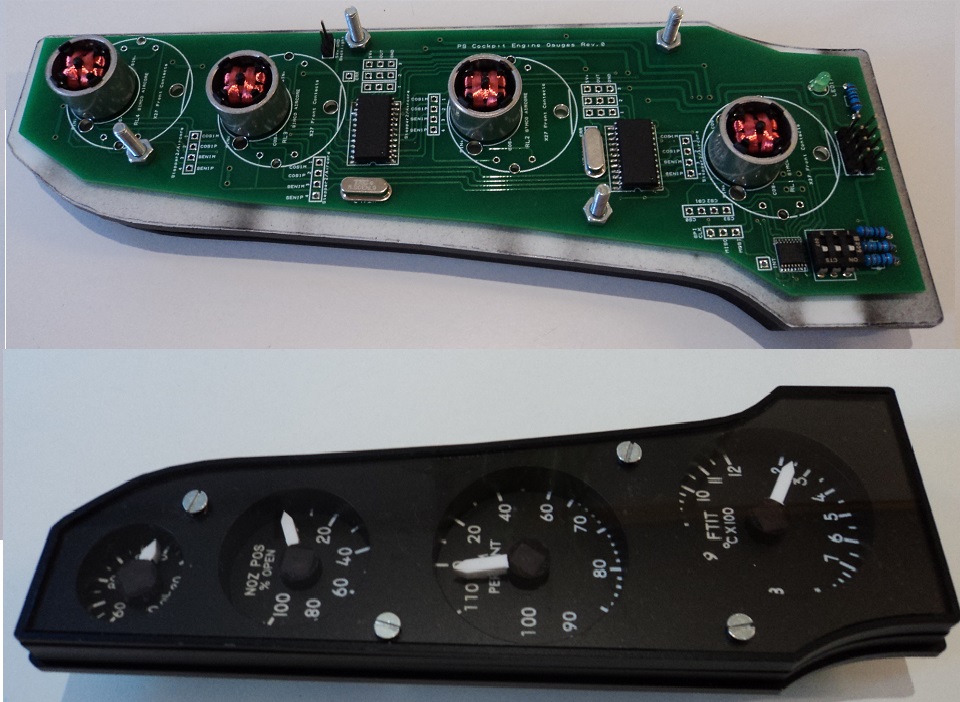
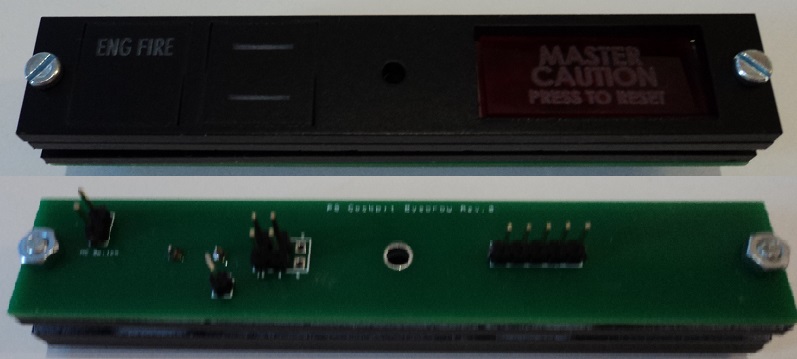
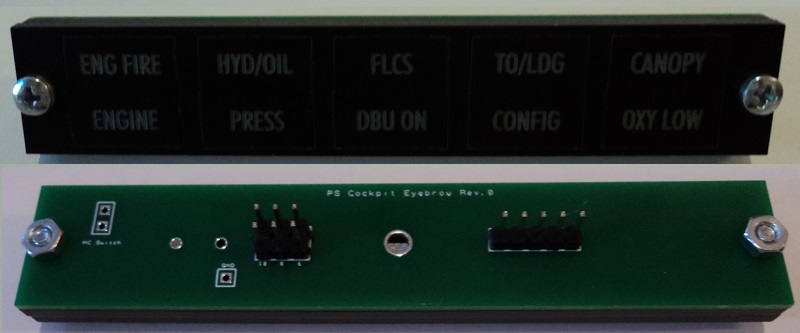
Here are some pictures of the new boards already mounted with panels thanks to Hispapanels:


Lettering of above panel to be corrected!


If somebody would like to have the panels shipped with the pcbs shipment, please contact me.

I have corrected some minor issues of the software and everything seems to be ok. Shipments will begin this week. Thanks all for your patient.

Regards,
Shep
Monday, November 30, 2020

10th Run Pcbs (2)

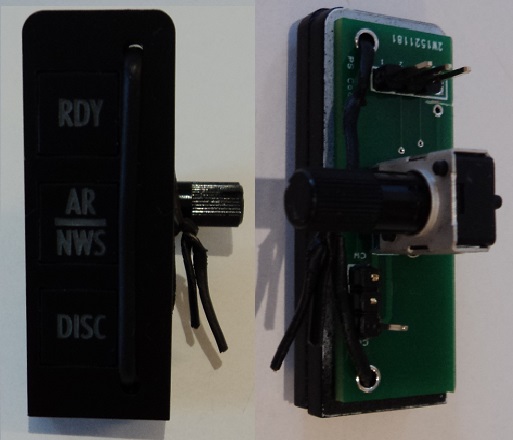
Engine Motors and Indexer pcbs have arrived :


Waiting for some components and the final tests of the software to begin shipments next week.
Please be patient for your turn.

Thanks all for your support!

Regards,
Shep
Monday, November 16, 2020

10th Run Pcbs (1)

Hi to all!

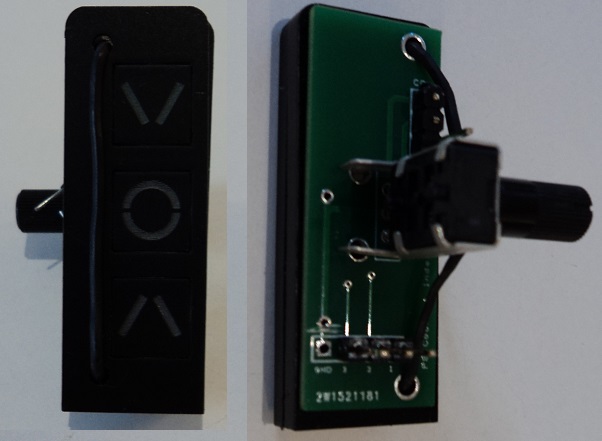
Displays&Gauges, X27, HYD and Eyebrow pcbs have arrived!!


Still waiting for the indexers and motor gauges pcbs to arrive.

Hopefully I will begin shipping in a couple of weeks.

Regards,
Shep
Sunday, October 11, 2020

 Time for taking orders are near to finish.

Contact me via PM if you still want to place an order.

Regards,

Shep

Wednesday, October 7, 2020

X27 and HYD PCBs

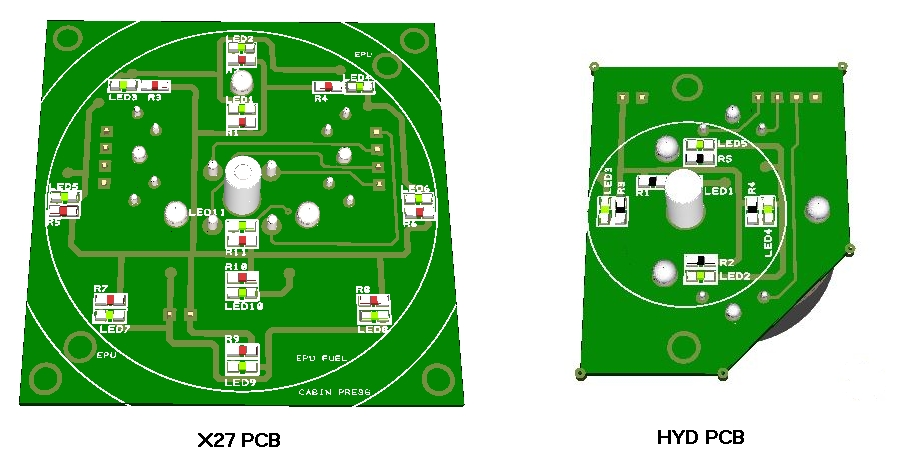
The X27 and HYD pcbs are designed to hold either X27 Stepper Motors or Aircore motors and they come with SMD leds and resistors for backlight.

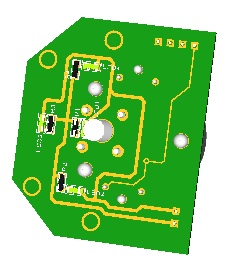
The X27 pcb can be used for EPU Fuel, Cabin Press and Liquid Oxygen indicators of the F16 while the HYD pcbs can be used for HYD indicators of the F16.

Both pcbs has accessible pins for the motors so it can be used with PSCockpit System or with any other system.


You will find in the backside three connectors:
- (1) Connector for the X27 Stepper Motor/Aircore Motor
- (1) Connector for the backlight leds

To complete the gauges with the X27 and HYD pcbs you must add by yourself the scale plate, needle and gauge cover.

You can check the dimensions of the the X27 and HYD pcbs at:
https://psfalcon.blogspot.com/2020/01/pscockpit-9th-run.html

Regards,
Shep

Monday, September 28, 2020

Engine Gauges pcb


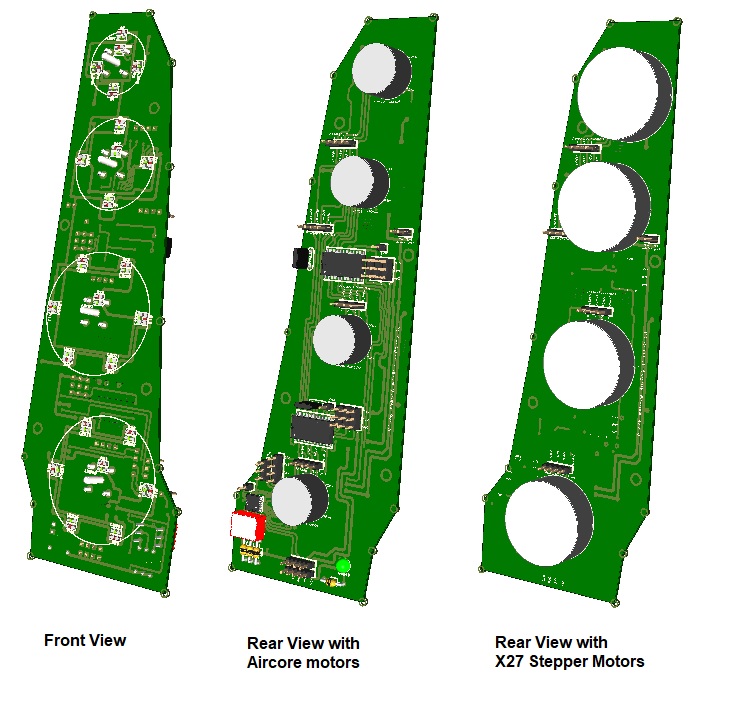
The Engine Gauges pcb has been designed to hold and drive (4) Aircore motors to simulate the F16 engine gauges -OIL, NOZ POS, RPM and FTIT- and backlight the gauge dials.

Alternatively, the board can be used to hold (4) X27 stepper motors. In this case, the board will be supplied without electronics. Be aware that the X27 stepper motors response driven with the PSCockpit System is quite less sensitive than the Aircore motors. The X27 stepper motors are recommended for low speed gauges as EPU Fuel and others.


The board comes with the following elements:
- (1) I2CtoSPI chip to be connected to the Main Channel of the PSCockpit Main Board or to one of the connectors of the PSCockpit Displays&Gauges Board and its elements (resistors, connectors, …) to work with 5V
- (2) driver chips for Aircore motors
- (25) SMD leds for gagues backlight.

You will find the following elements in the backside:
- (1) Connector for backlight illumination.
- (2) Connectors for I2C channel.
- (1) Mini-switch to select I2C channel address

To complete Engine Gauges pcb you must add by yourself the front panel, gauge dials, pointers and Aircore motors.

The Engine Gauges pcb can be used with the HISPAPANEL “F-16 Engine gauges
Model MC11” panel.

You can check the dimensions of the Engine Gauges pcb at:
http://www.mediafire.com/file/wz5cbmbtq1cja16/EngineGaugesPCB-A3.pdf/file


Regards,
Shep